
Fonds
Die Fondsverwaltung Seite gibt Ihnen als Administrator die Möglichkeit, alle Ihre Fonds zu erstellen und zu verwalten. Alle Änderungen, die Sie hier an Fonds vornehmen, werden automatisch im benutzerdefinierten Strukturfeld im Filter Portfolio-Fenster angezeigt.
Zugriff auf die Fondsverwaltung
Wählen Sie das Symbol Admin-Panel im linken Menü aus.
Wählen Sie die Fonds unter Benutzerdefinierte Struktur.
Die Liste aller verfügbaren Fonds wird automatisch geöffnet.
Einen Fonds erstellen
Um einen neuen Fonds zu erstellen:
1. Klicken Sie auf die Schaltfläche Hinzufügen über der Tabelle.
2. Füllen Sie die erforderlichen Felder aus:
Name
Gültigkeitsdauer (Gültig von / Gültig bis)
3. Füllen Sie alle optionalen Felder aus, wenn Sie weitere Details hinzufügen möchten. Diese Felder sind nicht obligatorisch.
Fügen Sie den Fonds zur benutzerdefinierten Struktur hinzu
Nach der Erstellung eines Fonds sehen Sie eine Nachricht, die erklärt, dass der Fonds zur benutzerdefinierten Struktur hinzugefügt werden muss, bevor Sie Gebäude zuweisen können.
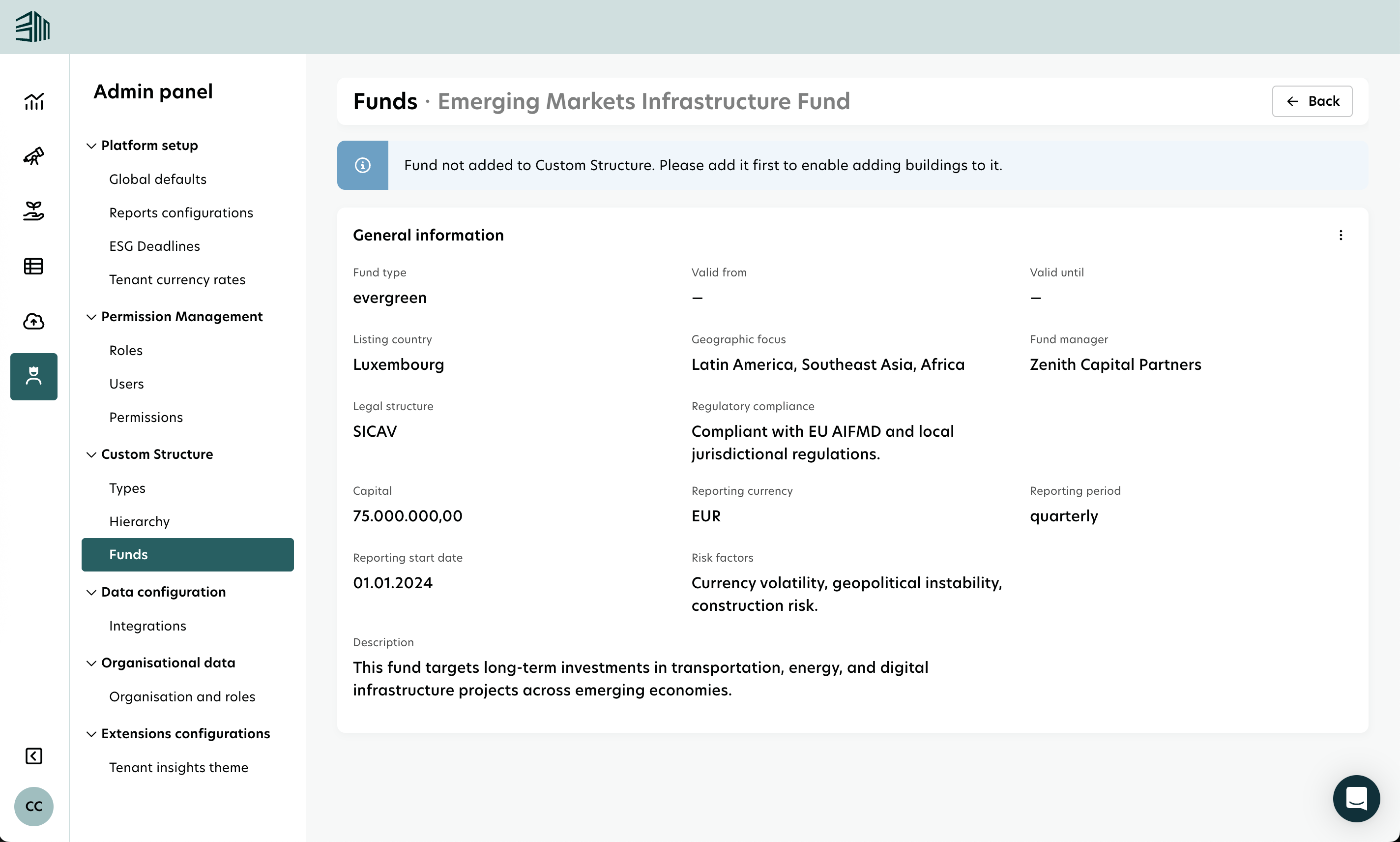
Um dies zu tun:
Gehen Sie zur Hierarchie Seite im Admin-Panel.
Klicken Sie auf das + Symbol, um einen Fonds hinzuzufügen.
Geben Sie für den Knoten typ Fonds ein.
Ein Dropdown-Menü zeigt alle verfügbaren Fonds an. Wählen Sie den aus, den Sie hinzufügen möchten.
Sobald der Fonds zur benutzerdefinierten Struktur hinzugefügt wurde, können Sie Gebäude zu dem Fonds in der Fondsverwaltung Seite zuweisen.
Verwalten Sie Gebäude und Fondsverlauf
In der Fondsverwaltung finden Sie zwei Bereiche:
Gebäude: Alle Gebäude, die zu dem ausgewählten Fonds hinzugefügt wurden.
Fondsverlauf: Eine Liste aller Änderungen, die an diesem Fonds vorgenommen wurden.
Beim Hinzufügen eines Gebäudes zu einem Fonds:
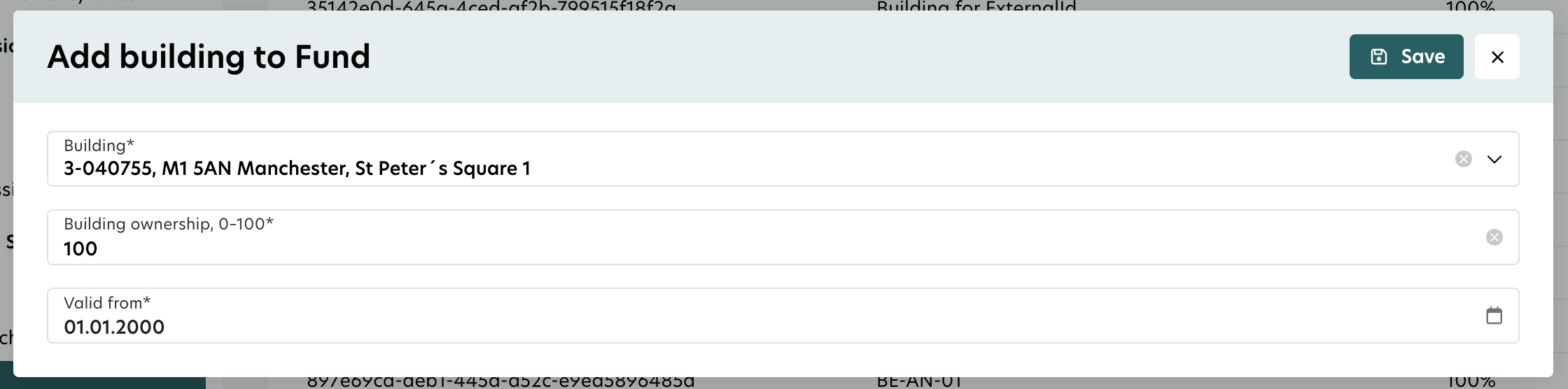
Klicken Sie auf Hinzufügen im Gebäude Bereich.
Wählen Sie im Popup-Fenster eines der vorhandenen Gebäude aus der Dropdown-Liste aus.
Geben Sie einen Wert zwischen 0 und 100 ein, um den Eigentumsanteil anzugeben.
Füllen Sie das Feld Gültig ab aus.
Speichern Sie Ihre Änderungen. Der Fondsverlauf wird automatisch aktualisiert.
Eigentumsregeln
Sie können kein Eigentum für ein zukünftiges Datum festlegen. Das System erlaubt keine Aktualisierung historischer Aufzeichnungen im Voraus.
Die Aktualisierung des Eigentums mit einem Datum in der Vergangenheit ist erlaubt und wird den aktuellen Eigentumsanteil korrekt anpassen.
Entfernen oder Übertragen von Gebäuden
Sie können ein Gebäude von einem Fonds nicht löschen, da das System eine vollständige historische Aufzeichnung für Berichte wie SFDR aufrechterhalten muss. Wenn ein Gebäude einen Fonds verlässt:
Setzen Sie seinen Eigentumsanteil auf null (das stellt einen Verkauf dar).
Das Gebäude bleibt in der Geschichte mit dem Fonds verbunden, aber das aktuelle Eigentum beträgt null.
Sie können ein Gebäude auch in einen anderen Fonds übertragen:
Wählen Sie den neuen Fonds aus.
Geben Sie an, wann die Übertragung stattfand.
Das System setzt den Eigentumsanteil des alten Fonds automatisch auf null und fügt das Gebäude mit seinem aktualisierten Eigentum dem neuen Fonds hinzu.
Die benutzerdefinierte Struktur wird aktualisiert, um die Änderung wiederzugeben.