
Retrofit-Szenarien
Das Werkzeug für Retrofit-Szenarien hilft Ihnen, verschiedene Wege zur Dekarbonisierung Ihrer Gebäude zu erkunden, sodass Sie das richtige Gleichgewicht zwischen Umweltauswirkungen und finanziellen Zielen finden können. Sie können Retrofit-Szenarien direkt auf der BuildingMinds-Plattform erstellen, bearbeiten, duplizieren und löschen, was Ihnen Flexibilität gibt, um Strategien zu testen und zu vergleichen.
Greifen Sie auf die Liste der Retrofit-Szenarien zu
Wählen Sie das Symbol Planung und Prognose im linken Menü.
Wählen Sie Retrofit-Szenarien unter CRREM und Retrofits.
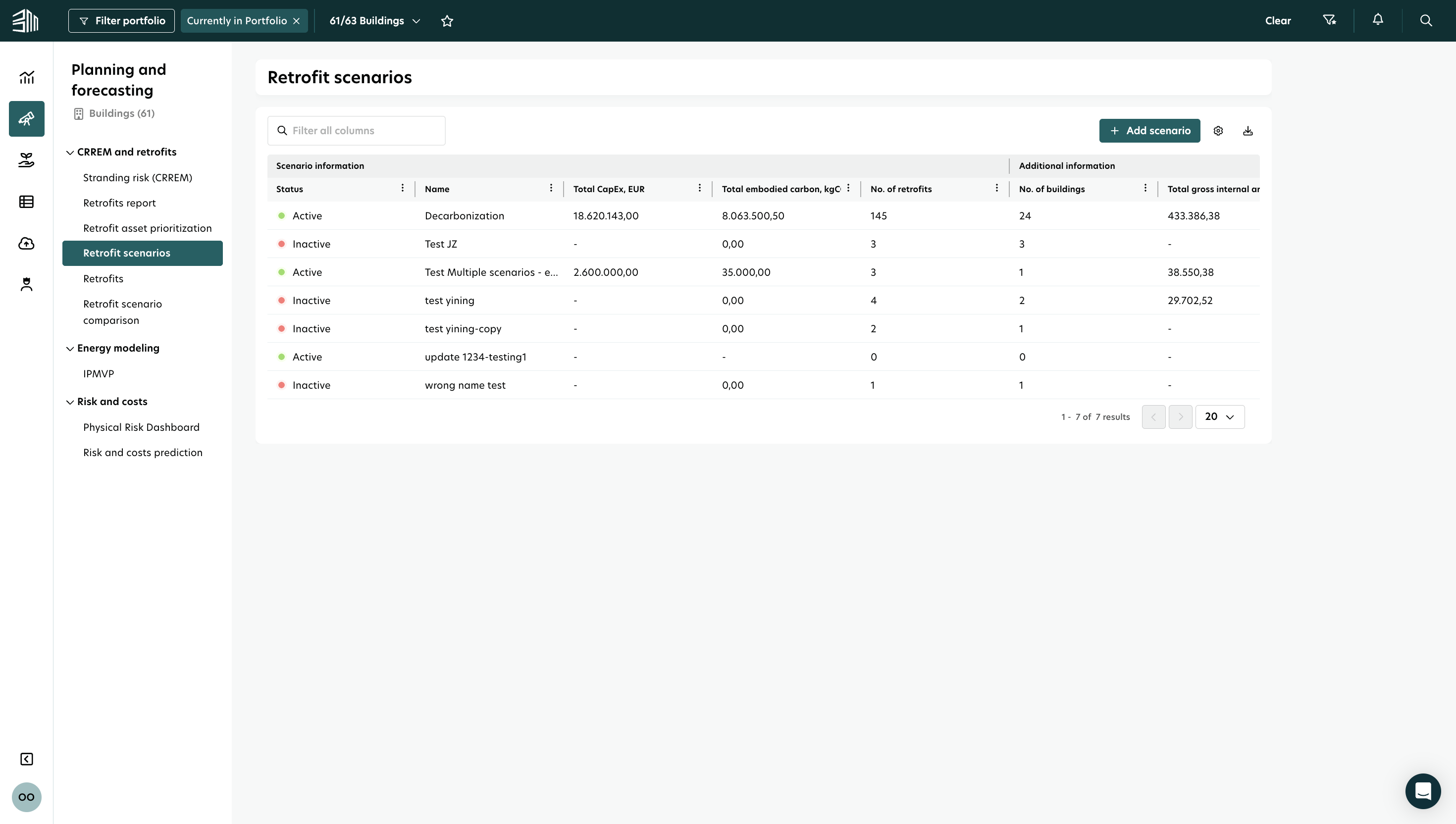
Sie sehen eine Liste aller Szenarien basierend auf Ihrem Portfoliofilter. Jedes Szenario enthält wichtige Details wie:
Status und Name
Gesamte Kapitalkosten und verkörperter Kohlenstoff
Anzahl der Retrofits und der einbezogenen Gebäude
Bruttoinnenfläche und Marktwert
Verwalten Sie die Liste der Retrofit-Szenarien
Sie können die Liste der Retrofit-Szenarien mit diesen Optionen anpassen und verwalten:
Filter:
Verwenden Sie die Schaltfläche Portfolio filtern oben links auf der Seite.
Wenden Sie Filter auf bestimmte Spalten an oder verwenden Sie das Suchfeld für schnelle Ergebnisse.
Sortierung:
Sortieren Sie die Liste nach einer beliebigen Spalte, um Ihre Szenarien so zu organisieren, wie Sie es benötigen.Spalten ausblenden/anzeigen:
Blenden Sie Spalten aus, indem Sie das Menü im Spaltenkopf anklicken. Um sie wieder anzuzeigen, verwenden Sie das Menü Einstellungen in der oberen rechten Ecke der Liste.Export:
Exportieren Sie Ihre Liste der Retrofit-Szenarien als CSV oder Excel-Datei zum einfachen Teilen oder zur Analyse.Seitenwahl:
Wählen Sie aus, wie viele Elemente pro Seite angezeigt werden sollen, und navigieren Sie über die Schaltflächen am Ende der Liste durch die Seiten.
Neues Szenario hinzufügen
Das Standard-Szenario ist Dekarbonisierung - Sie können es nicht bearbeiten oder löschen, aber Sie können zusätzliche Szenarien erstellen, um Alternativen zu erkunden.
Um ein Szenario hinzuzufügen:
Klicken Sie auf Szenario hinzufügen.
Geben Sie die Pflichtfelder ein: Name und Status.
Klicken Sie auf Speichern.

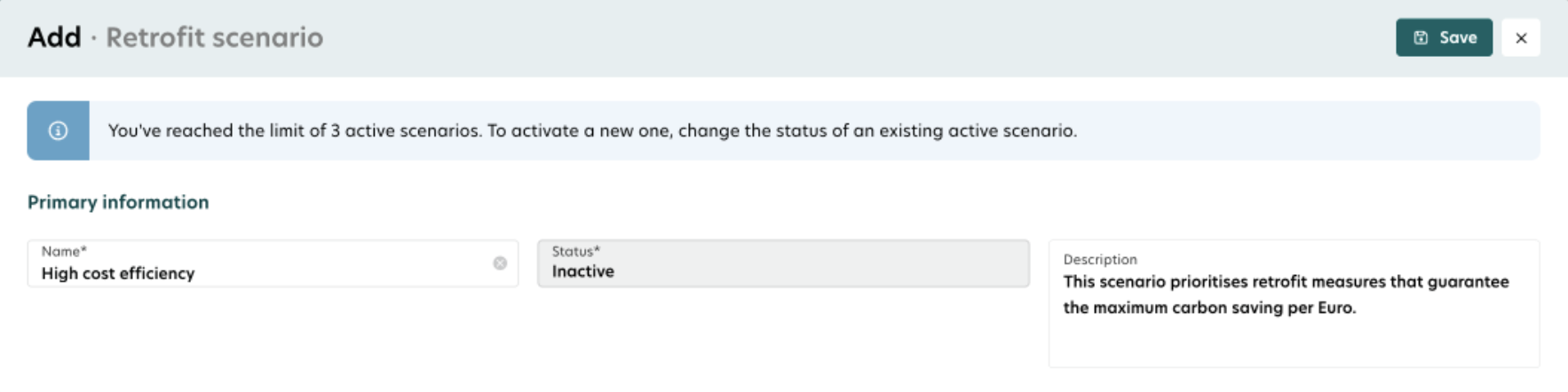
Sie müssen alle Pflichtfelder ausfüllen, bevor Sie das Szenario speichern können.
Sie können Nachrüstungen zu jedem Szenario hinzufügen, aktiv oder inaktiv. Aktive Szenarien zählen jedoch nur für die Nachhaltigkeitsberechnungen.
Sie können gleichzeitig bis zu 3 aktive Szenarien haben.
Ein Szenario bearbeiten
Um Änderungen vorzunehmen:
Fahren Sie mit der Maus über das Szenario und klicken Sie auf Bearbeiten.
Aktualisieren Sie die Felder und klicken Sie auf Speichern.
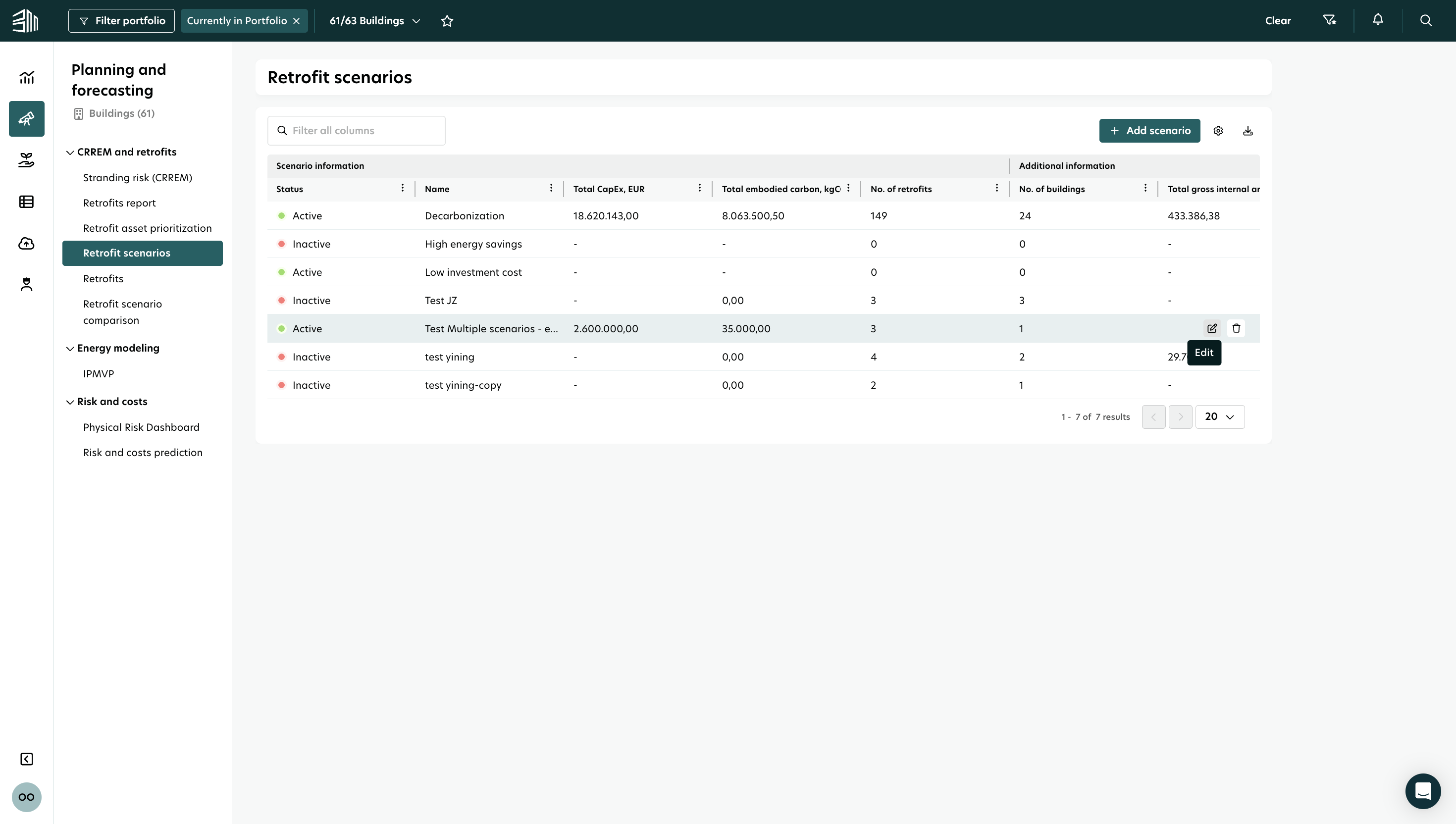

Sie können ein Szenario nicht auf Aktiv setzen, wenn Sie bereits 3 aktive Szenarien haben.
Ein Szenario duplizieren
Sie können ein vorhandenes Szenario zusammen mit all seinen Retrofits zur einfachen Iteration duplizieren. Das duplizierte Szenario und seine Retrofits sind vollständig getrennt und nicht mehr mit dem Original verbunden.
Um ein Szenario zu duplizieren:
Fahren Sie mit der Maus über das Szenario und klicken Sie auf Duplizieren.
Aktualisieren Sie die Details und klicken Sie auf Speichern.
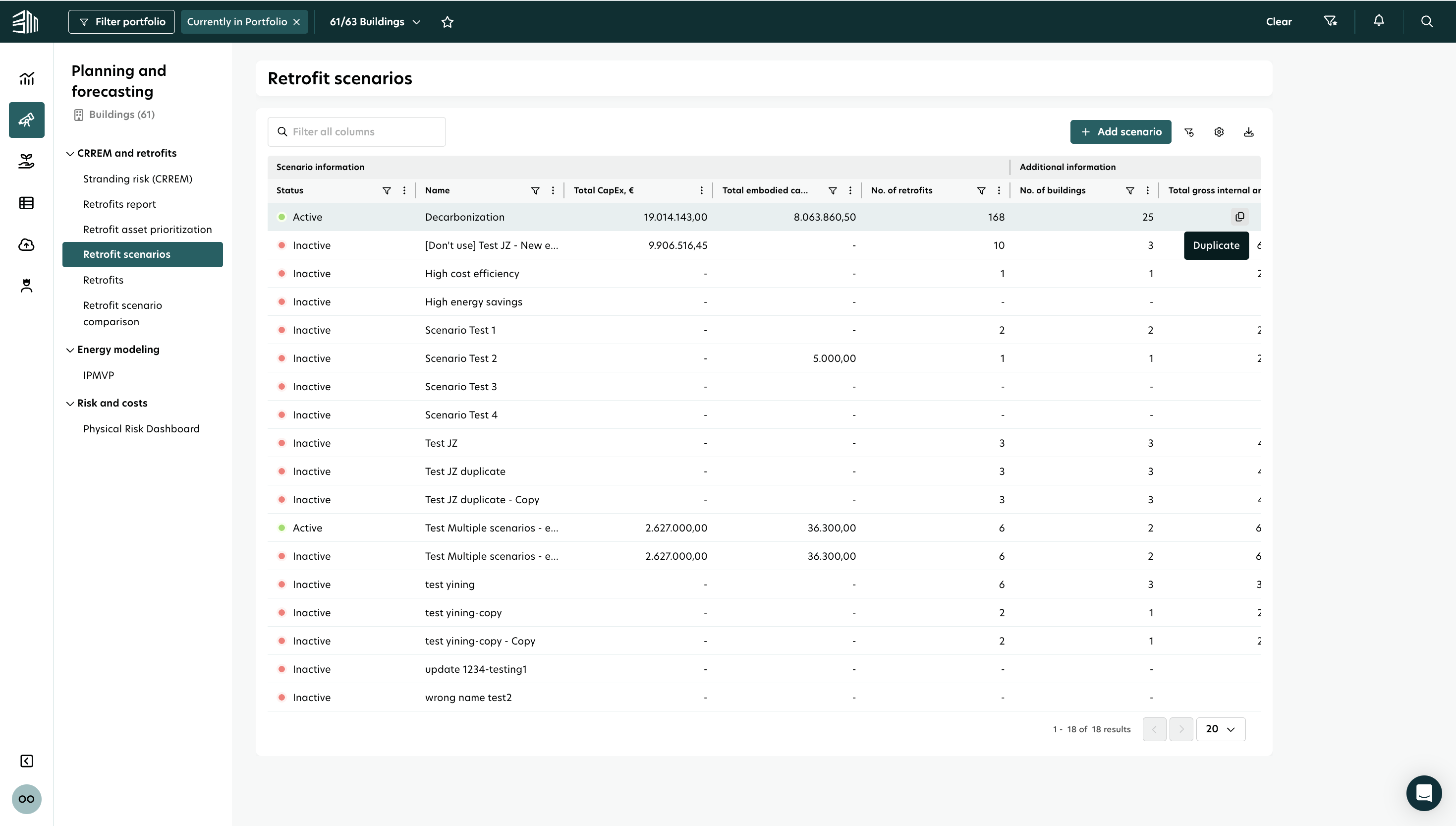
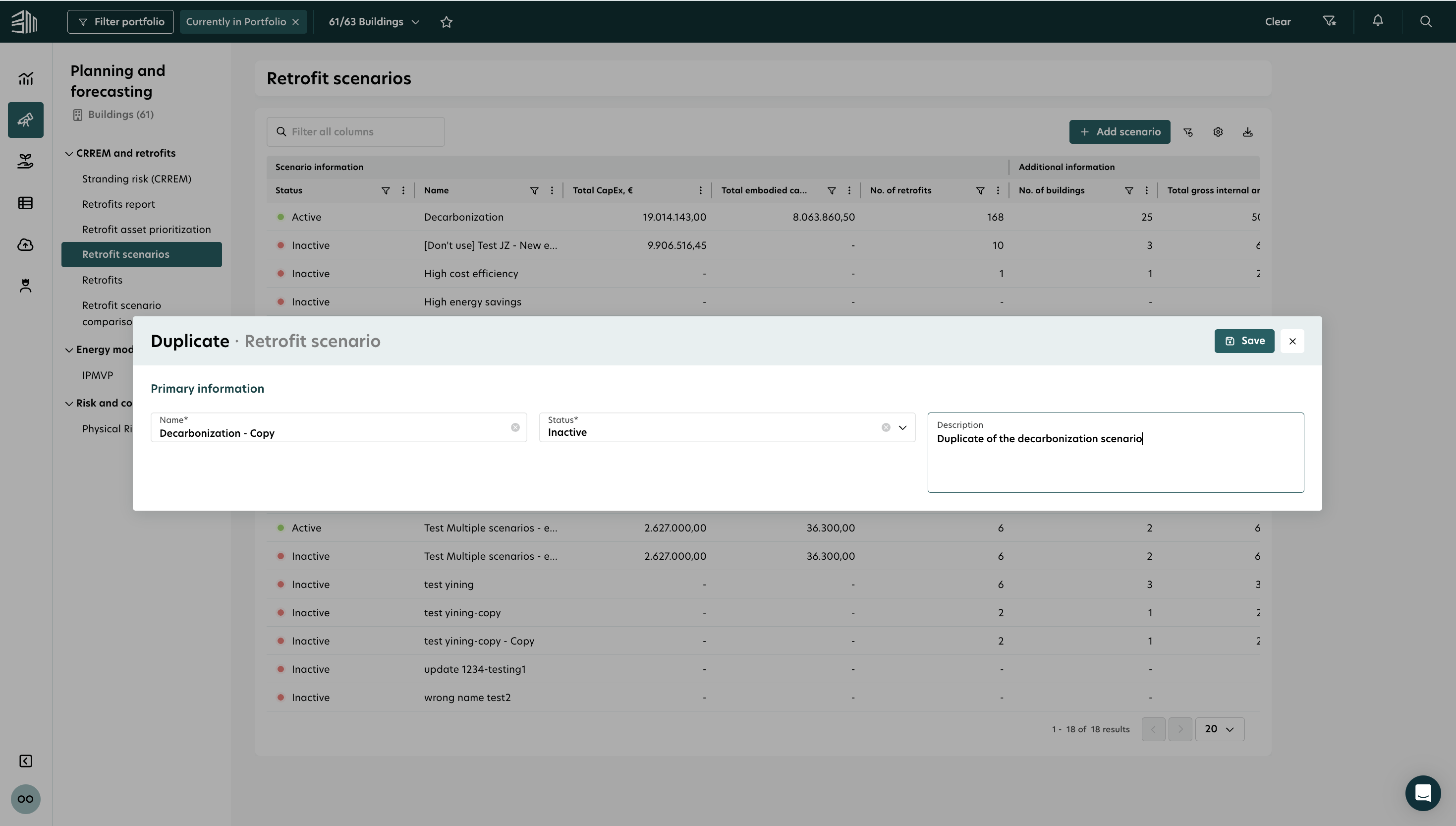
Jedes Szenario benötigt einen einzigartigen Namen.
Duplikate starten standardmäßig als Inaktiv .
Ein Szenario löschen
Um ein Szenario zu löschen:
Fahren Sie mit der Maus über das Szenario und klicken Sie auf Löschen.
Bestätigen Sie, indem Sie auf Löschen im Pop-up klicken.

Das Löschen eines Szenarios löscht auch alle seine Retrofits.