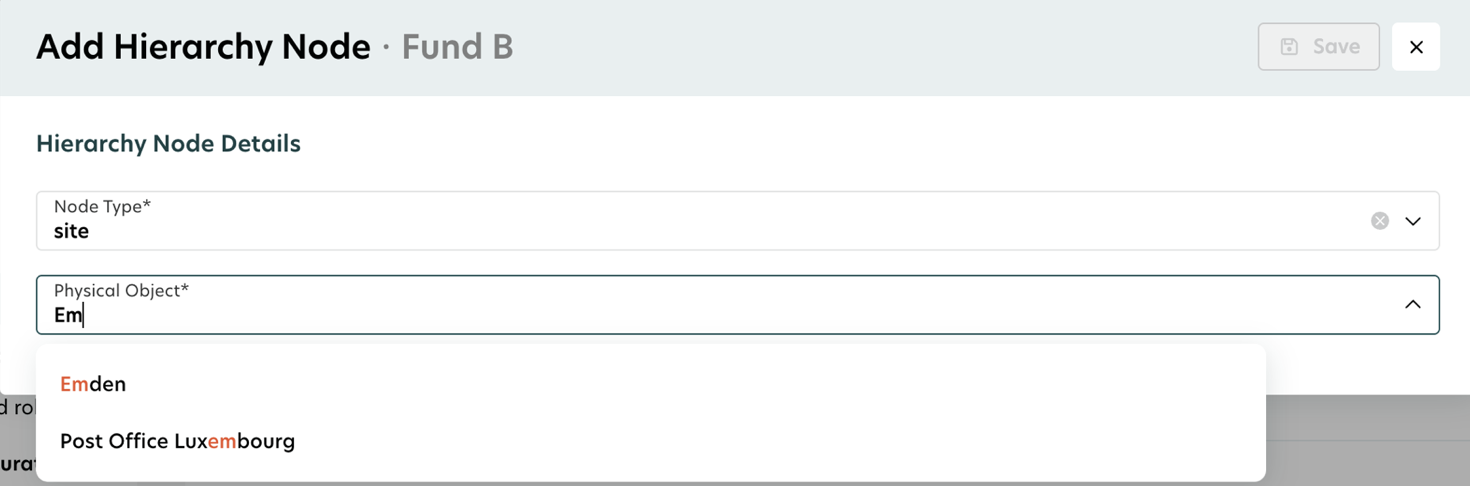
Benutzerdefinierte Struktur
Um die Ansicht der Liste Benutzerdefinierte Struktur im Abschnitt Portfolio filtern zu ändern, können Sie die Funktion Benutzerdefinierte Struktur nutzen.
Diese Funktion ermöglicht es Ihnen als Administrator, individuelle Strukturen zu erstellen und zu verwalten. Sie können vollständig anpassen, wie sie aussehen und entscheiden, was sie enthalten, in jedem von Ihnen bevorzugten Baumformat.
Alle Änderungen, die Sie an der Struktur im Administrationsbereich vornehmen, spiegeln sich automatisch im Fenster Portfolio filtern wider.
Eine Struktur verwalten
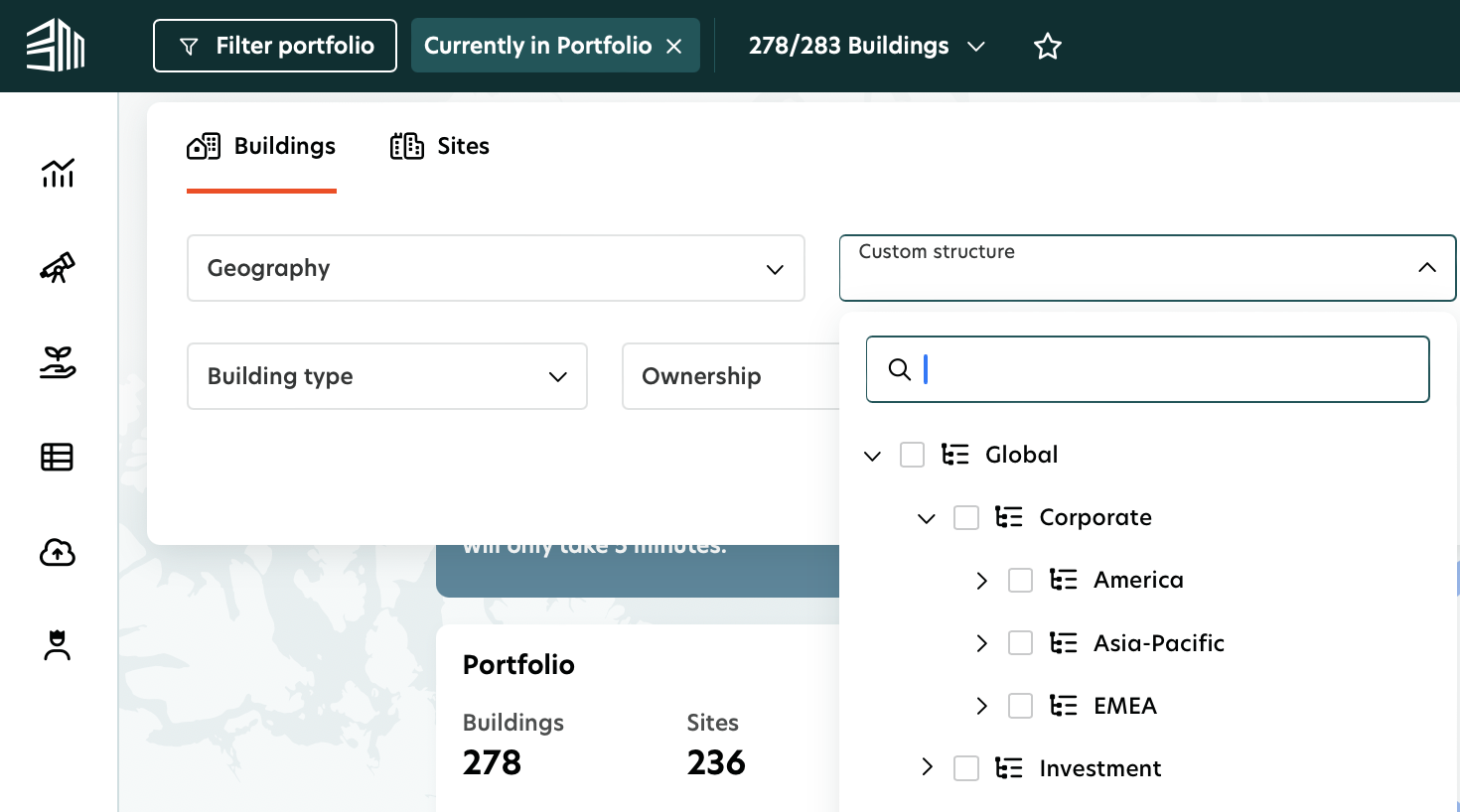
Die Erstellung und Verwaltung einer Struktur erfolgt über zwei Menüoptionen: Typen und Hierarchie.
In Typen erstellen Sie die Elemente für Ihre Liste, weisen den richtigen Typ zu und definieren, welche Elemente darunter fallen.
Gehen Sie dann zu Hierarchie, um anzuordnen, wie die Liste aussehen soll. Hier entscheiden Sie über die Reihenfolge und Platzierung von Gruppen und Untergruppen, um der benötigten Struktur zu entsprechen.
Typen
Auf der Seite Typen können Sie alle verfügbaren Typen, sowohl System- als auch individuelle, sehen.
Systemtypen werden automatisch erstellt und können nicht gelöscht werden.
Custom-Typen sind die von Ihnen erstellten und ermöglichen es Ihnen, festzulegen, welche Elemente darunter platziert werden dürfen.
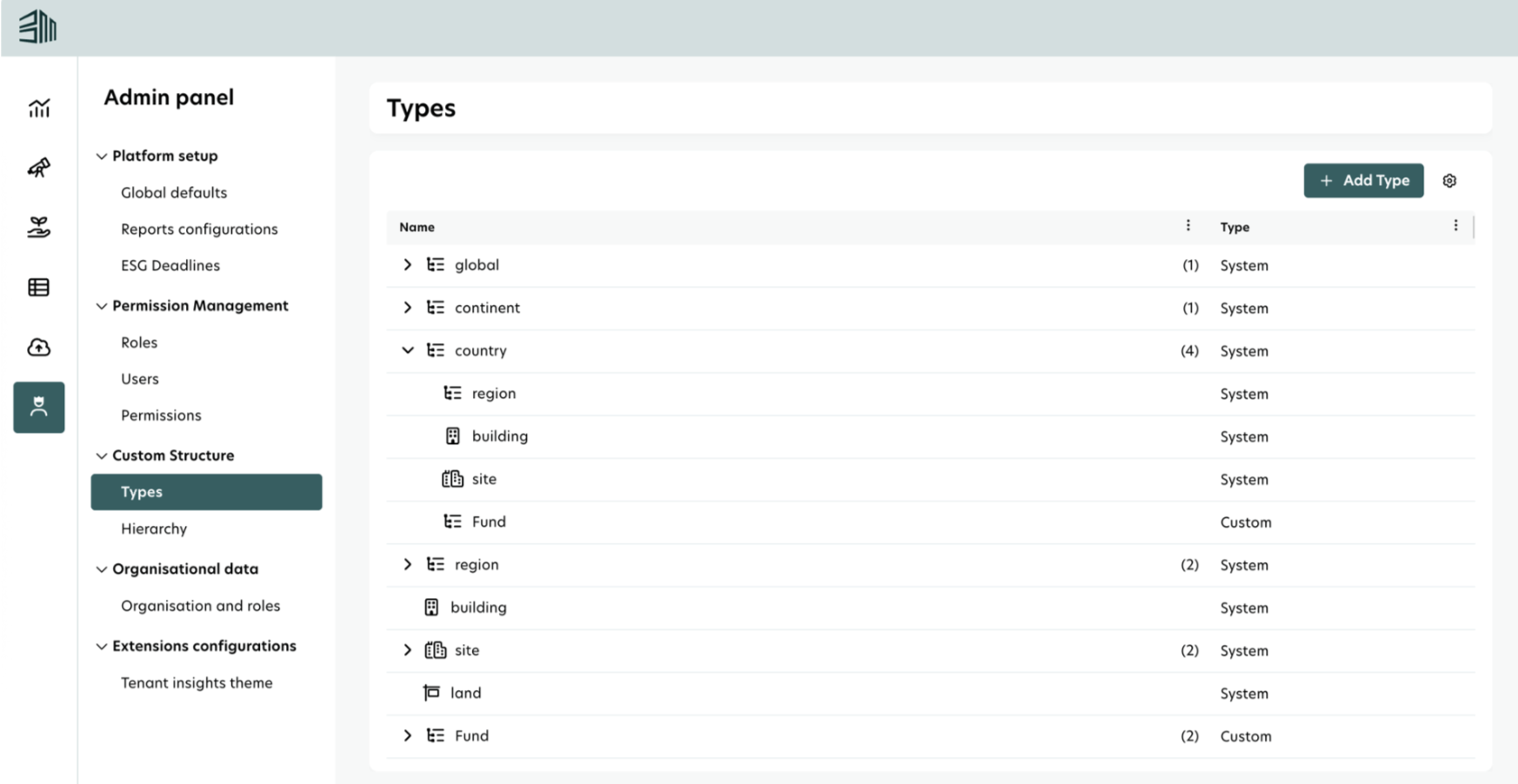
Einen neuen Typ hinzufügen
Wenn Sie einen neuen Typ hinzufügen, müssen Sie auch definieren, welche Elemente unter ihm platziert werden dürfen. Um dies korrekt zu tun:
Erstellen Sie zuerst alle Elemente, die Sie einschließen möchten (die, die unter diesem Typ erscheinen werden).
Weisen Sie dann diese Elemente dem Haupttyp zu, damit sie Teil seiner Gruppe werden.
Auf diese Weise folgt Ihre Struktur der richtigen Hierarchie und alles ist so organisiert, wie gewünscht.
Einen Typ bearbeiten
Sie können einen bestehenden Typ später aktualisieren, um mehr erlaubte Elemente hinzuzufügen, indem Sie über die Zeile fahren und das Bearbeiten Symbol anklicken , um das Bearbeitungs Fenster zu öffnen.
Einen Typ löschen
Beim Löschen eines Typs sollten Sie folgendes beachten:
Sie können Custom-Typen löschen, aber Systemtypen können nicht gelöscht werden.
Wenn ein Custom-Typ noch in der Hierarchie verwendet wird, müssen Sie zuerst alle verwandten Elemente aus der Struktur entfernen, bevor Sie ihn löschen können.
Hierarchie
Die Seite Hierarchie ist der Ort, an dem Sie anordnen, wie Ihre individuelle Struktur aussieht. Sie können den gesamten Baum erweitern und Gruppen sowie Untergruppen in der benötigten Reihenfolge organisieren.
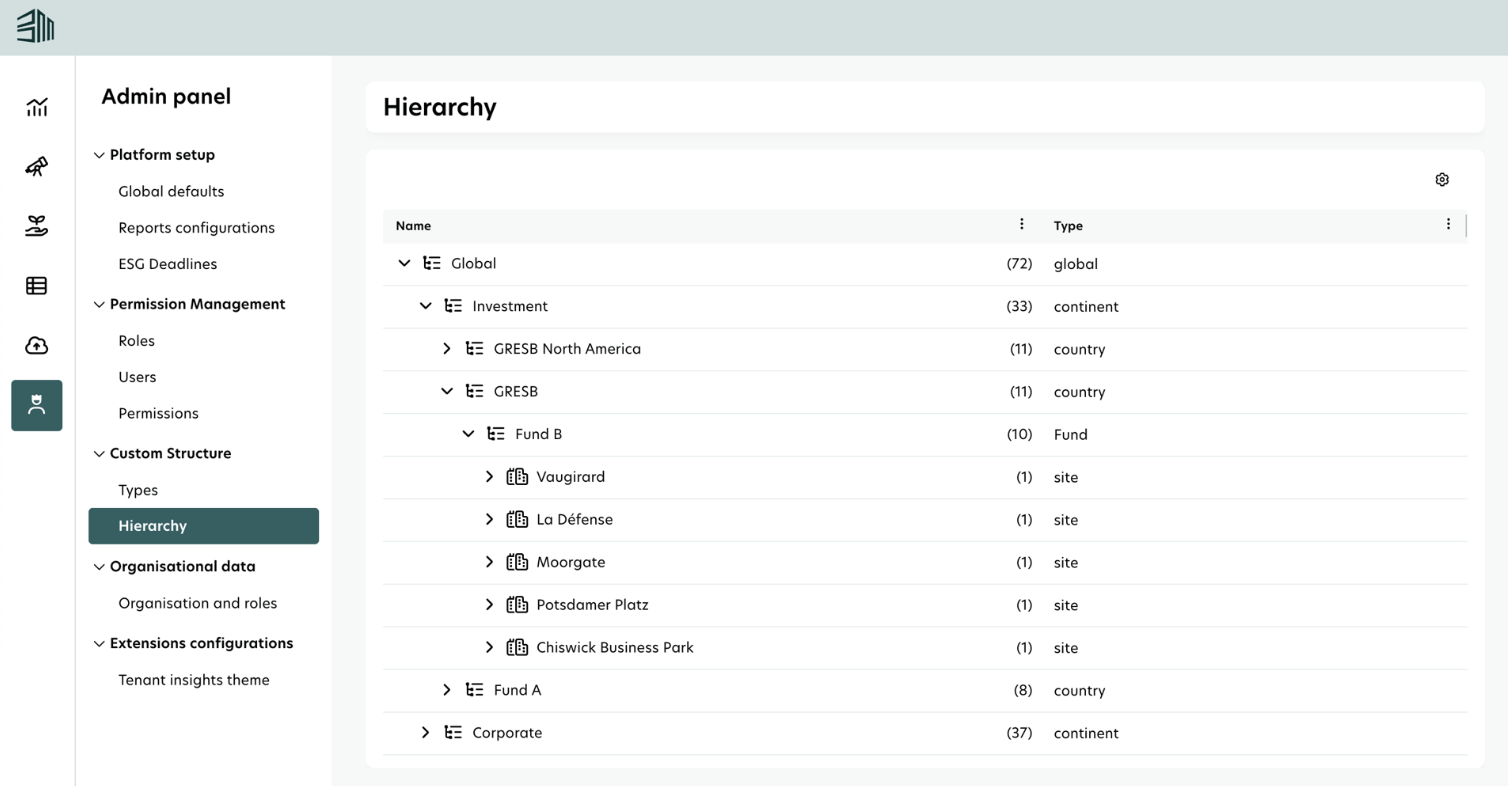
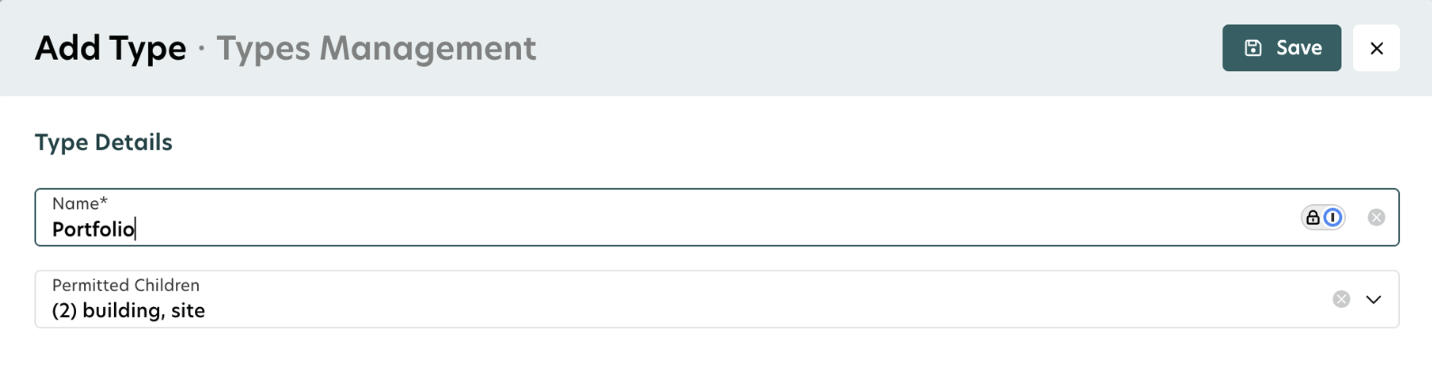
Sie können ein Element unter einer anderen Gruppe hinzufügen, solange diese Gruppe dies zulässt.
Wenn eine Gruppe keine Elemente unter ihr zulässt, können Sie keine weiteren hinzufügen.
Sie können nur Elemente löschen, die keine Unterelemente haben.
Das System zeigt nur die Typen an, die unter der gewählten Gruppe erlaubt sind.