
Retrofit planning
After you create a retrofit scenario, you can plan and manage retrofits within it. This article explains how to create, view, edit, and delete retrofits in a specific scenario. To perform these actions, you need the appropriate retrofit permissions.
A retrofit can only be assigned to one scenario.
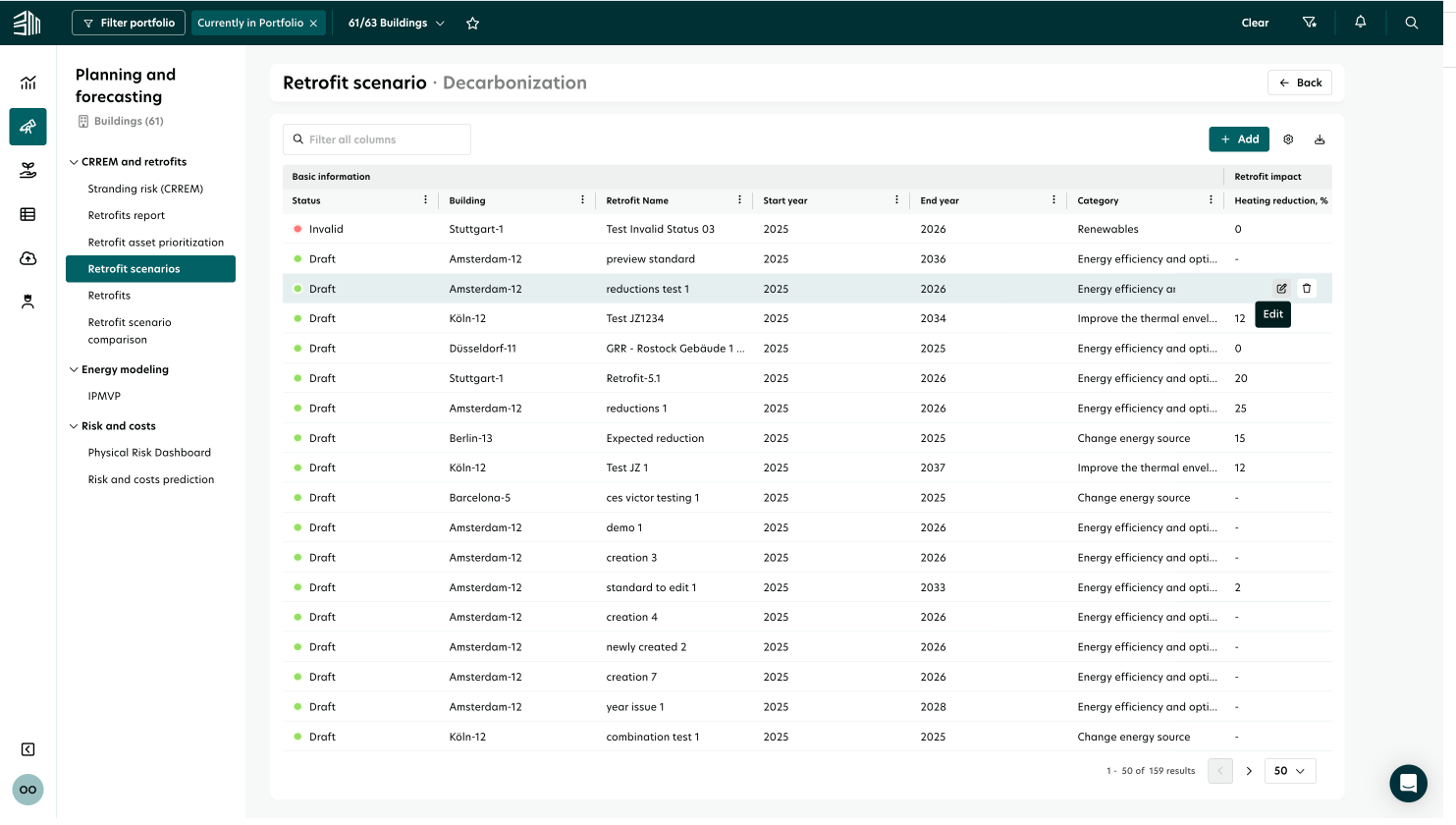
Access the list of retrofits in a scenario
Click the specific scenario on the Retrofit Scenarios page to open its detailed view.
The detailed view shows all retrofits in that scenario based on your portfolio filter.
To go back to the scenario list, click the Back button at the top right of the page.
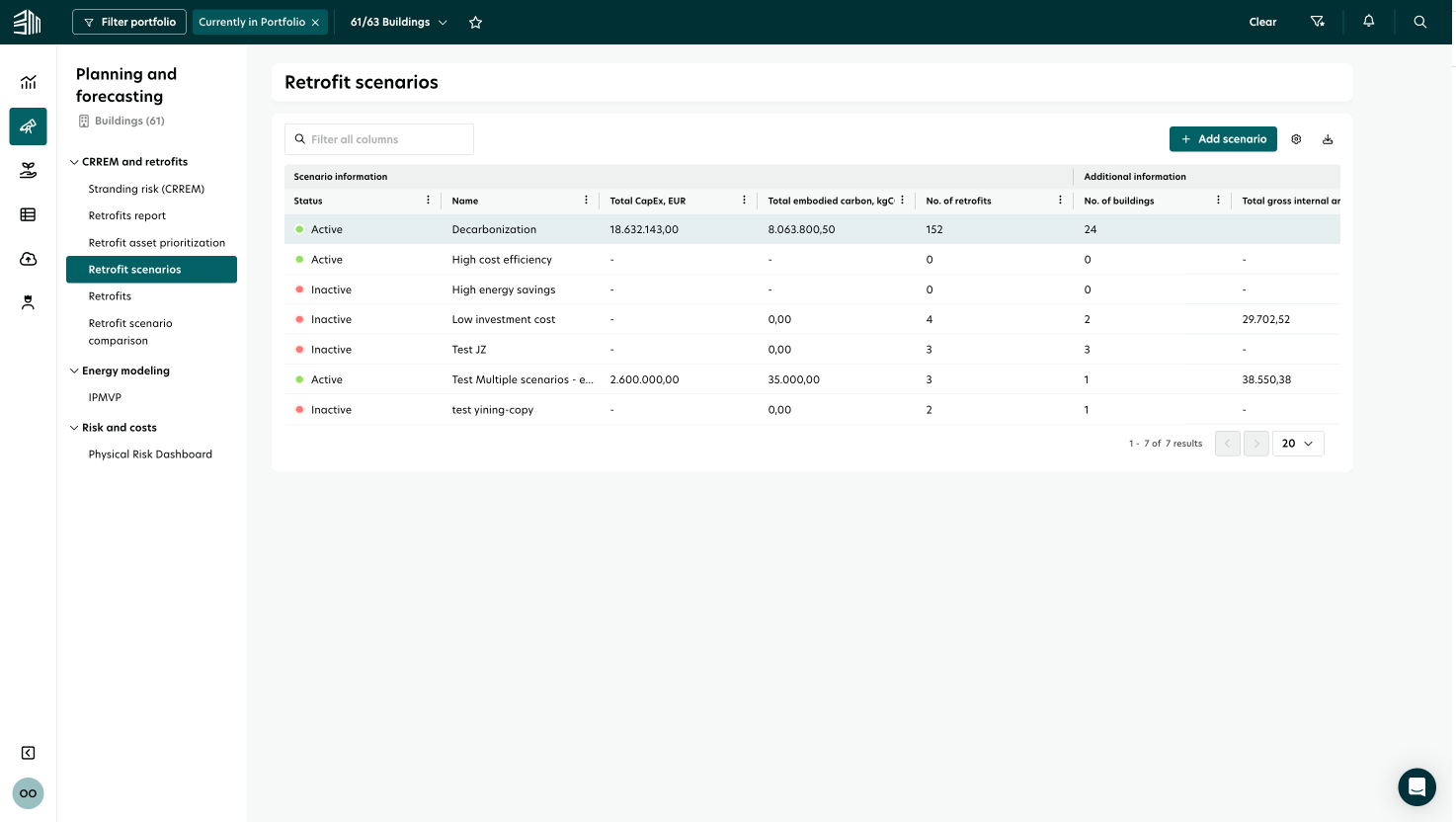
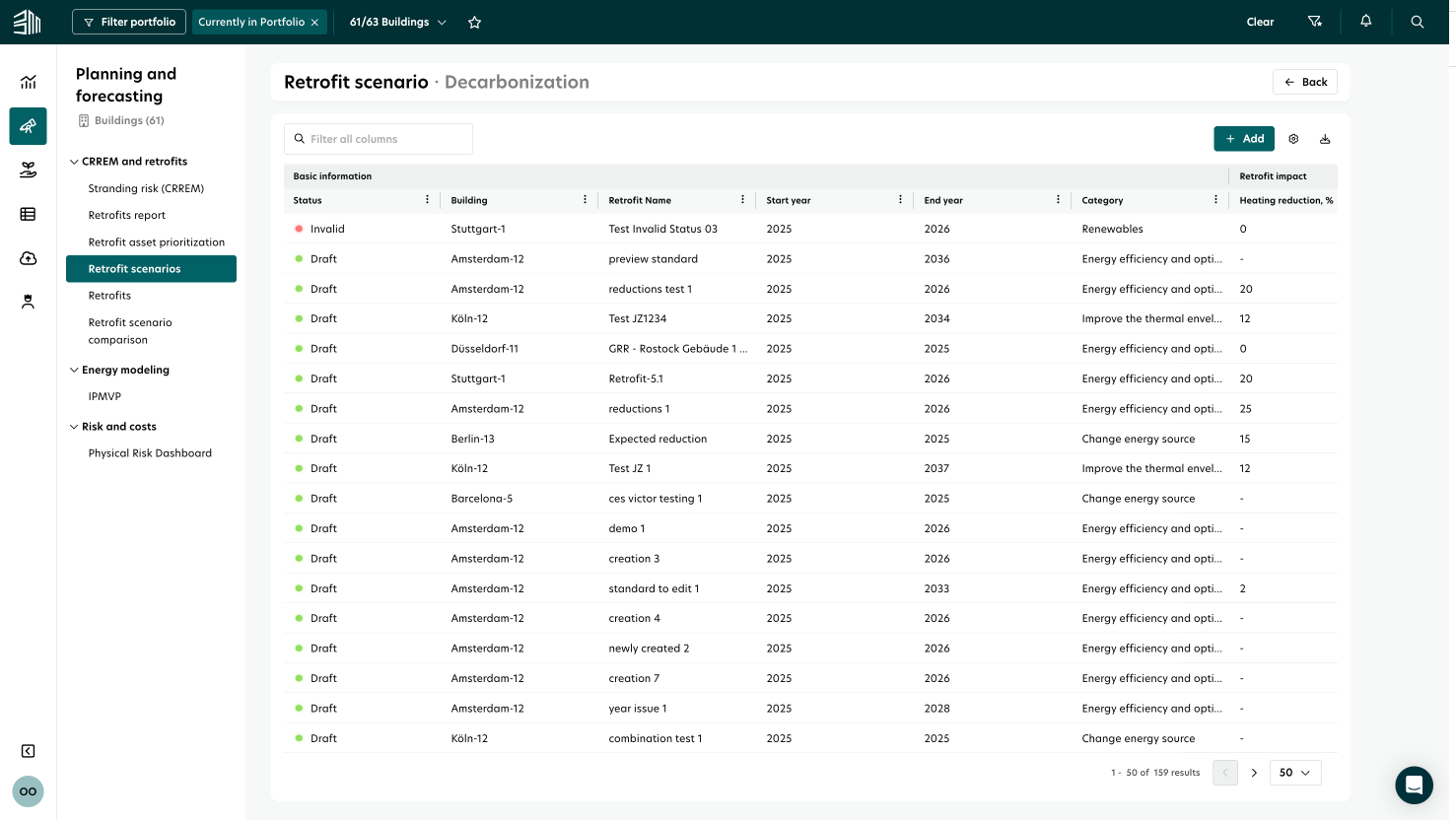
The list shows key details for each retrofit, including basic information, environmental impact, and financial impact. You’ll find data such as the retrofitted building, retrofit status, start and end year, heating and electricity reduction, embodied carbon, and more.
You can manage and customize the list using these options:
Filters:
Use the Filter portfolio button at the top left of the page.
Apply filters to specific columns or use the search field for quick results.
Sorting:
Sort the list by any column to organize your scenarios easily.Hide/Unhide Columns:
Hide columns by clicking the menu in the column header. To unhide them, use the Settings menu in the top-right corner of the list.Export:
Export the list of retrofit scenarios as a CSV or Excel file.Pagination:
Set the number of items per page and navigate through pages using the buttons at the bottom of the list.
Retrofit form
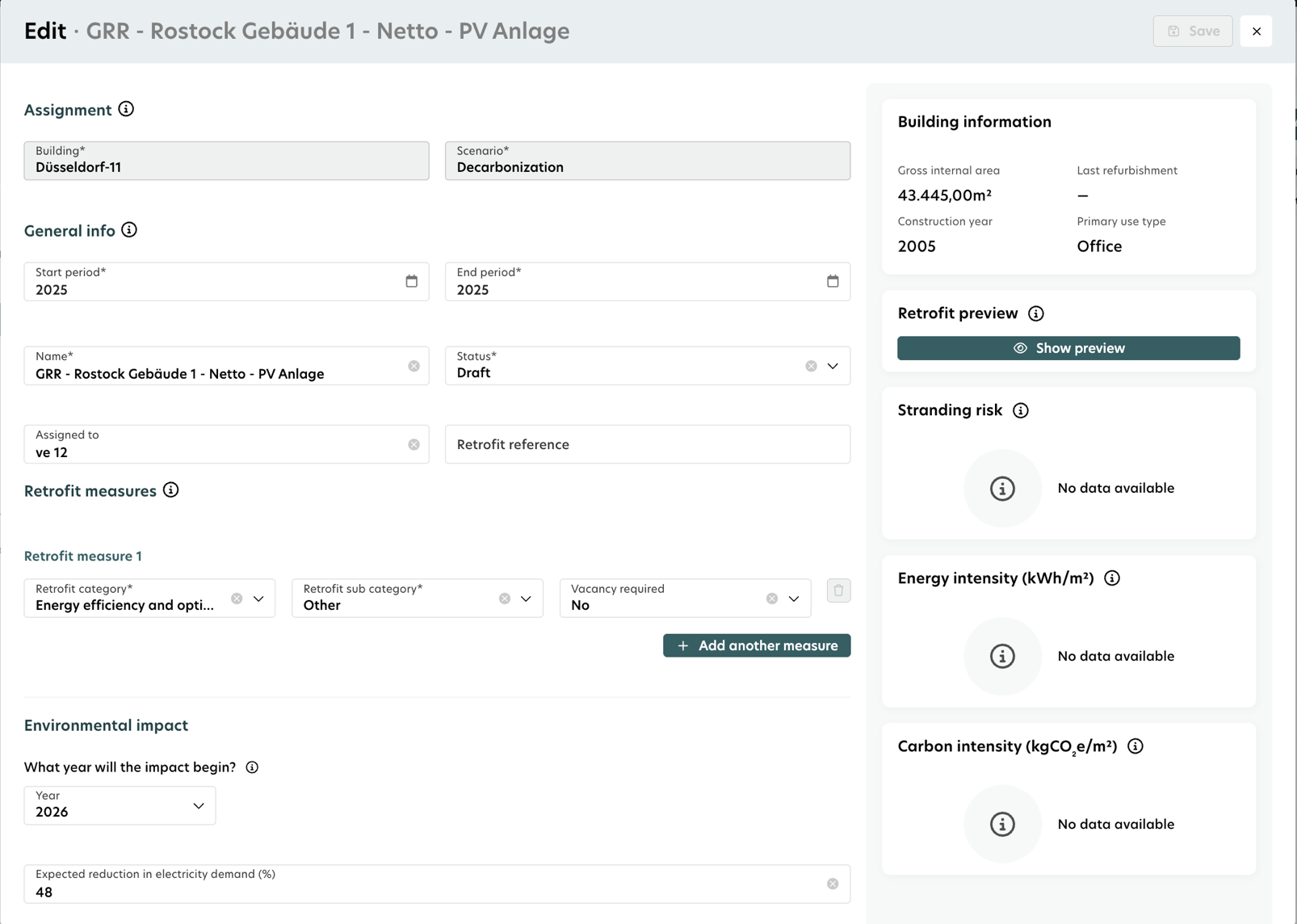
You can add or update details of a planned retrofit using an easy-to-use form.
Types of Retrofit Forms
There are two types of forms, based on your selection in the Add menu:
Change Energy Source: For measures related to a fuel switch
Retrofits: For measures on building elements/systems or operational changes.
The forms are divided into seven sections:
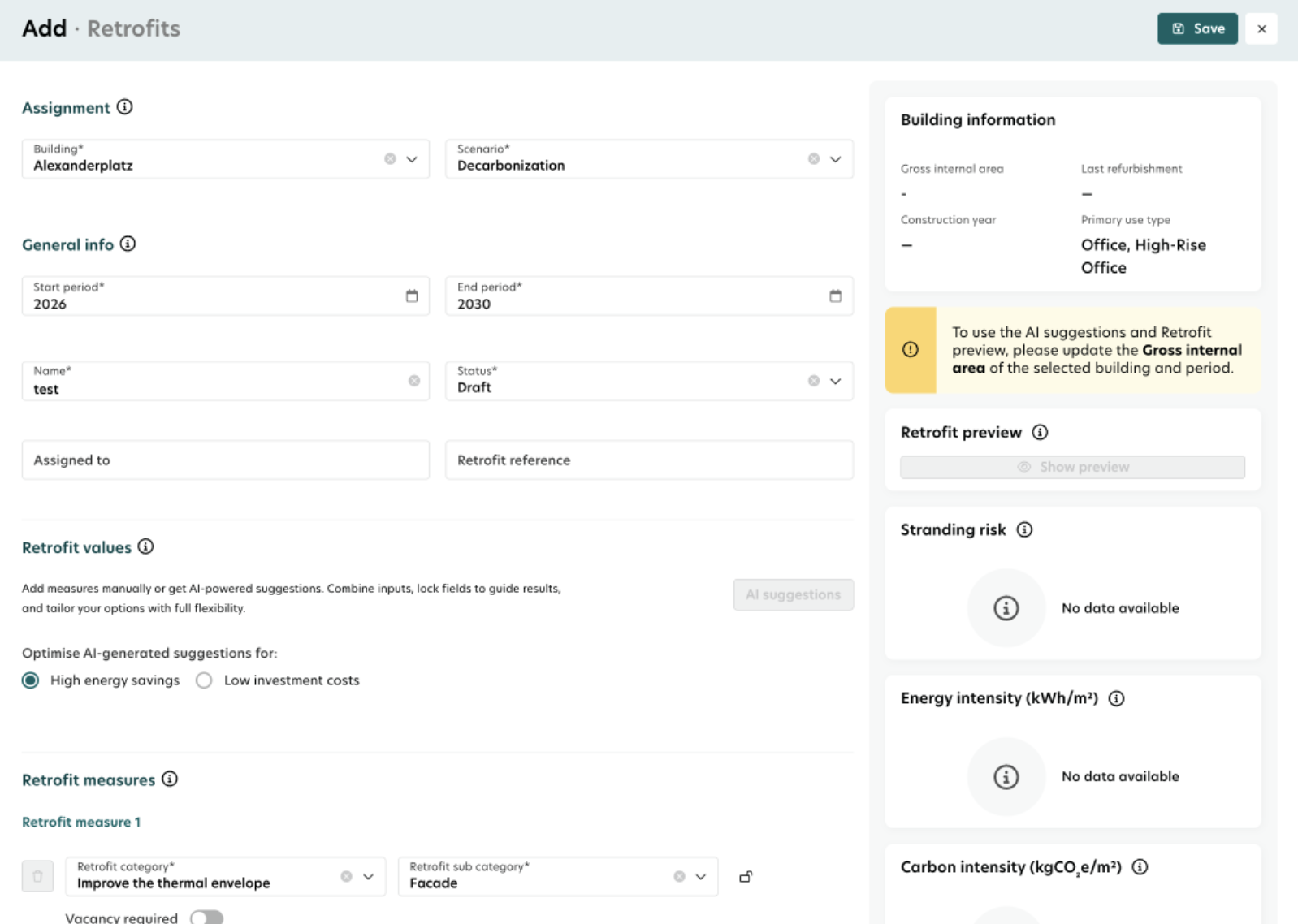
1. Assignment
Building
Scenario
Type of energy change (for Change Energy Source)
2. General Information
Start period, End period
Name, Status
Assigned to
Retrofit reference
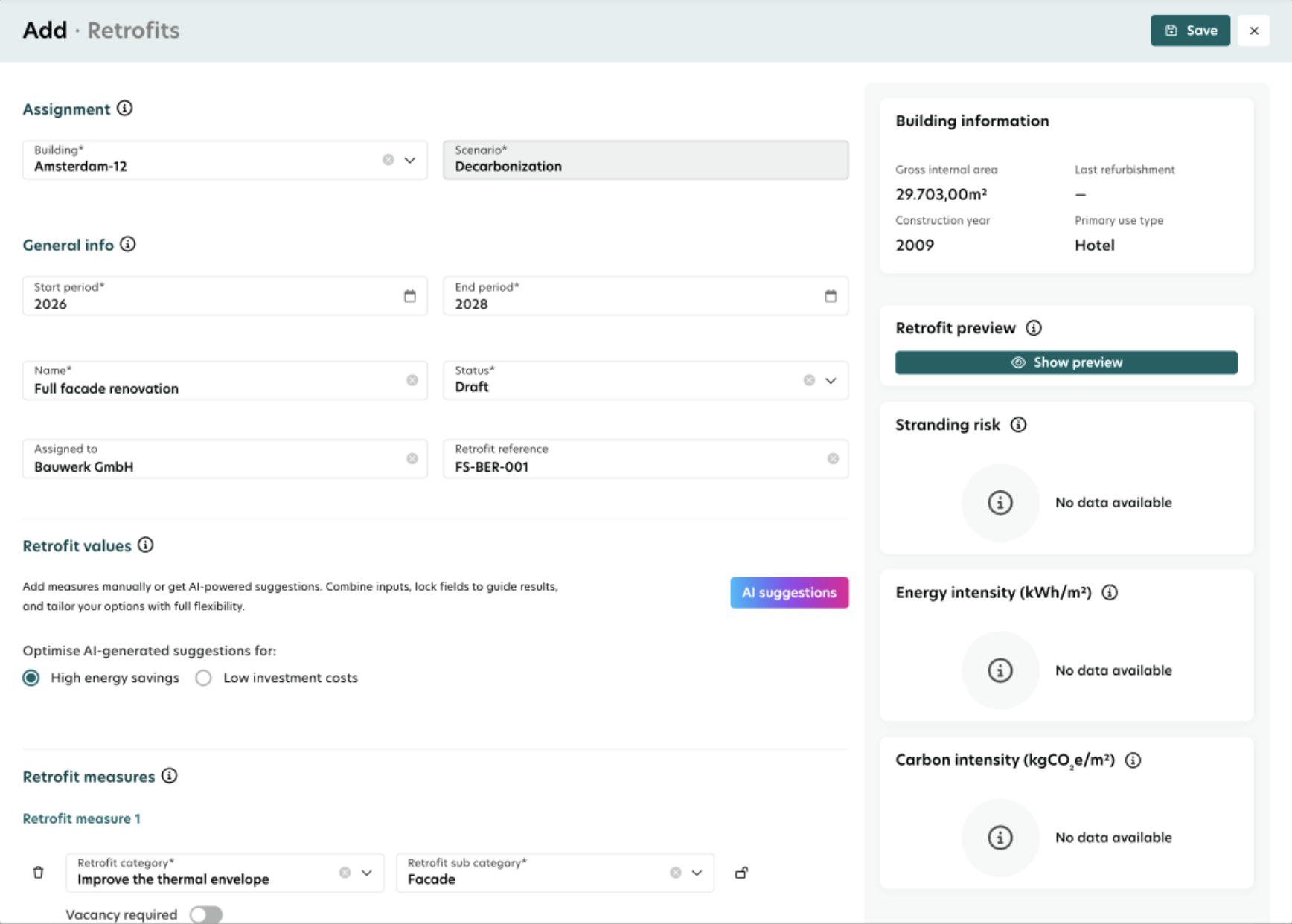
3. Retrofit Values (Only in the Retrofit form)
Enter retrofit values manually or using AI suggestions
Select an optimization mode for AI suggestions
4. Retrofit Measures
Retrofit category
Retrofit sub-category
Vacancy required
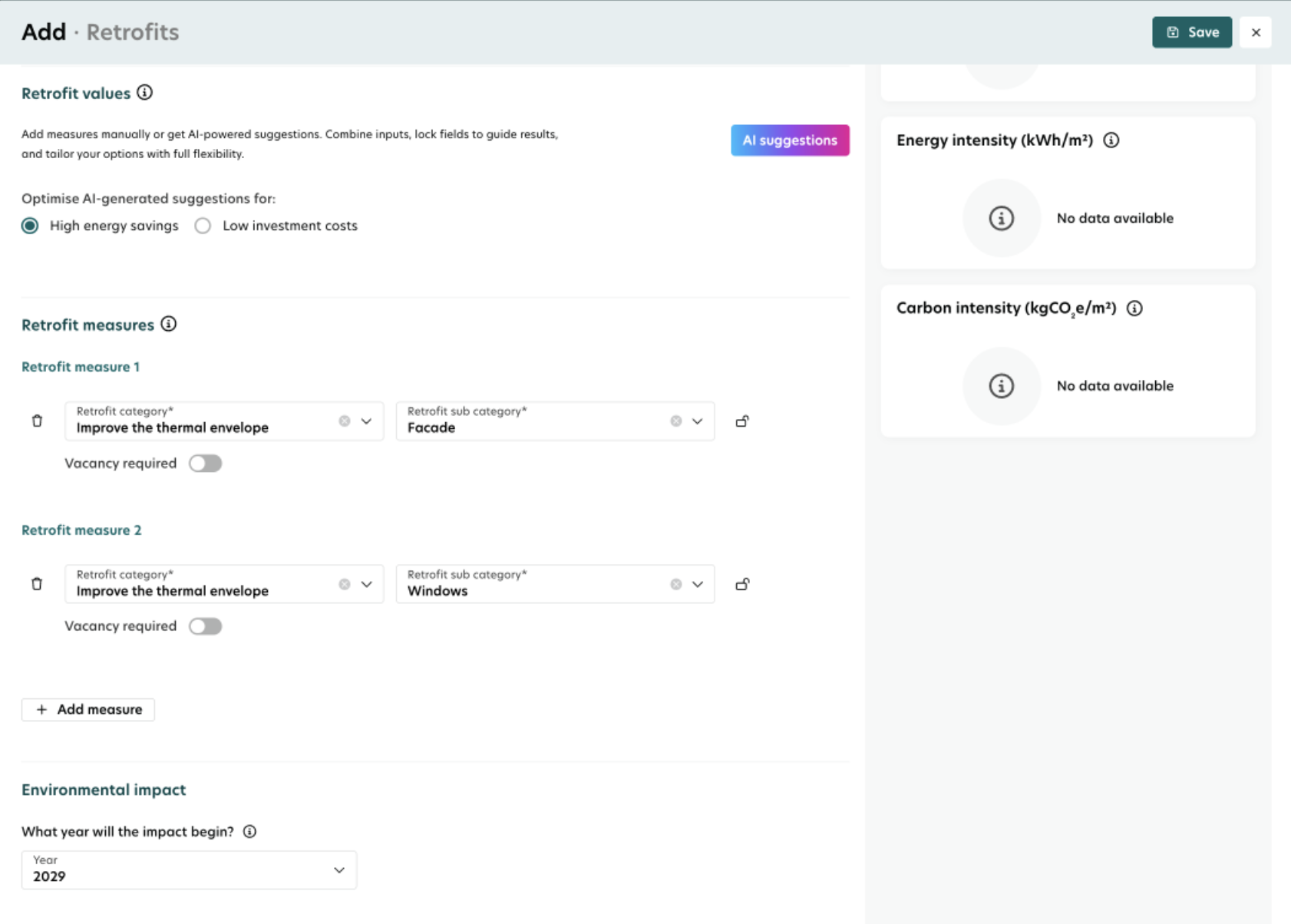
5. Environmental Impact
Impact year
Expected reduction in electricity/heating demand
Embodied carbon
6. Financial Impact
Impact year
CapEx
Operational cost savings per year
7. Additional Information
Any extra details or notes relevant to the retrofit
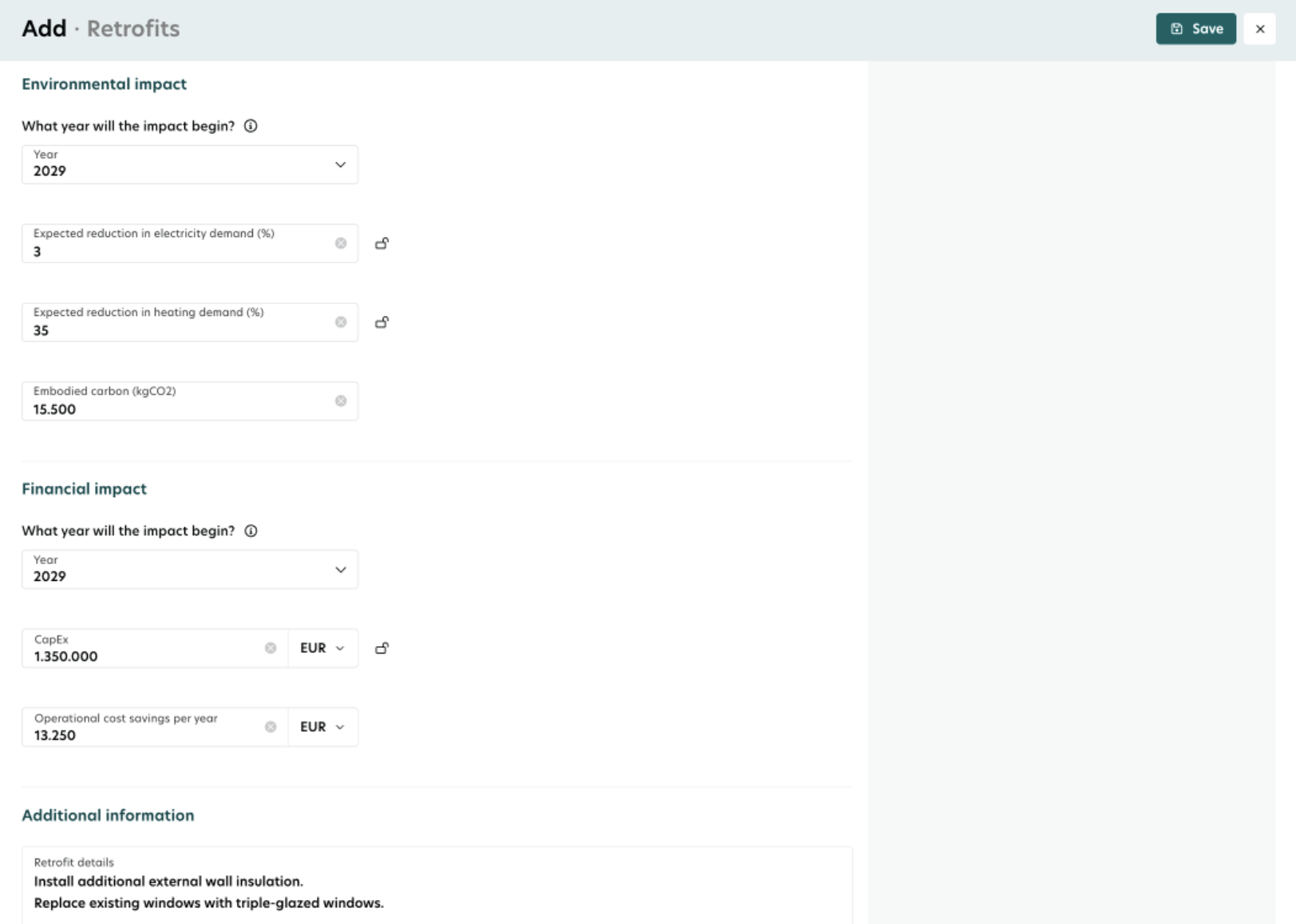
Retrofits Form
The Retrofits form lets you add retrofit measures to a building by selecting a category and sub-category from a drop-down list.
You can add multiple measures by clicking Add measure.
The form also includes an AI suggestions feature that recommends retrofit measures, expected energy savings, and estimated investment costs.
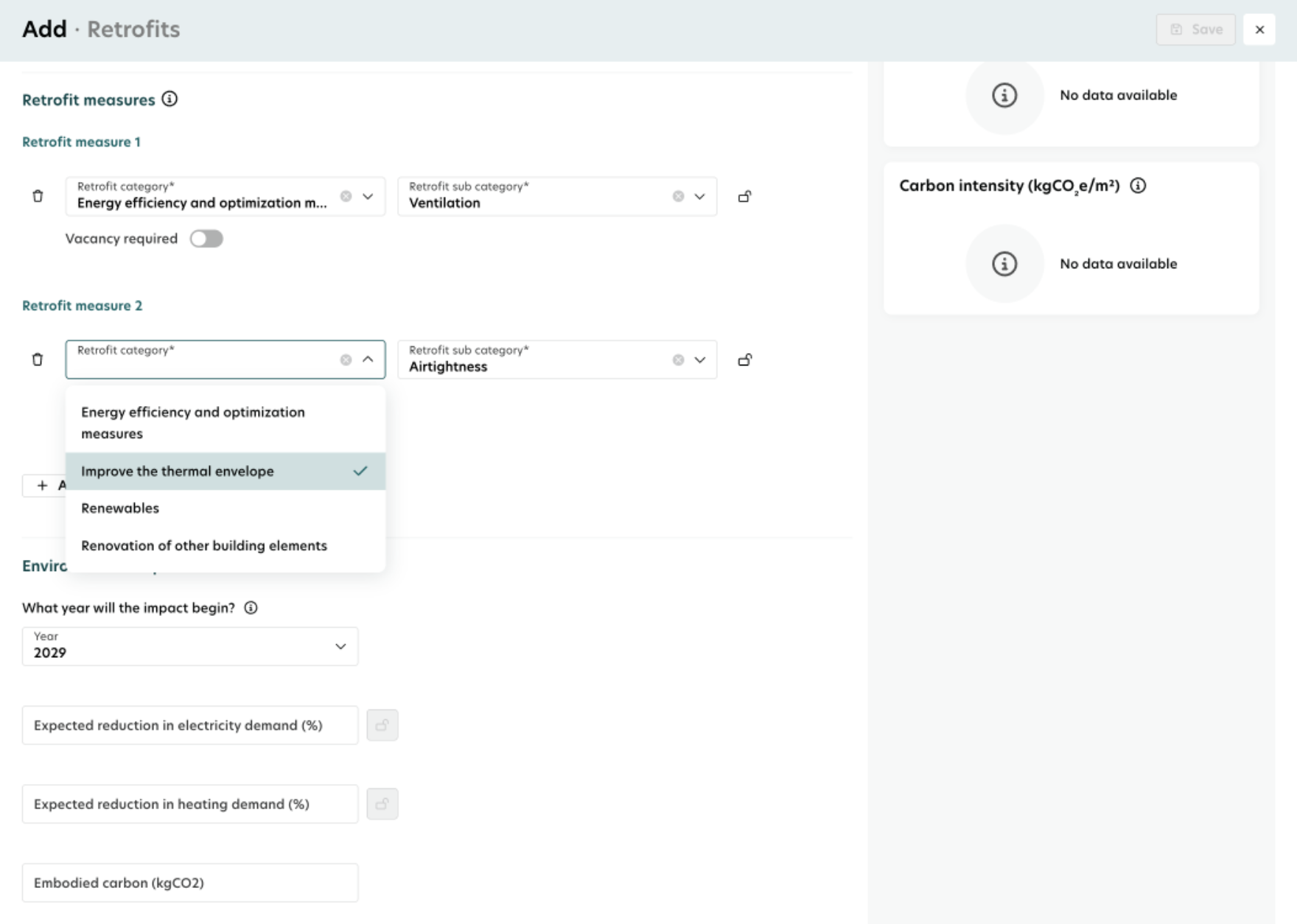
Below, you’ll find the list of available retrofit categories and subcategories:
Retrofit categories | Subcategories |
|---|---|
Energy efficiency and optimization | Automated-control systems, Change behaviour, Improve HVAC system efficiency, Energy recovery systems, More efficient equipment - Other, Space cooling, Space heating, Ventilation, Water heating, Other |
Improve the thermal envelope | Airtightness, Doors, Facade, Floor, Roof, Windows |
Renewables | Photovoltaic panels, Solar water heaters |
Renovation of other building elements | Minor repairments/upgrades, Structure maintenance, Layout restructure, Building extension, Installations (MEP), Others |
Change energy source form
The Change Energy Source form is designed to help you plan a switch from one energy source to another for heating, self-procured electricity, or third-party-procured electricity.

Below, you’ll find the list of available energy types and energy sources:
Energy Type | Energy sources |
|---|---|
Heating | Natural gas (standard mix), Other electrical equipment (e.g. radiator), Fuel (unspecified), Biomass, Solar thermal, Green natural gas, Geothermal, Natural gas (unspecified), Oil-based fuels, District heating, District heating (green contract), Heat pump |
Self-procured electricity | Electricity from grid (green electricity contract), Electricity from the grid (normal contract) |
Third-party procured electricity | Electricity from grid (green electricity contract), Electricity from the grid (normal contract) |
When you change an energy source, the retrofit is planned within a single year, and both environmental and financial impacts start from that same year.
You can add only one planned energy source change per energy type in the same building and year.
To add an energy source change, energy consumption data must be available for the selected energy type.
The Change energy source FROM field is automatically filled using available operational measurement data or the previous energy source change.”
Add a Retrofit
You can add a new retrofit to a building within a specific scenario by following these steps:
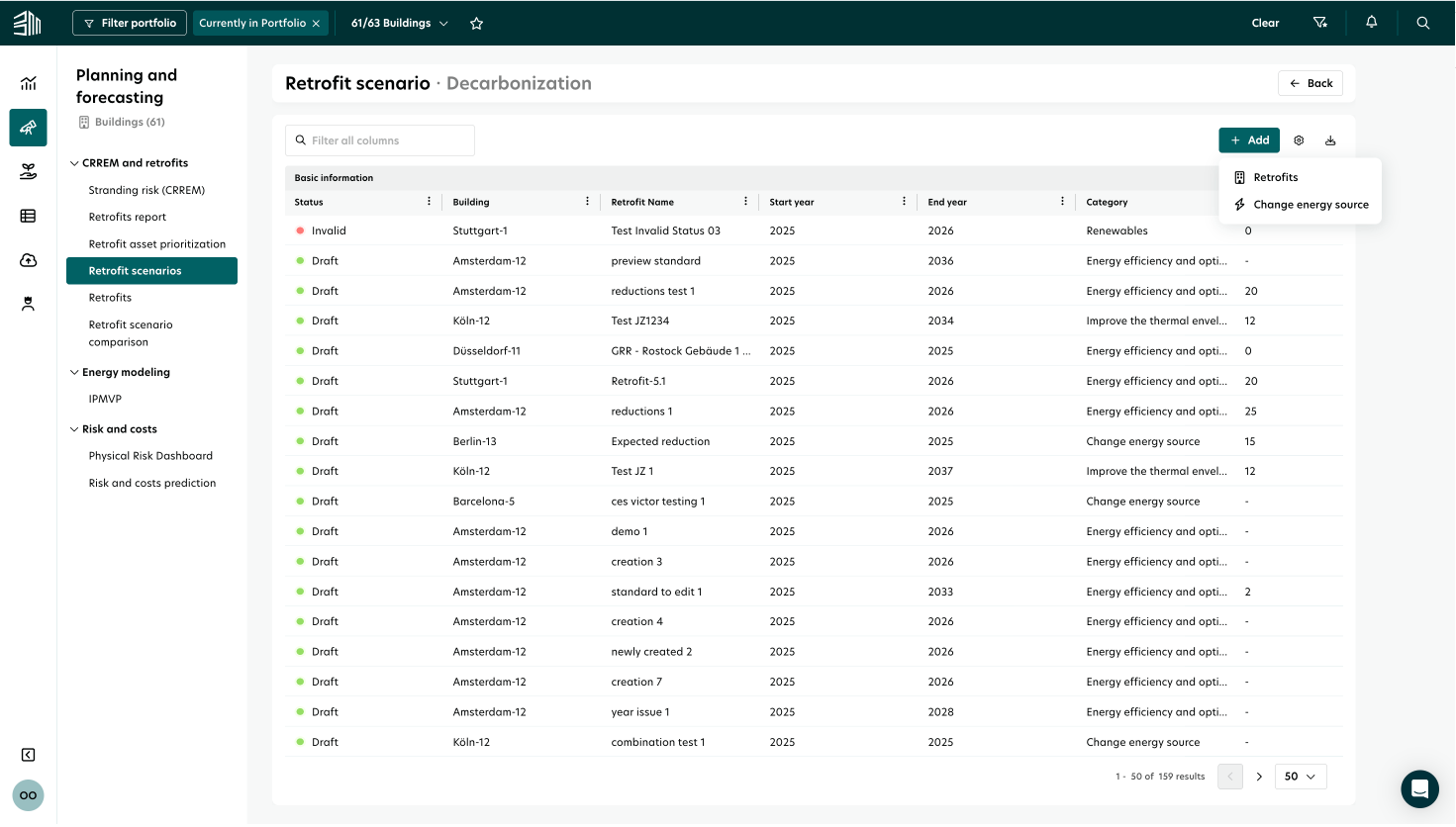
Open the scenario details and click the Add button located above the list.
From the drop-down menu, choose Retrofits or Change Energy Source, depending on the type of measure you want to add.
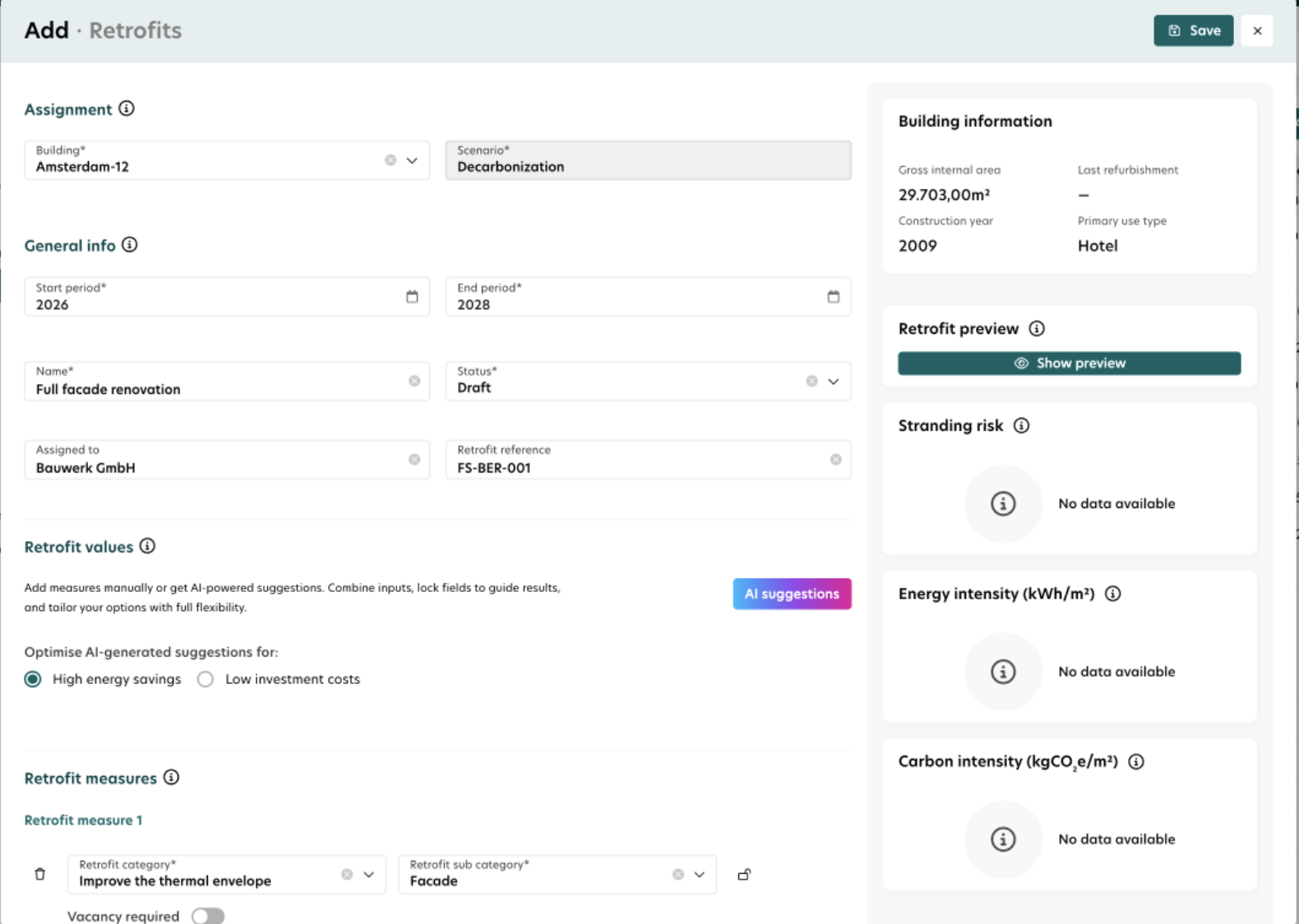
Complete the Assignment section in the form.
Fill in all mandatory fields in the remaining sections of the form.
Click Save in the top-right corner.
Once saved, the new retrofit will appear in the retrofit list.
Edit a retrofit
You can update the details of an existing retrofit by following these steps:
Go to the retrofit list within the scenario.
Hover over the row of the retrofit you want to edit. An Edit icon will appear on the right.
Click the Edit icon to open the form.
Update the necessary fields.
Note: If you remove a mandatory field, you won’t be able to save the changes.
Click Save in the top-right corner.
A confirmation message (toast notification) will appear once the changes are saved.
Retrofit preview
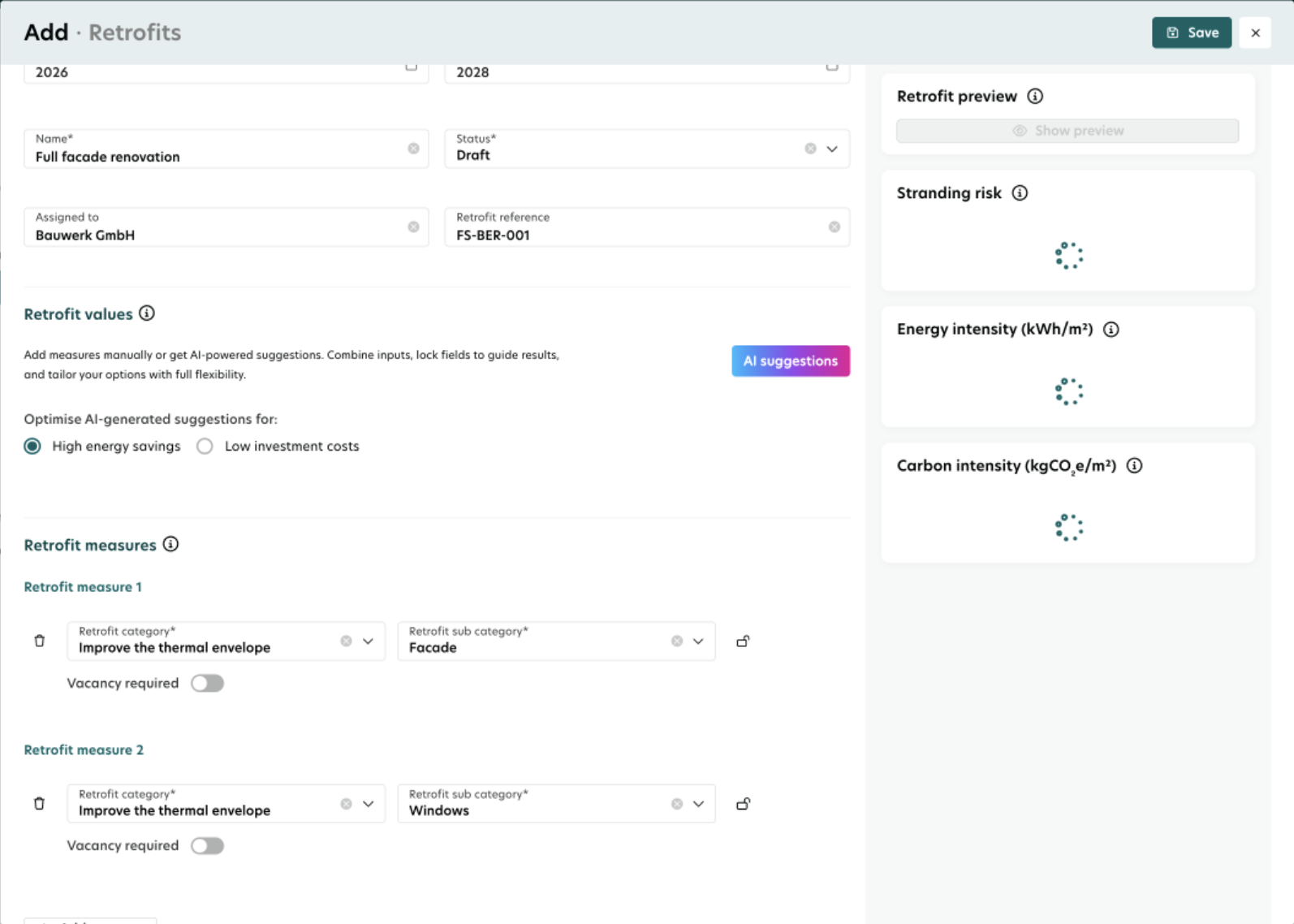
The Add and Edit forms include a Retrofit Preview feature that helps you visualize the impact of a retrofit on the building’s performance.
How to View the Retrofit Preview
Click Show Preview on the right panel of the Add or Edit form.
Wait a few moments while the calculations are processed.
The preview will display the impact on:
Stranding Risk
Energy Intensity
Carbon Intensity
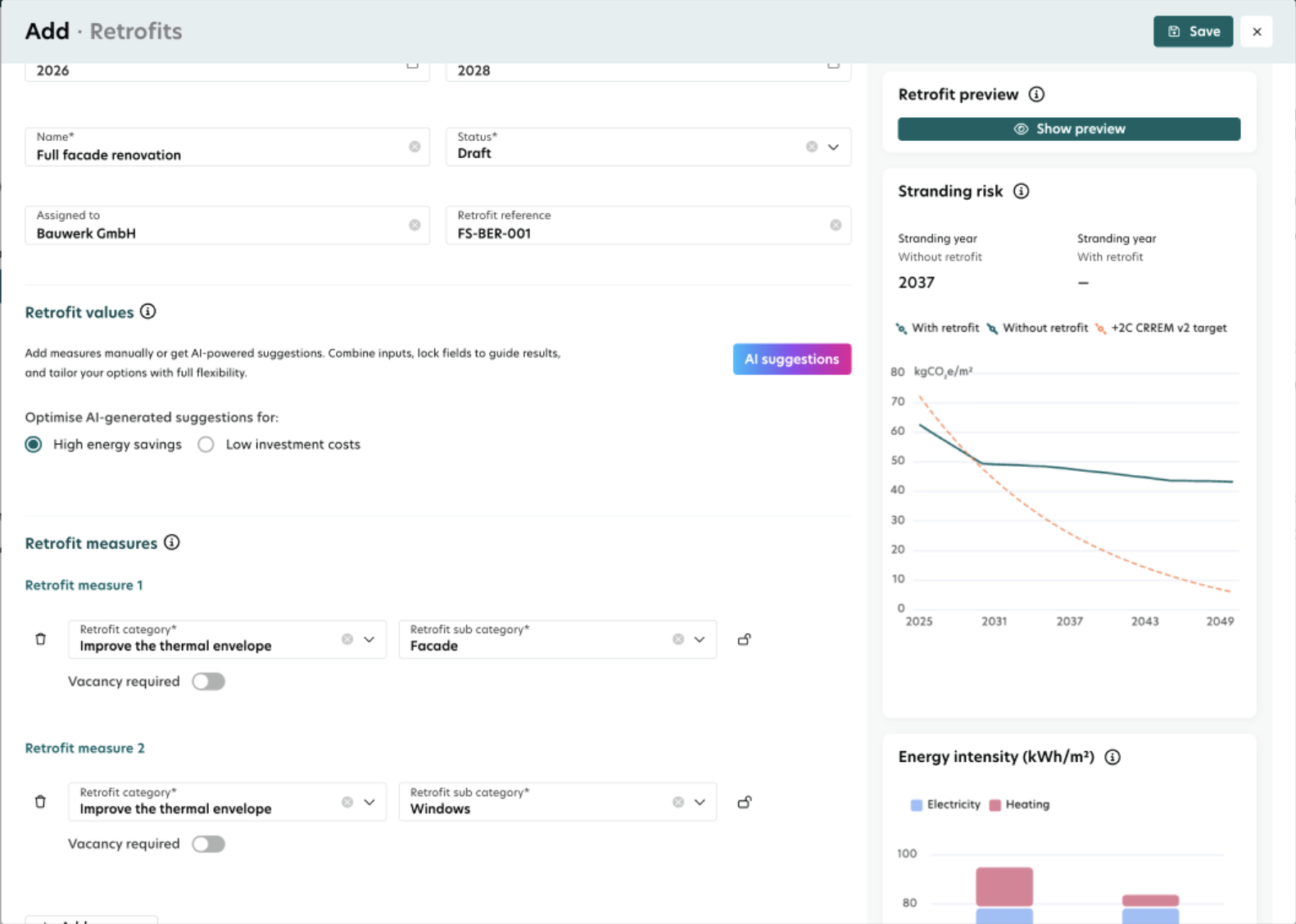
Stranding Risk and Carbon Intensity visuals use CRREM v2 emission factors and a default target of 2.0°C.
Select a building to enable the Building Information card in the right panel.
Delete a Retrofit
You can remove a retrofit from a scenario by following these steps:
Go to the retrofit list within the scenario.
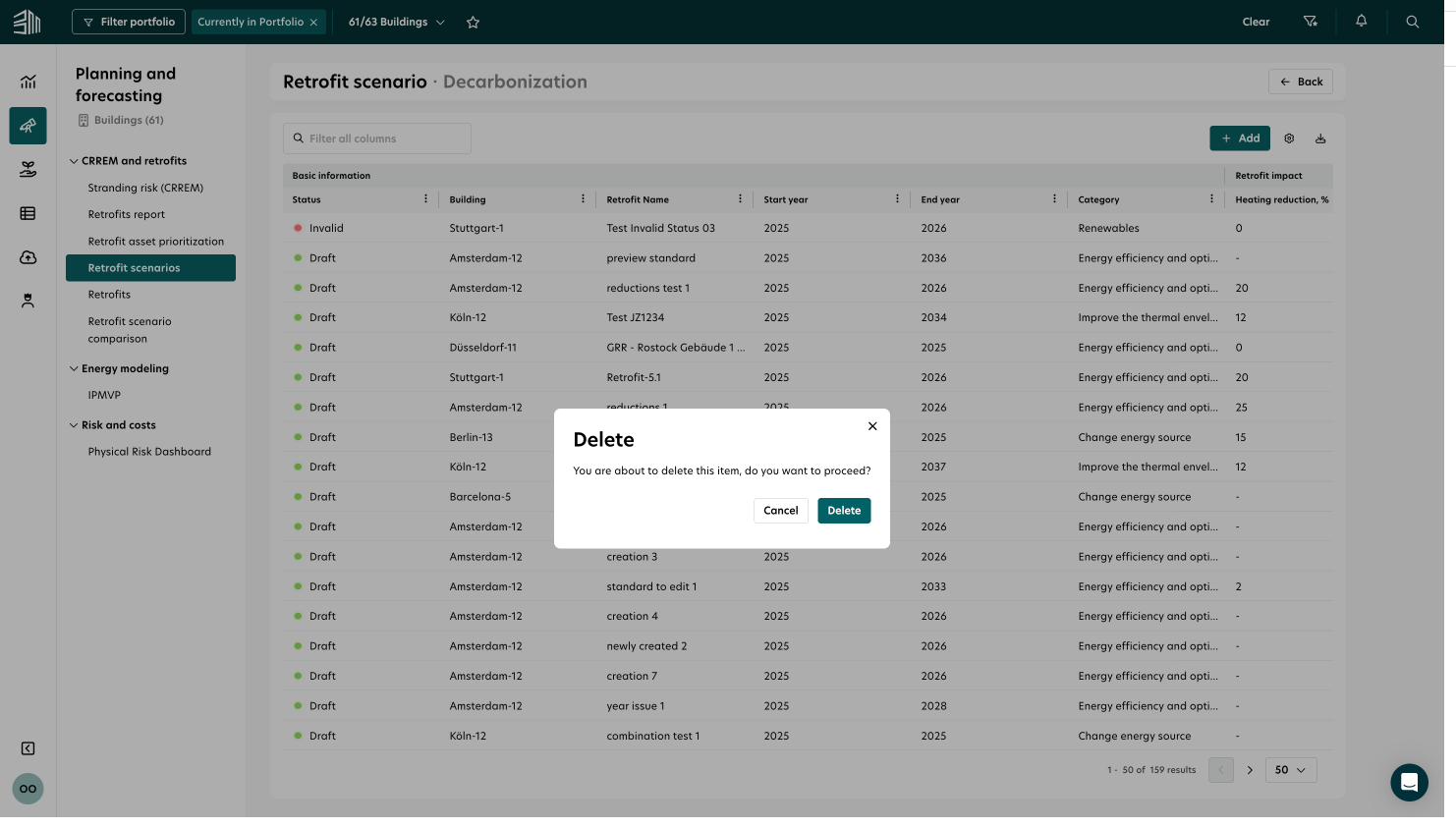
Hover over the row of the retrofit you want to delete. A Delete icon will appear on the right.
Click the Delete icon.
Confirm the deletion when prompted.
A confirmation message (toast notification) will appear once the retrofit is deleted.

Validations and Conditions
Certain conditions must be met to successfully add, save, or preview a retrofit.
To Save a ‘Change Energy Source’ Retrofit:
The Change Energy Source FROM field is automatically populated based on:
Available energy consumption data, or
A previous retrofit in this category
If there is no energy consumption data for the selected energy type, the retrofit cannot be added.
To Report a Saved Retrofit:
Reports only include retrofits with these statuses:
Draft, Proposal, Approved, In Progress
Retrofits with statuses such as Completed, Rejected, Stopped, or Invalid will not have calculated results.
To Preview a Retrofit:
The Show Preview button is enabled only when:
The selected building meets the following data requirements:
Energy consumption data
Gross Internal Area
Building address
Building type
All mandatory fields in the retrofit form are completed, and
At least one expected reduction in electricity or heating demand is entered
For energy source changes, the expected reduction in electricity or heating demand is not mandatory.