
Documents
The Documents module enables users to efficiently store, manage, and retrieve files related to Real estate objects, ensuring data consistency and accessibility.
Overview
The Documents feature allows users to:
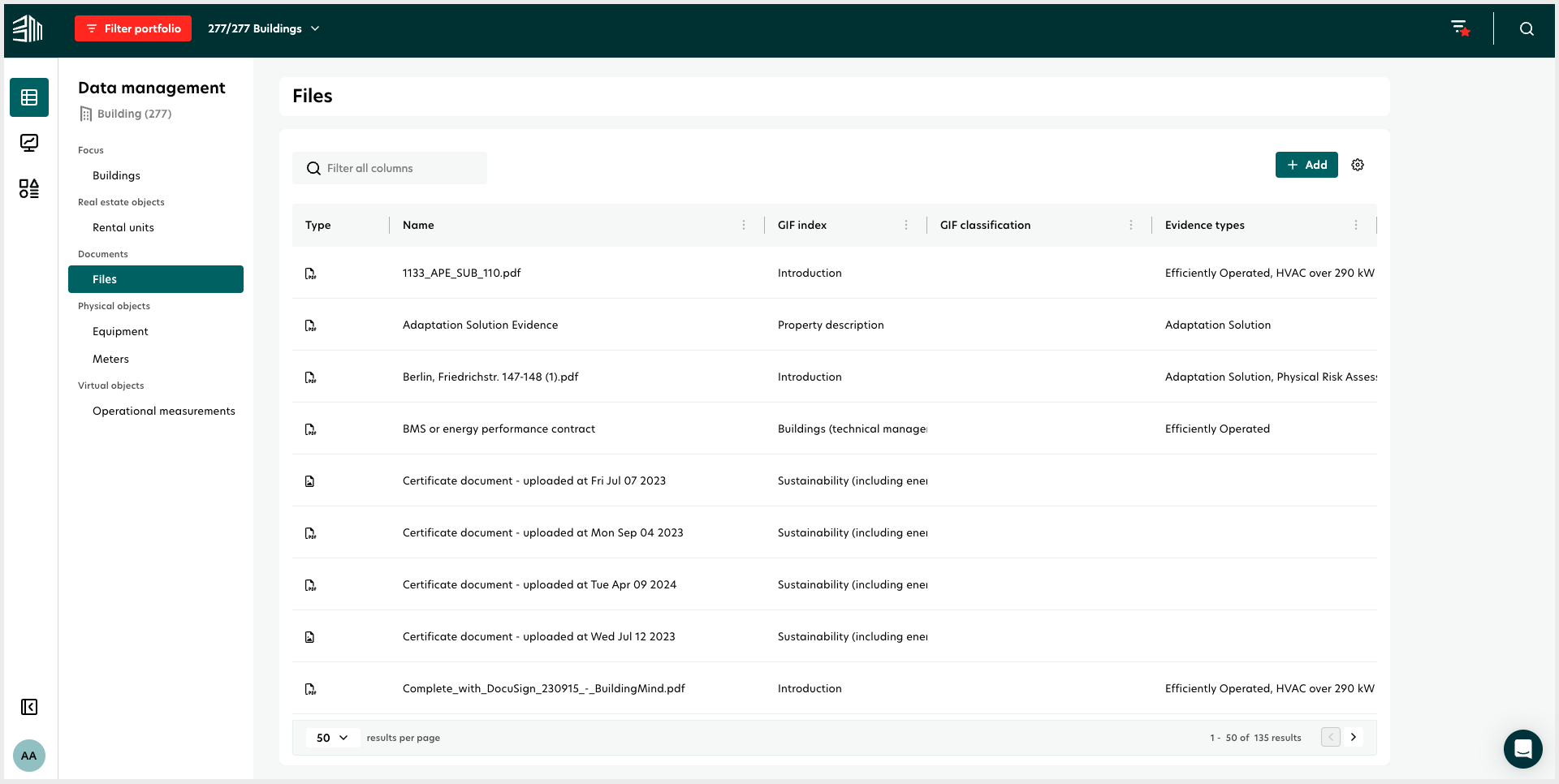
View a list of all files associated with selected buildings.
Add, Edit, and Delete files.
Access detailed file metadata, including classification and evidence type.
Access Documents
To view and manage Documents, follow these steps:
Option 1:
Navigate to the Data Management tab in the left-hand menu.
Select the desired building.
Click on the Documents section.
When a File is added from the building page, it is automatically associated with the selected building.
Option 2:
Navigate to the Data Management tab in the left-hand menu.
Click on the Documents section.
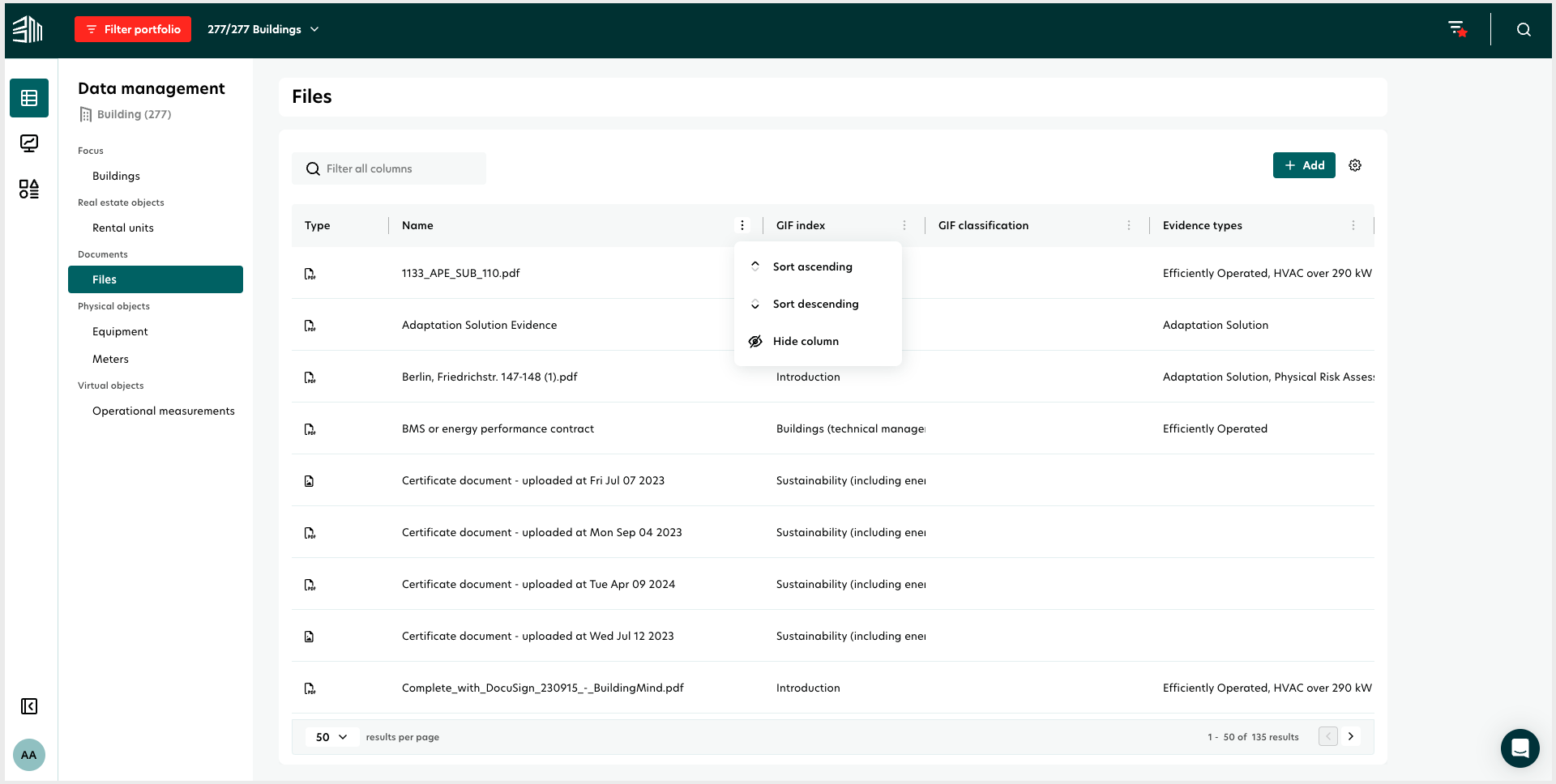
The list includes essential details such as:
File type and format
Associated entity
Classification and GIF index
Evidence type
Upload Documents
To add a new document:
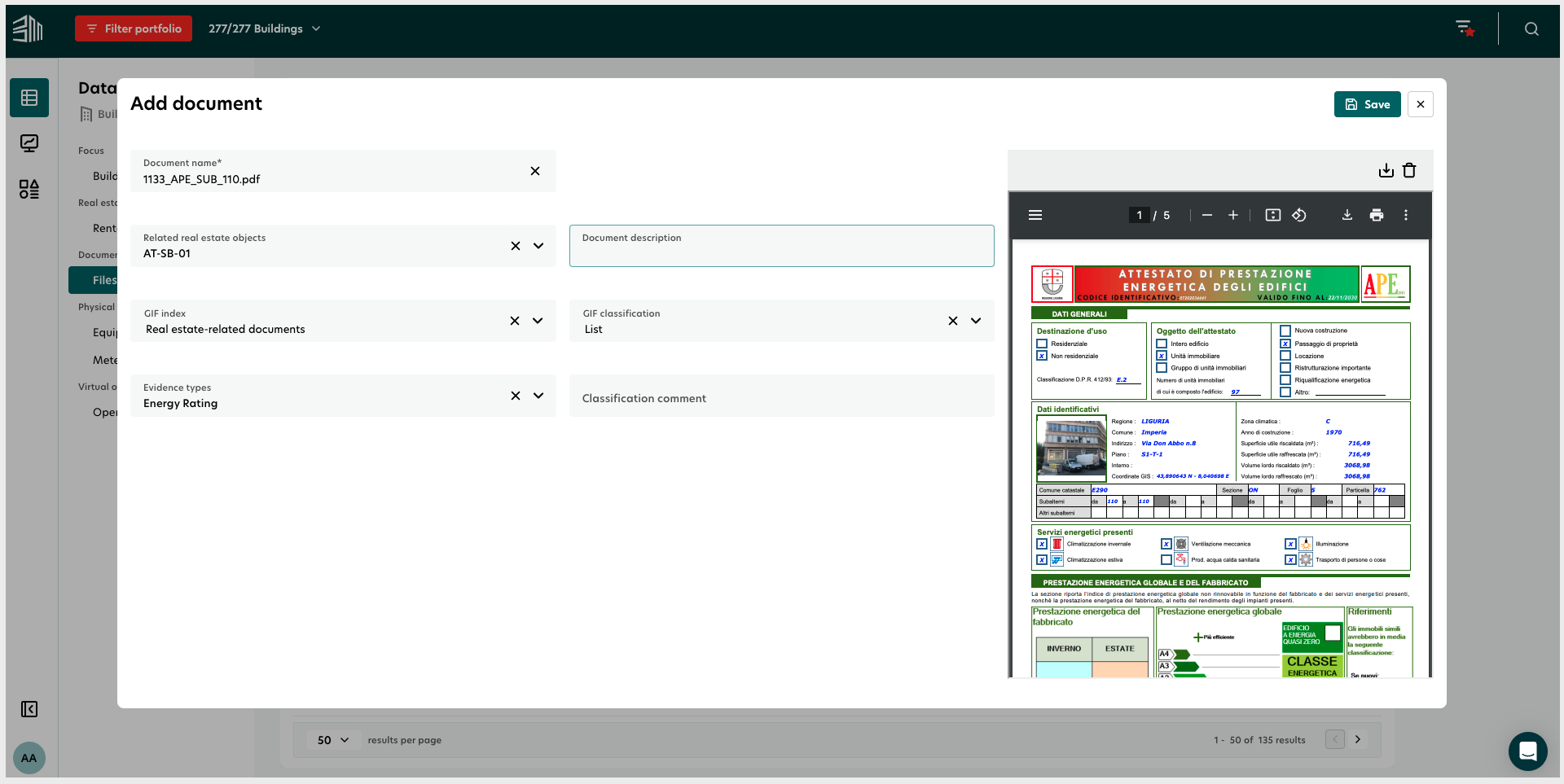
In the Documents section, click + Add.
Fill in the mandatory fields:
Name: Enter a document name.
File Upload: Select the document to upload.
Optionally, provide additional details for example:
Associated Real estate object
Description
Evidence type
Click Save to complete the process.
Edit Documents
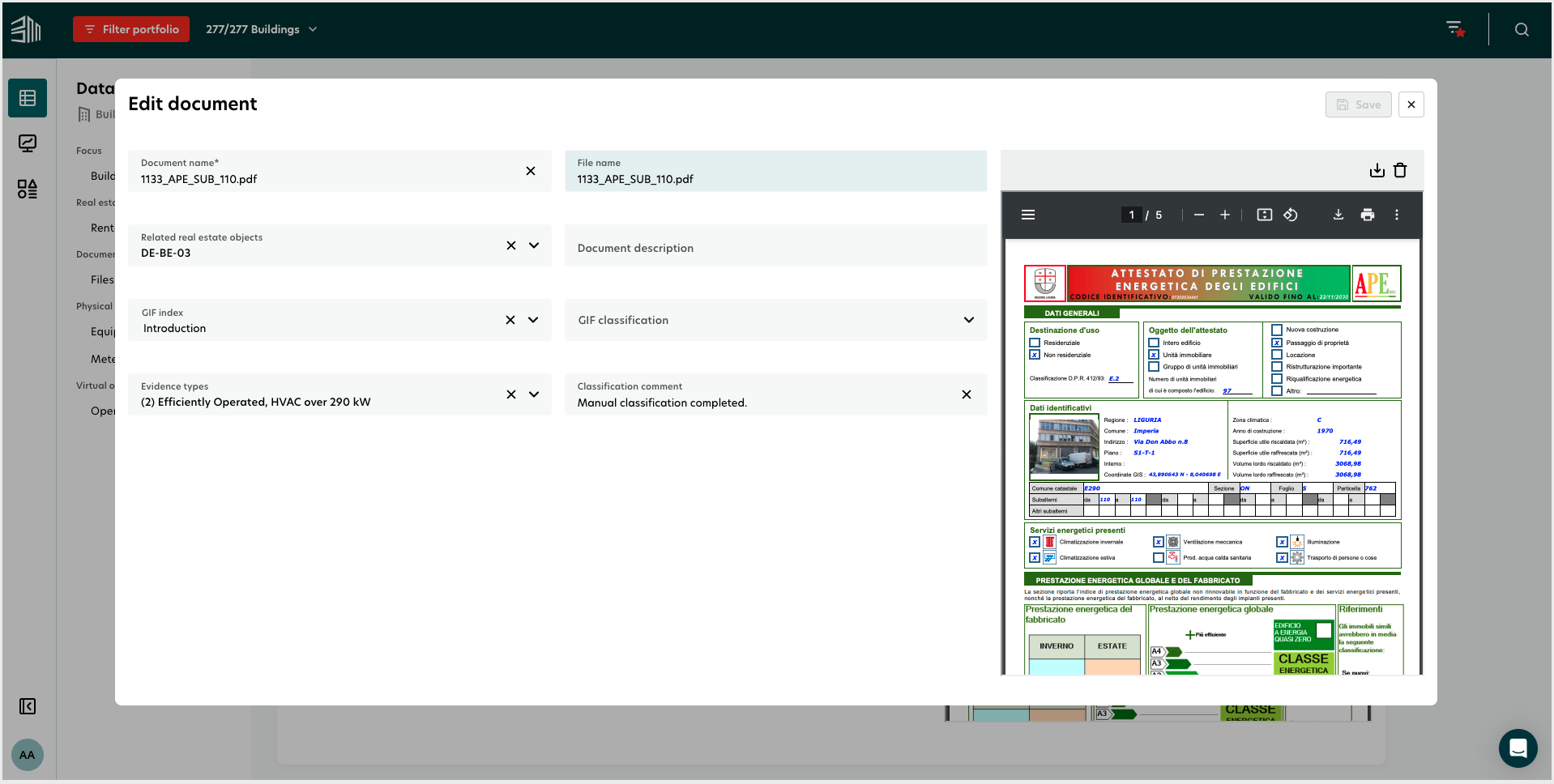
To modify an existing document:
Select the document from the list.
Click the Edit button.
Update the necessary fields.
Click Save to confirm changes.
Delete Documents
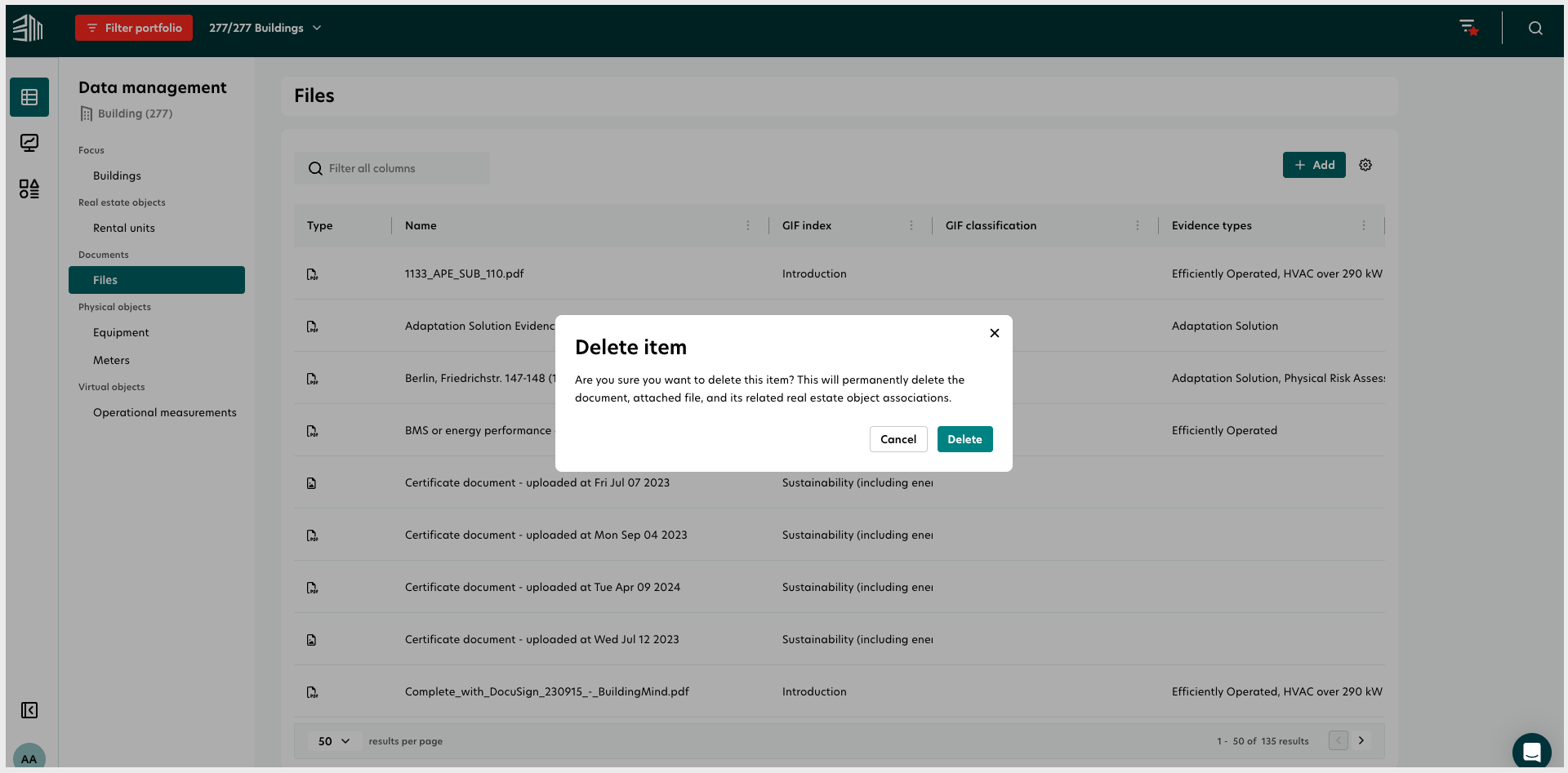
To delete a document:
Hover over the document in the list.
Click the Delete icon.
Confirm the deletion in the prompt.
Search and view documents
Use the Search bar to locate documents by name.
Customize views by hiding or sorting columns for clarity.
Use the pagination controls below the table to navigate through pages and set the number of entries displayed per page.
Future updates will introduce advanced filtering to refine document lists more effectively.
Currently, all users can view all uploaded documents.
Building-specific document views restrict users to documents related to selected buildings.
Future updates will introduce advanced role-based permissions for document access.