
Resource data
The Resource data section is designed to enhance the efficiency and accuracy of managing resource data related to waste, energy, emissions, and water. From this module, you can search for any set of resource data by buildings, dates, energy type, procured by, and more. With the right permissions, you can also add, edit, or delete manually added resource data. In addition, you can approve or reject any resource data based on the plausibility statuses you can find.
Access Resource data
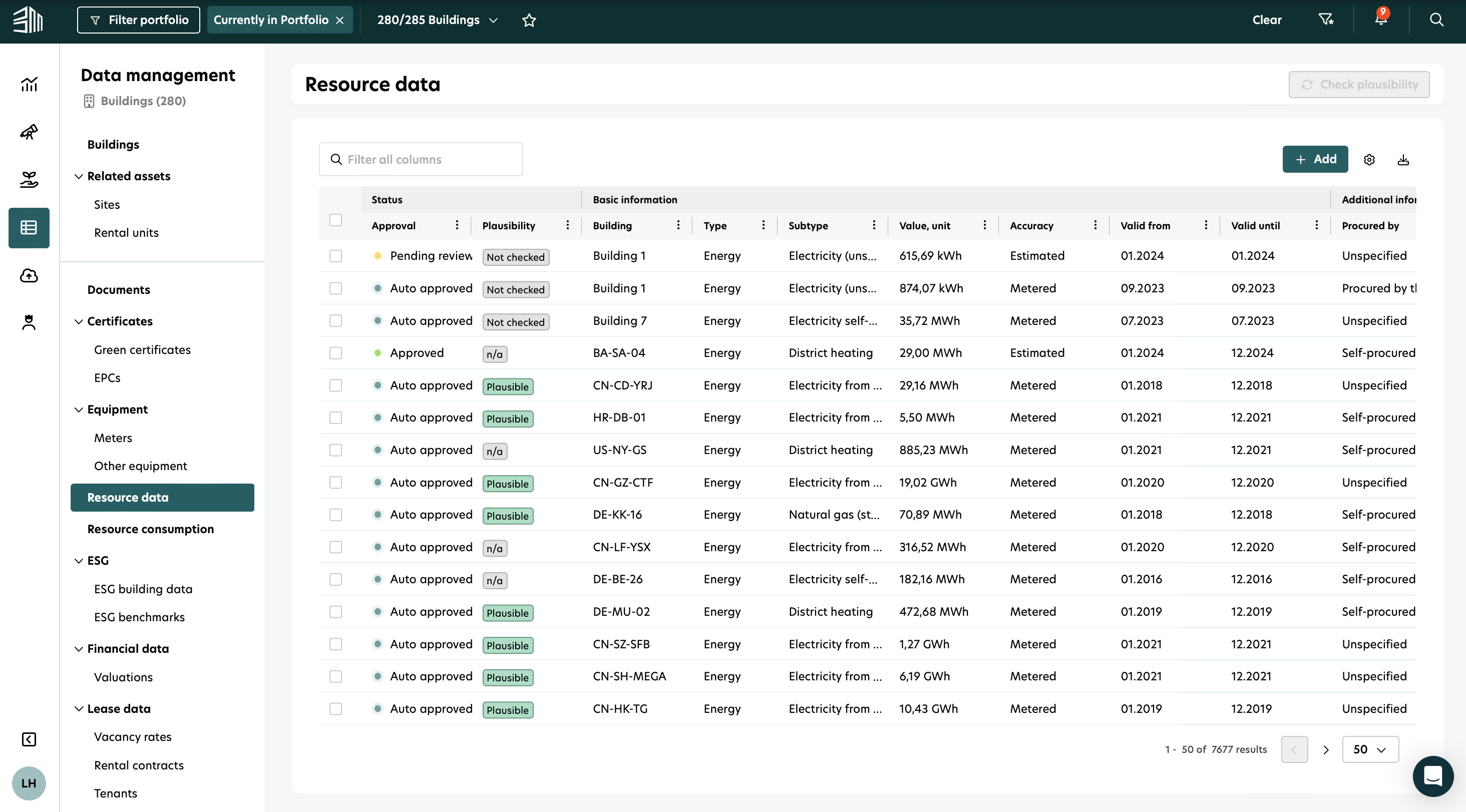
Click the Data management icon on the left-hand menu.
Select Resource data.
The table is divided into four groups: Status, Basic information, Additional information, and Source information.
Click on column headers to sort data in ascending or descending order.
Use the pagination controls below the table to navigate through pages and set the number of entries displayed per page.
Add resource data
To add resource data:
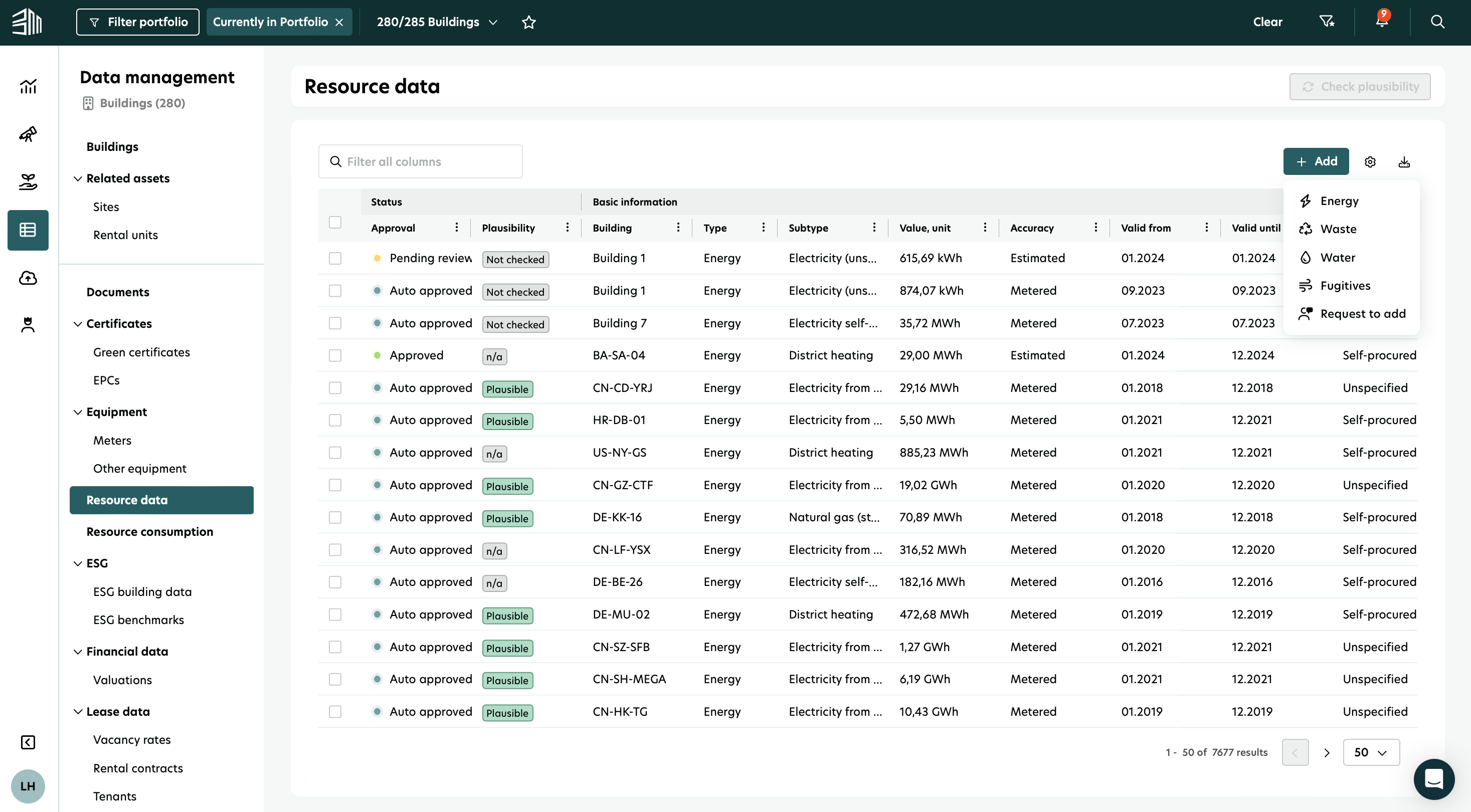
Click the Add button at the top right corner of the table.
Select one of the four resource data types (energy, waste, water, emissions) from the flyout list.
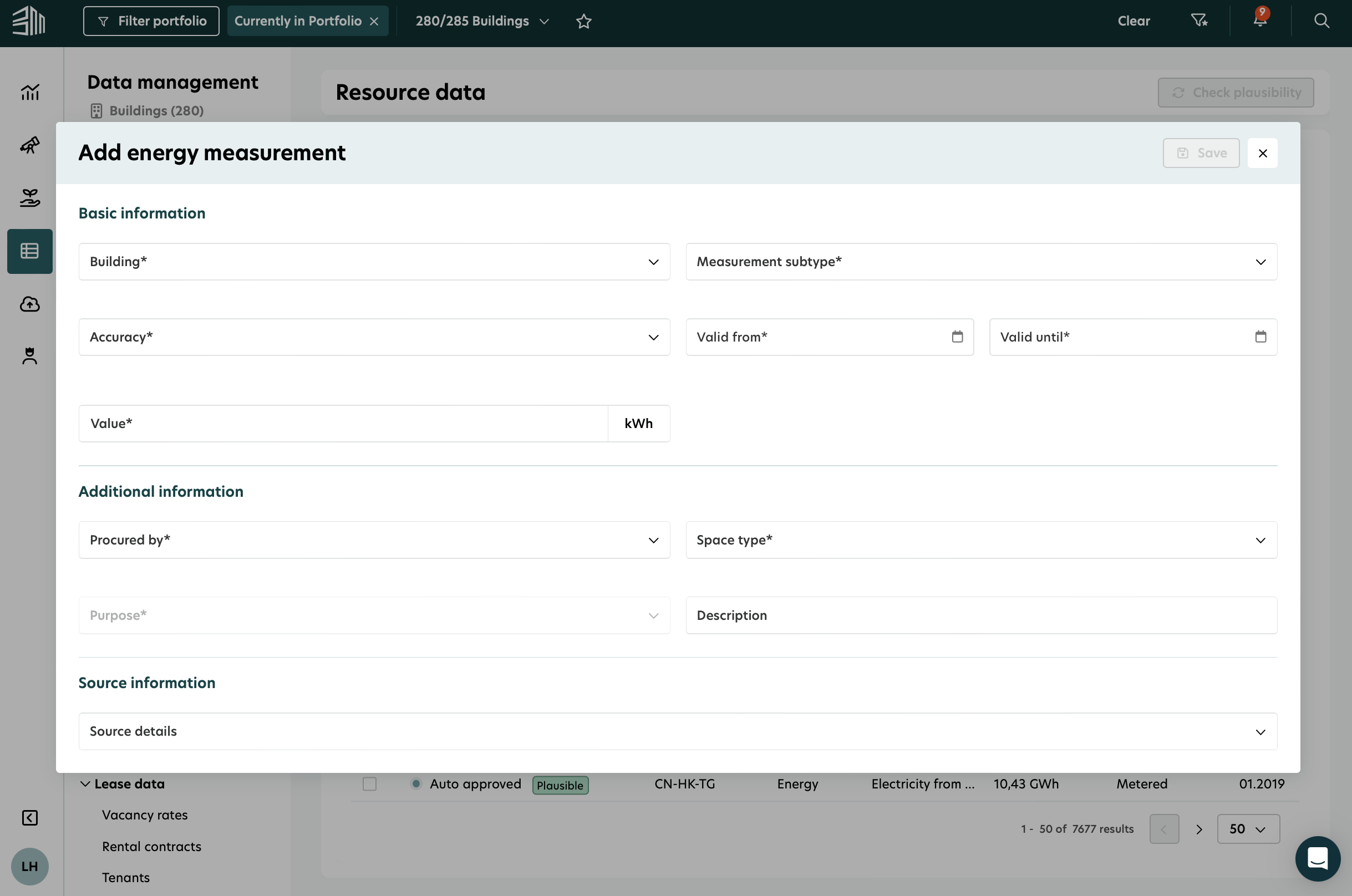
Fill in the mandatory and optional fields in the form that appears in a new pop-out window.
Click the Save button to save the data.
Edit resource data
To edit resource data:
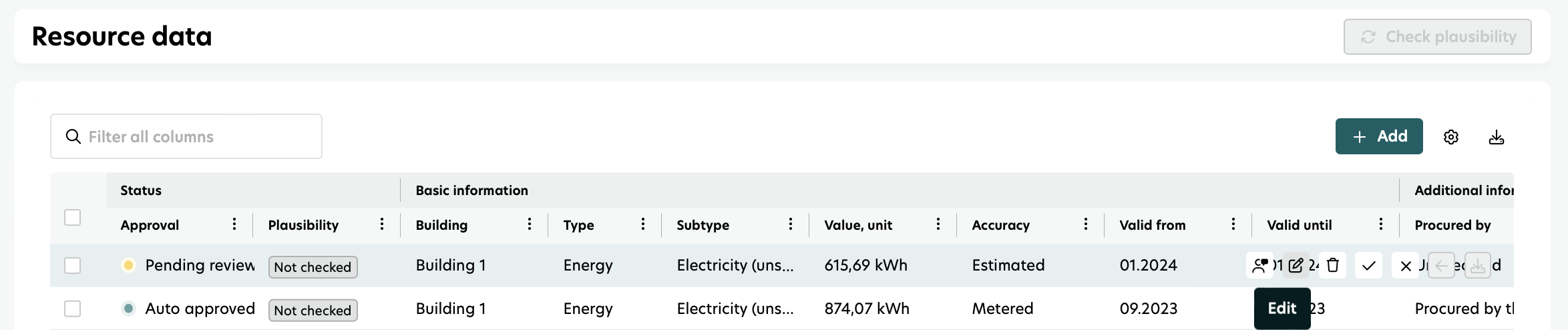
Hover over a row to see the Edit button.
Click the Edit button to see the Edit form.
Make necessary changes and click the Save button to update the data or Cancel to discard changes.
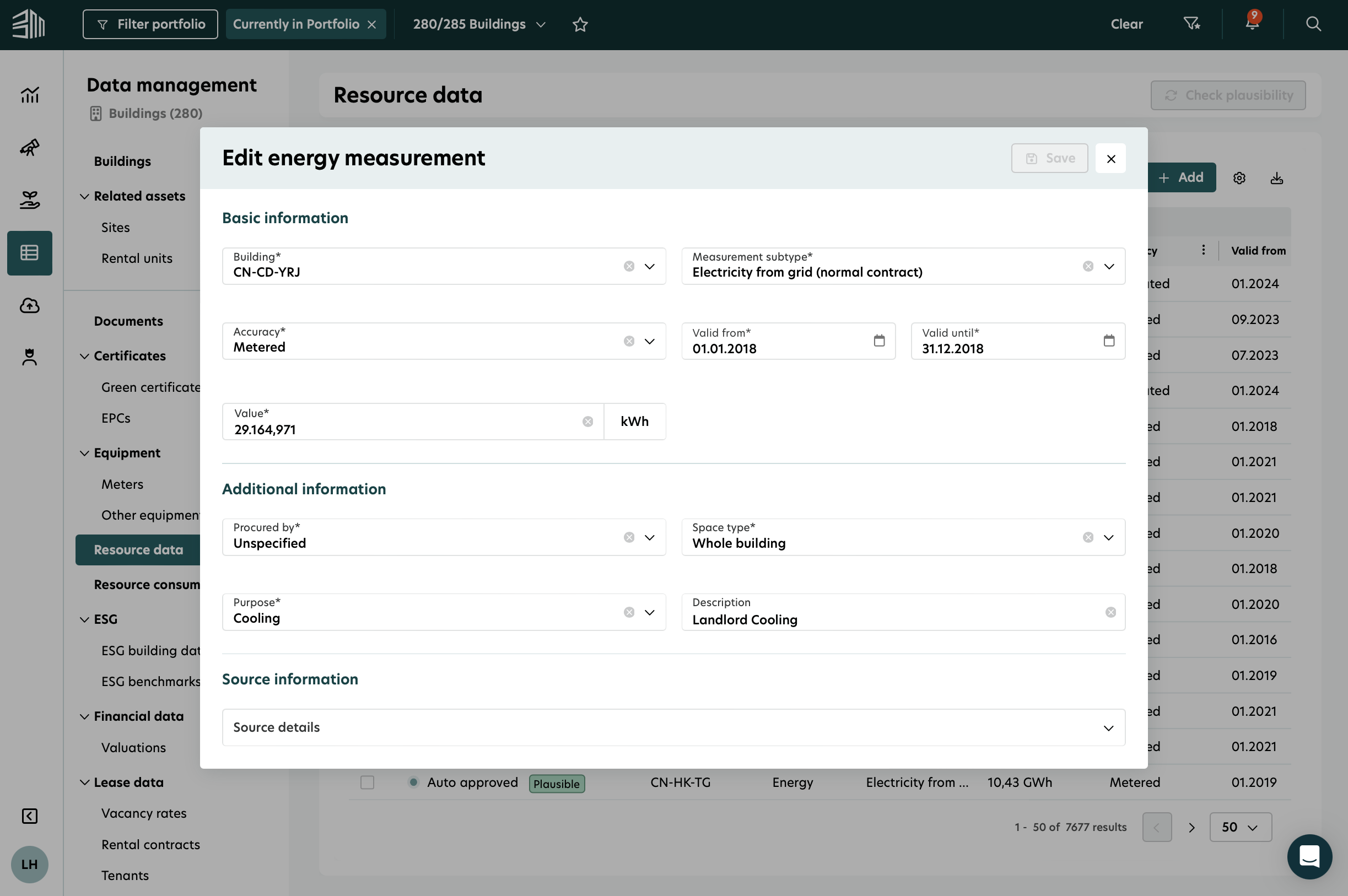
Type to subtype: Only subtypes mapped to the selected resource data type are displayed.
Type to unit: Only permitted units for the selected resource data type are displayed.
Valid from and Valid until: Dates must be in the past or until the last day of the previous month.
Minimum data coverage: Validity must cover more than 50% of the month to be included in monthly sustainability calculations.
Delete resource data
To delete resource data, you can do it in two ways:
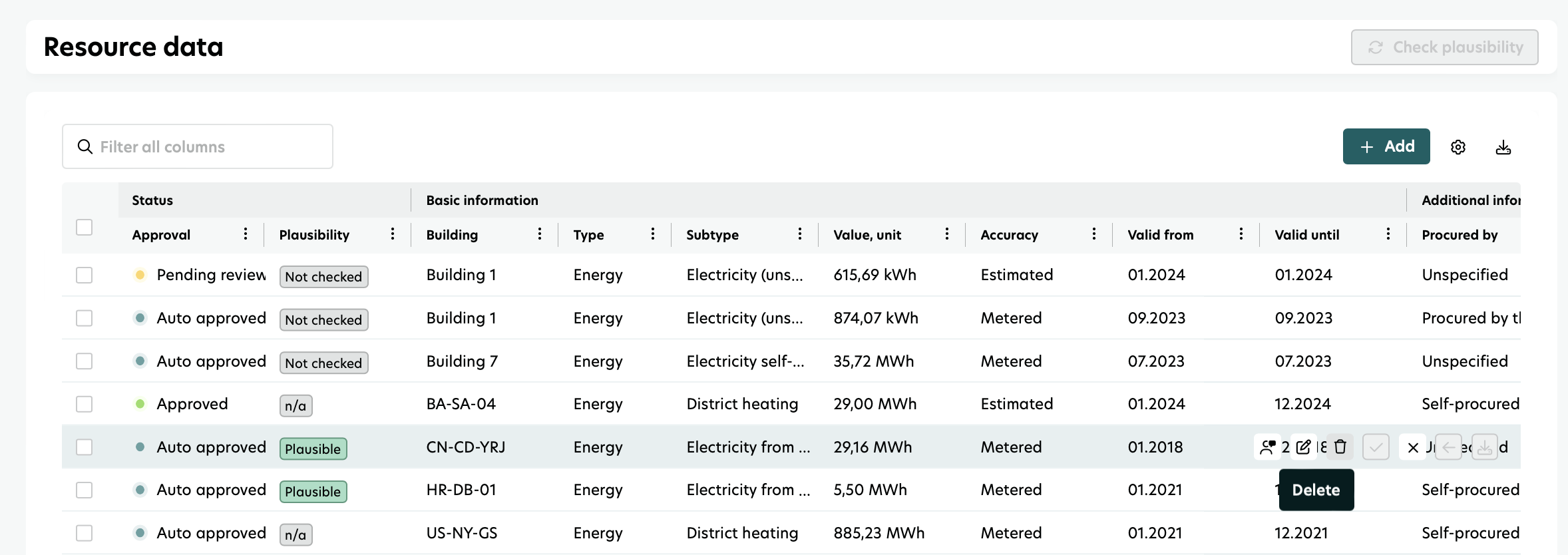
Delete a single resource data:
Hover over the row to see the Delete button.
Click the Delete button and confirm the deletion in the confirmation window.
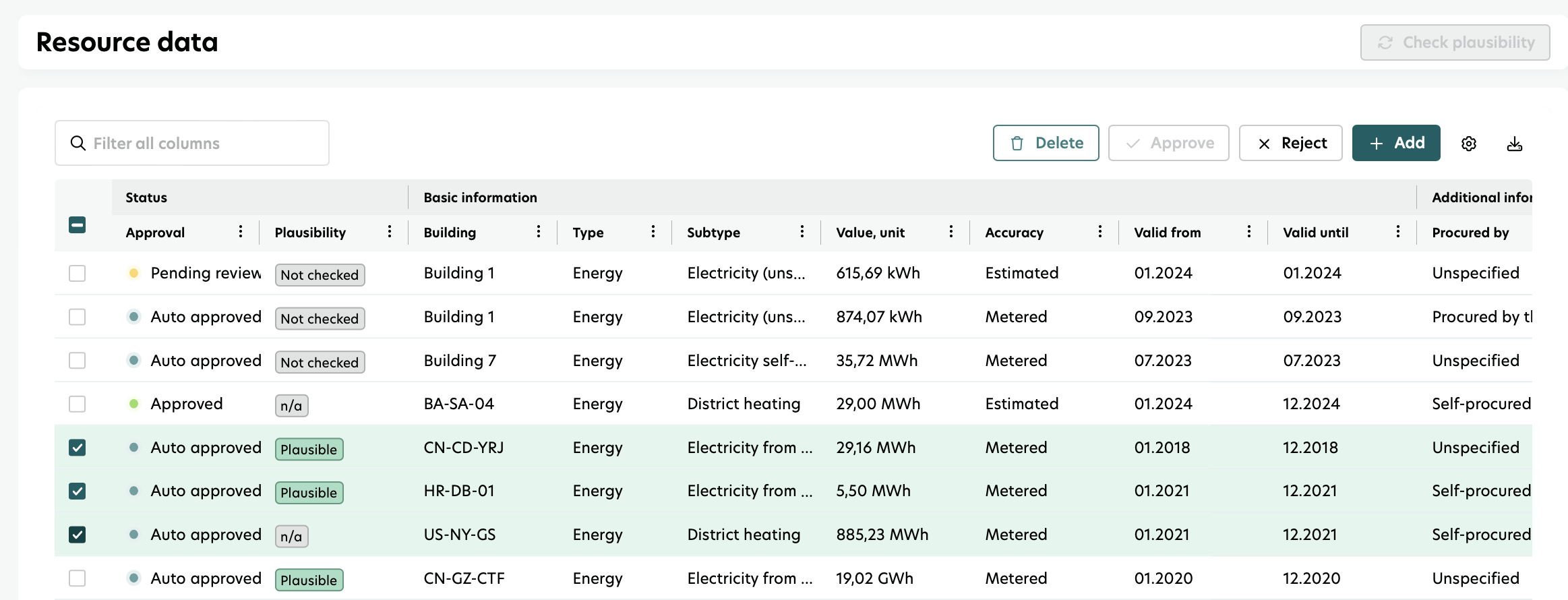
Delete multiple resource data:
Select multiple resource data using the selection boxes.
Click the Delete button at the top right of the table and confirm the deletion in the confirmation window.
To delete any data from the table you must have the Data Management Delete permission.
Deleting an approved/auto-approved resource data removes it from the Resource data table, sustainability reports, and calculations.
Use Search box
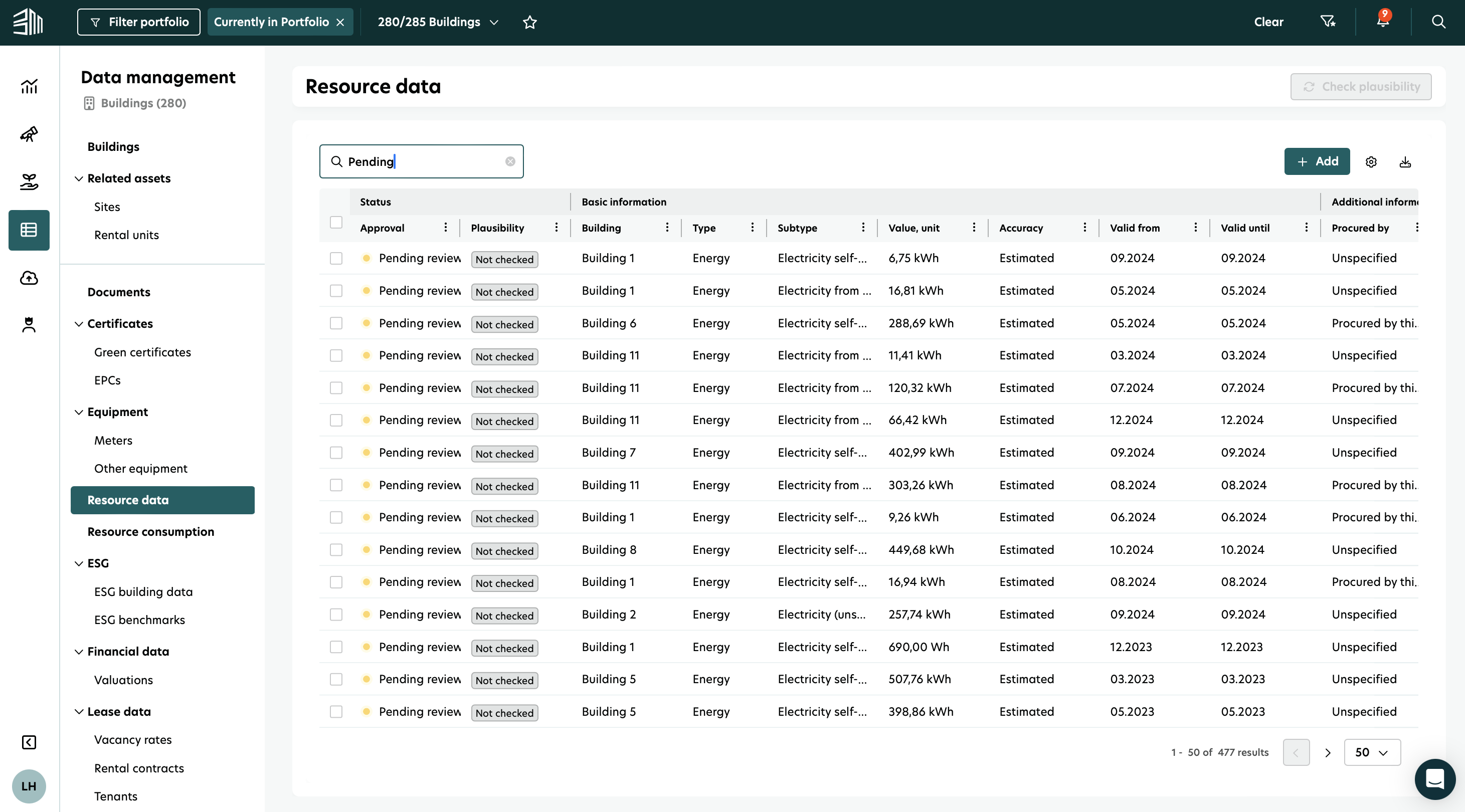
The Search box at the top of the page allows you to search the entire table.
Global Filter: Acts as a global filter on the resource data table.
Minimum characters: Requires at least three characters before filtering the table.
Download the resource data table
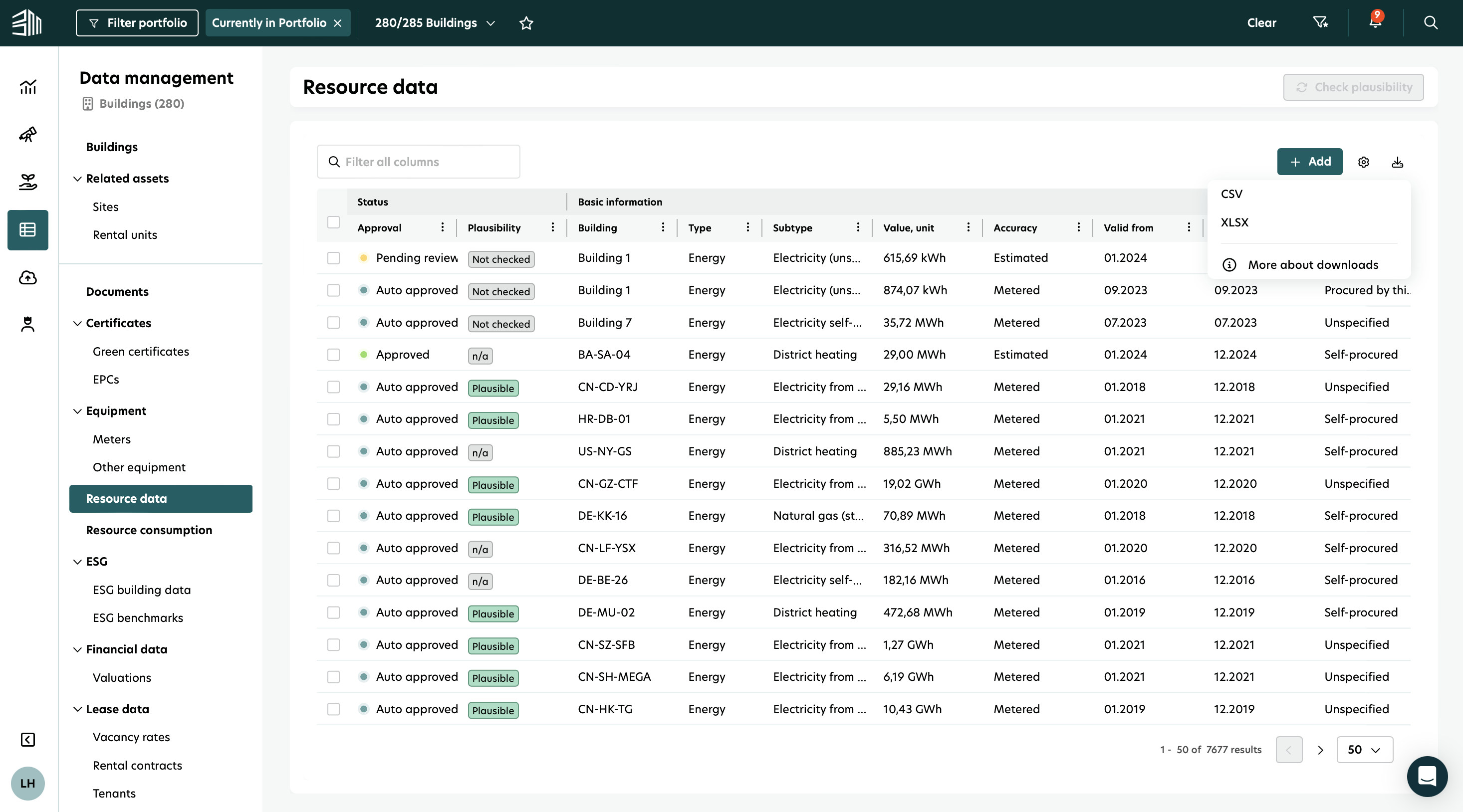
If you have the right permissions, you can download the resource data table as a CSV or Excel file.
Click the Download icon at the top right corner of the table to download as CSV or Excel.
Applied filters will affect the downloaded file, but hidden columns will still be included.
Data is exported in one file.
A message will indicate when the download process has started: "Download will start soon".
Run plausibility checks
You can perform a plausibility check for the resource data at the building level.
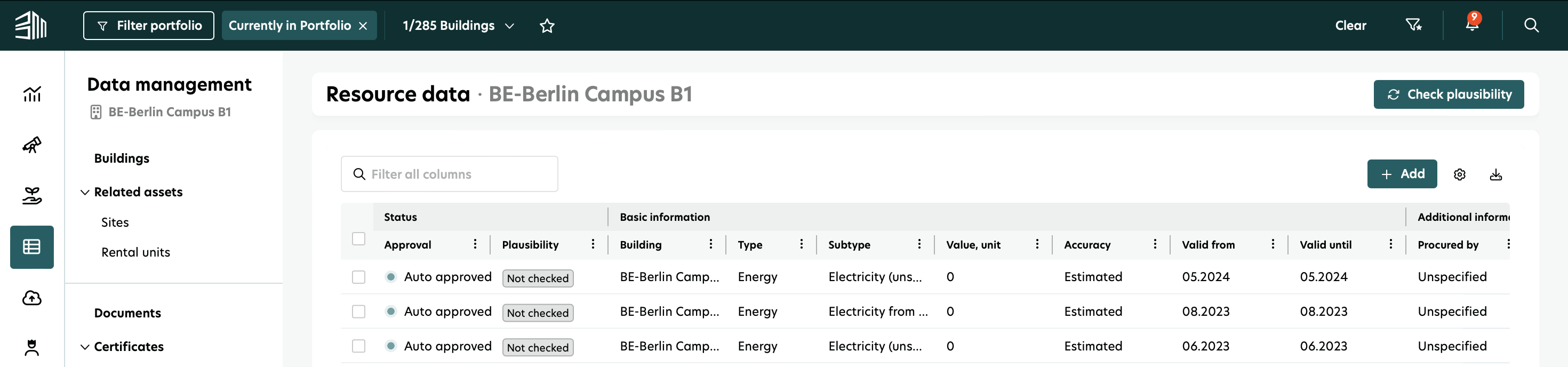
The Check plausibility button is disabled if you are not at the building level. It will only be active when a single building is selected.
Filter the resource data table to a single building and click Check plausibility to run the check.
A pop-out message confirms the plausibility check is being done for all energy types of resource data in the selected building.
The Plausibility column will show results as plausible, potential issue, or N/A which is for water, waste, and fugitives types.
Approve/Reject resource data
The resource data approval and rejection process allows you to approve or reject resource data. You can approve or reject a single or multiple resource data.
To approve or reject a single resource data:
Newly added resource data has the status "Pending review".
Hover over an resource data row to see the Approve and Reject buttons.
Click the Approve or Reject button and confirm the action in the confirmation window.
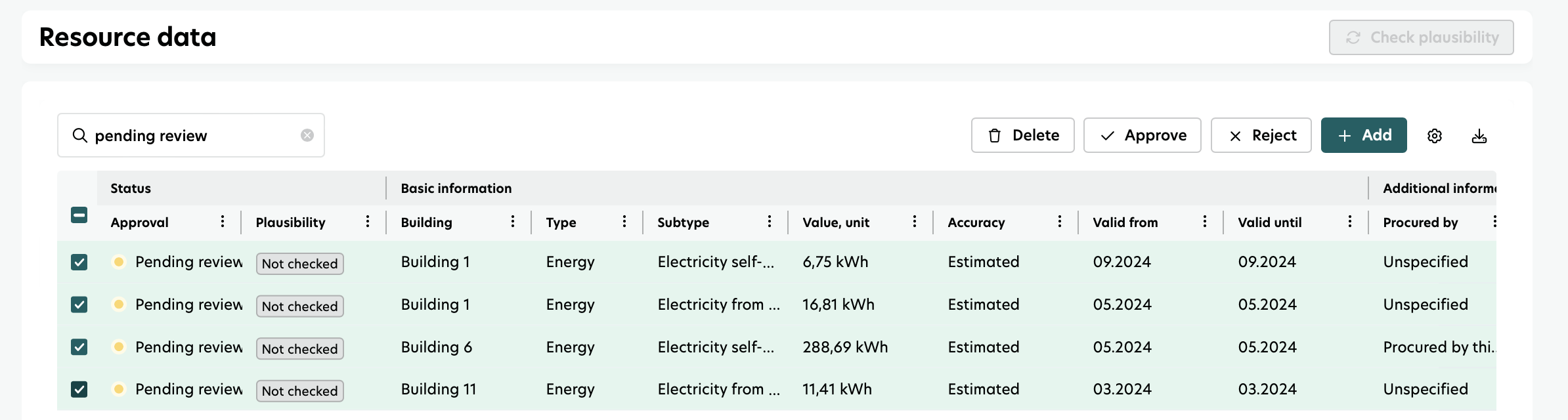
To approve or reject multiple resource data:
Newly added resource data have the status "Pending review".
Select multiple resource data using checkboxes.
Click the Approve or Reject button at the top right of the table and confirm the action in the confirmation window.
Only users with data management approval permissions can approve or reject resource data.
Rejected resource data is not considered in the sustainability reports and calculations.
Link to the uploading source
The resource data table has links to the Meter management UI for resource data received from meters.
For the resource data added via the invoice scraper tool, download links for the invoices are provided.
Meter management link: resource data rows created through meter aggregation have a link to the meter management UI.
Invoice download: resource data rows created through the invoice scraper have buttons to download the invoice document.
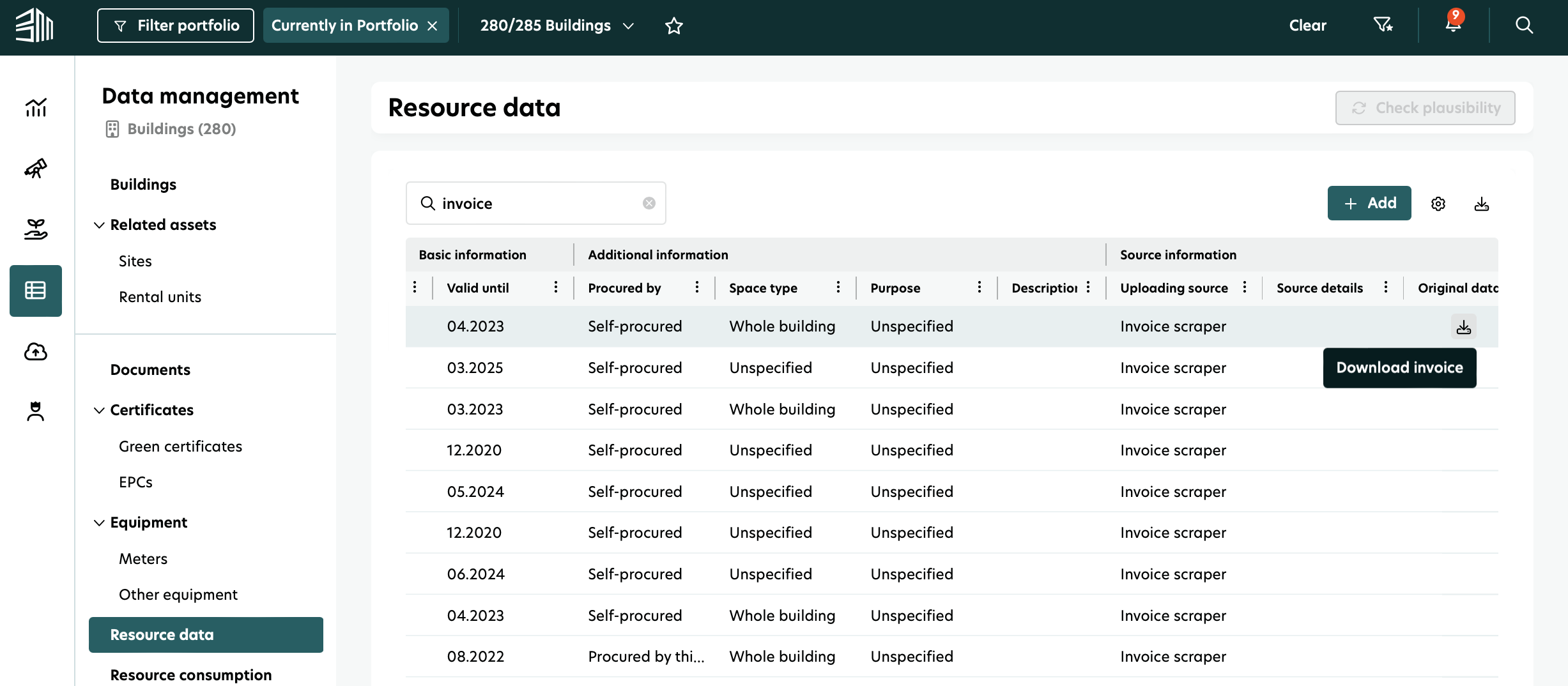
The Meter management and Download invoice icons are visible for all rows but disabled when the uploading source is not Meter and Invoice scraper respectively.