
Retrofit Scenarios
The Retrofit Scenarios tool helps you explore different paths to decarbonize your buildings, so you can find the right balance between environmental impact and financial goals. You can create, edit, duplicate, and delete retrofit scenarios directly in the BuildingMinds platform, giving you flexibility to test and compare strategies.
Access the retrofit scenarios list
Select the Planning and Forecasting icon in the left menu.
Select Retrofit Scenarios under CRREM and Retrofits.
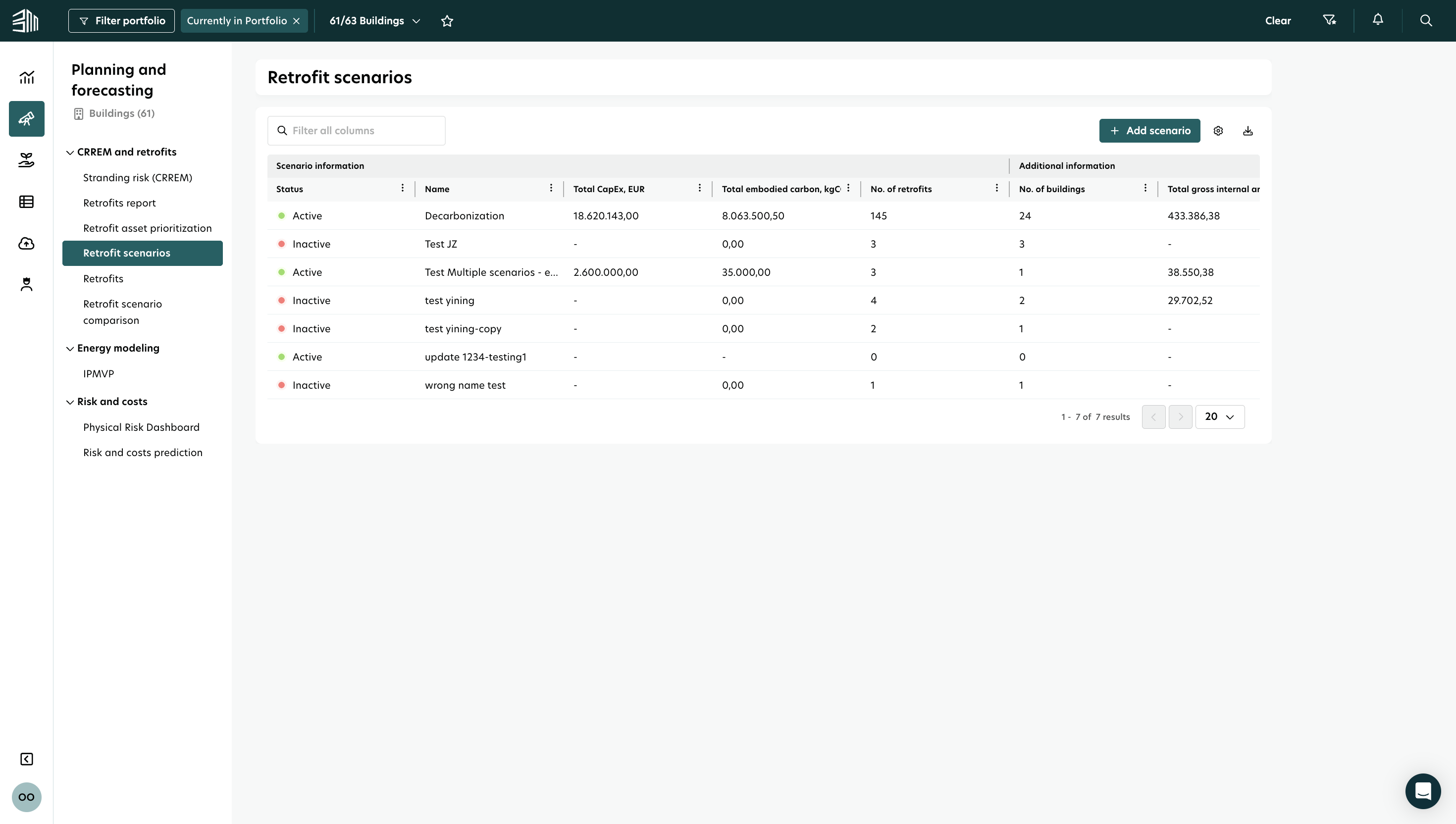
You’ll see a list of all scenarios based on your portfolio filter. Each scenario includes key details like:
Status and name
Total CapEx and embodied carbon
Number of retrofits and buildings included
Total gross internal area and market value
Manage the list of retrofit scenarios
You can customize and manage the list of retrofit scenarios using these options:
Filters:
Use the Filter portfolio button at the top left of the page.
Apply filters to specific columns or use the search field for quick results.
Sorting:
Sort the list by any column to organize your scenarios the way you need.Hide/Unhide Columns:
Hide columns by clicking the menu in the column header. To unhide them, use the Settings menu in the top-right corner of the list.Export:
Export your list of retrofit scenarios as a CSV or Excel file for easy sharing or analysis.Pagination:
Choose how many items to display per page and navigate through pages using the buttons at the bottom of the list.
Add a New Scenario
The default scenario is Decarbonization - you can’t edit or delete it, but you can create additional scenarios to explore alternatives.
To add a scenario:
Click Add Scenario.
Enter the mandatory fields: Name and Status.
Click Save.

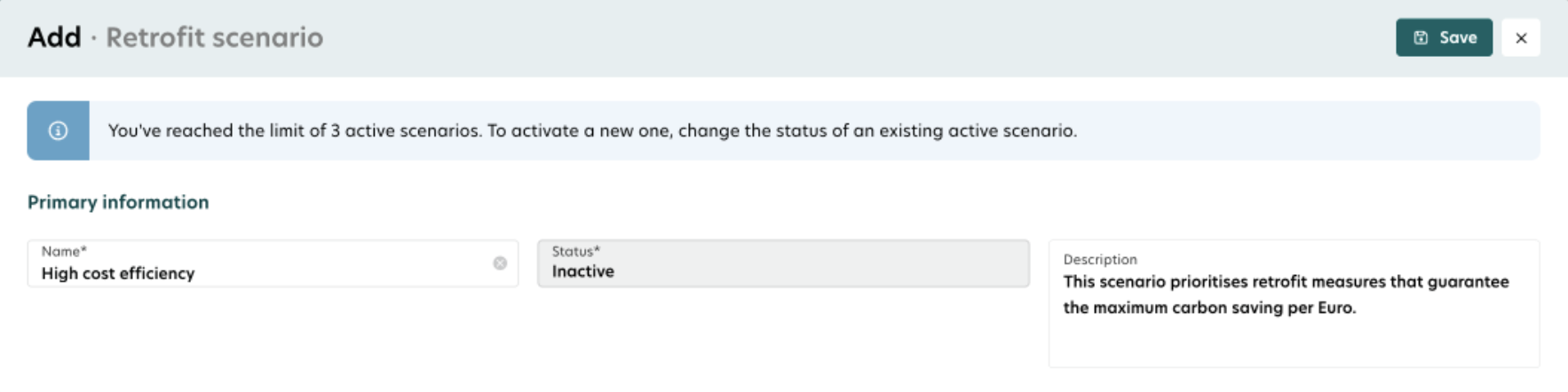
You need to fill in all mandatory fields before you can save the scenario.
You can add retrofits to any scenario, active or inactive. However, only active scenarios count toward sustainability calculations.
You can have up to 3 active scenarios at the same time.
Edit a Scenario
To make changes:
Hover over the scenario and click Edit.
Update the fields and click Save.
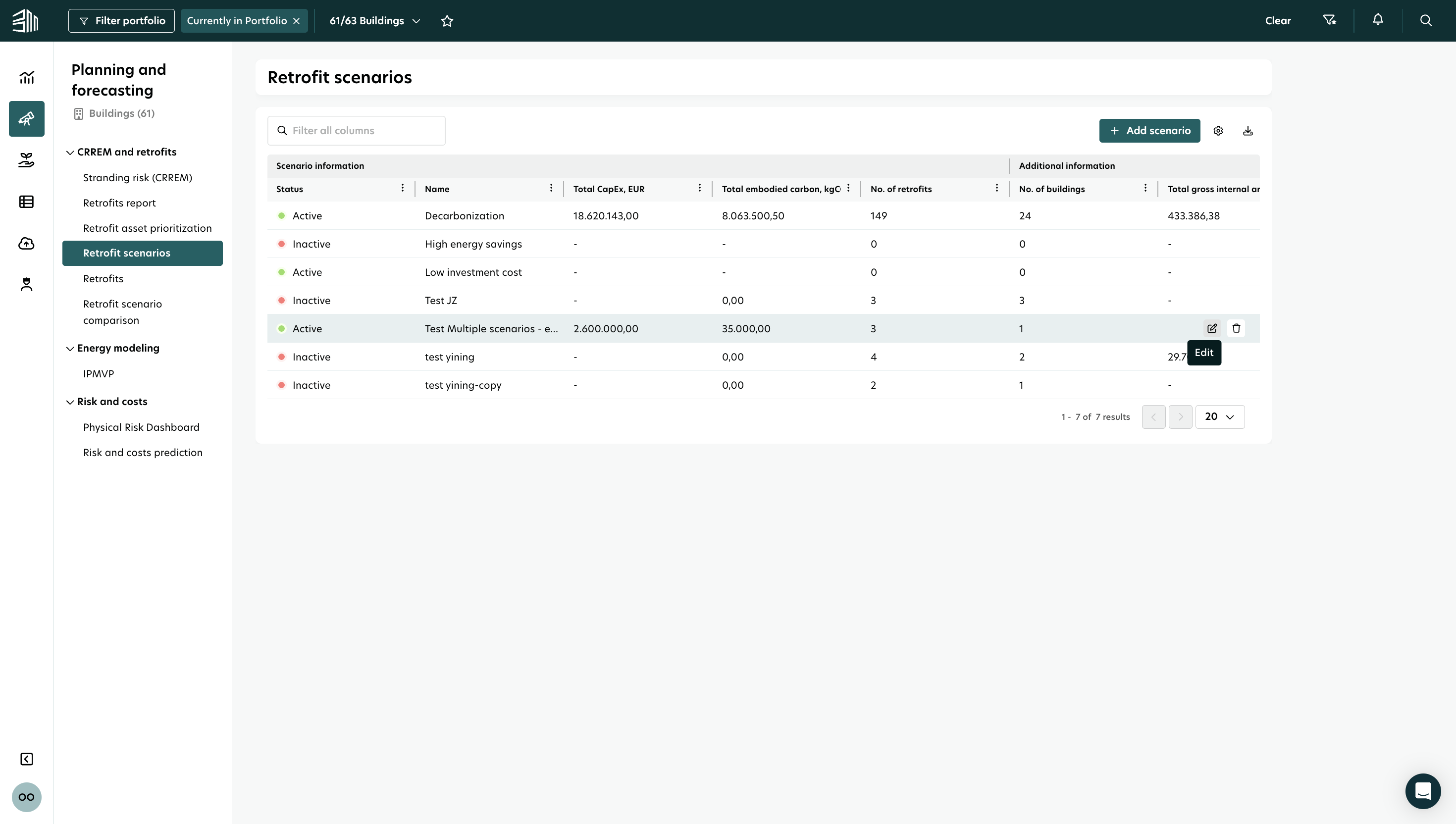

You can’t set a scenario to Active if you already have 3 active scenarios.
Duplicate a Scenario
You can duplicate an existing scenario along with all its retrofits for easy iteration. The duplicated scenario and its retrofits are completely separate and no longer linked to the original.
To duplicate a scenario:
Hover over the scenario and click Duplicate.
Update the details and click Save.
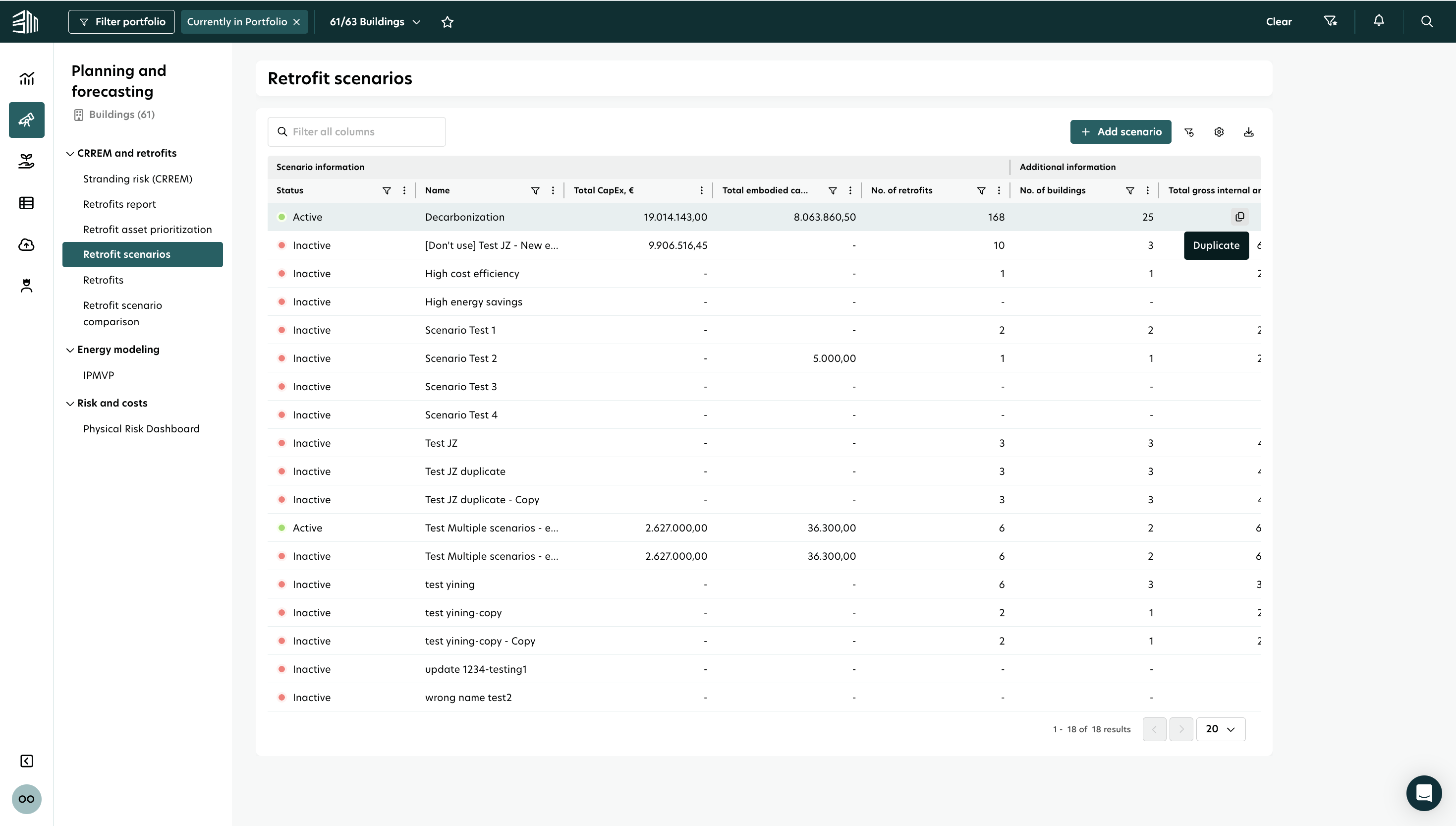
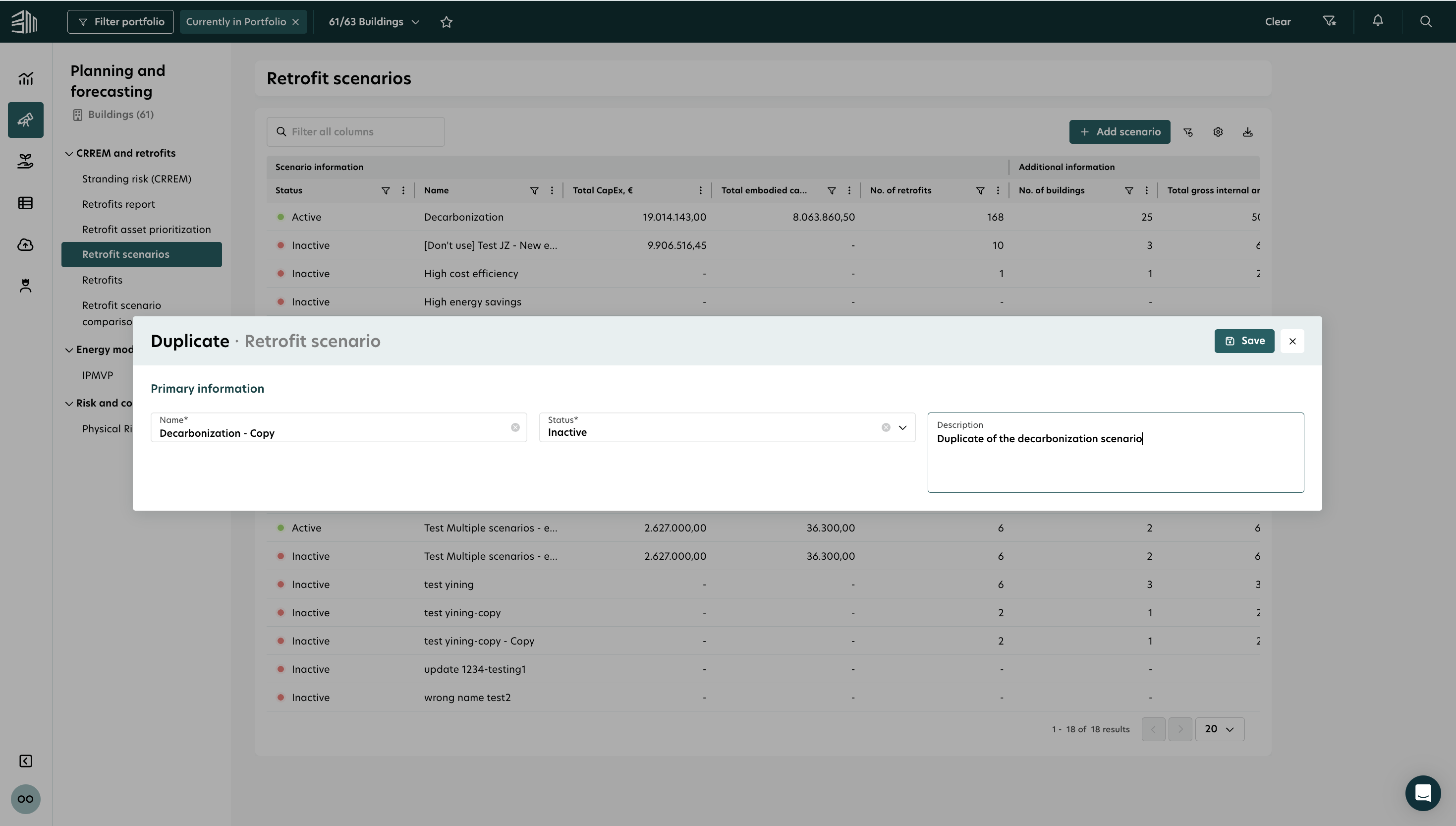
Each scenario needs a unique name.
Duplicates start as Inactive by default.
Delete a Scenario
To delete a scenario:
Hover over the scenario and click Delete.
Confirm by clicking Delete in the pop-up.

Deleting a scenario also deletes all its retrofits.