
Invoice extractor
The Invoice extractor tool simplifies invoice management by enabling users to upload, review, and manage PDF invoices on the platform. It automatically extracts consumption data and time periods from the invoices, allowing users to edit, approve, or reject them as needed for reporting purposes.
Key features
Single and multiple invoice upload
Users can upload single or multiple valid PDF invoices with a toast notification confirming successful uploads.Review and update
Users can review, edit, and save extracted invoice data for approval and reporting.Invoice rejection and restoration
Invoices can be rejected and restored with notifications ensuring smooth management of uploaded, approved, and rejected invoices.Approval workflow
Approved invoices are processed and added to the Data Management table for integration into the database.Metering point extraction and mapping to meters
Users can retrieve metering point ID from the invoice and match it to an existing meter in the BuildingMinds system.
Supported units
For each type and sub-type of utility, we support different units for the consumption data extracted.
Here is an overview of the supported units:
Unit of extraction | m³, kWh, Mbtu, thm, ccf cubft, dth | m³, l, gal, yd³, ccf, cubft, kgal | kWh, MWh | kWh, MWh, RTh | kWh, Mbtu, thm, Dth gal, lb (propane only) | kg, ton, lb |
Utility types | Natural gas standard mix; Green natural gas | Water discharge; Water consumption unspecified; Fresh water municipal water supply | Electricity self generated and exported; Electricity from grid green electricity contract; Electricity self generated and consumed; Electricity unspecified; Electricity from grid normal contract | District cooling | Fuel unspecified; District heating; Oil based fuels; Solar thermal; Biomass | Waste; Incineration: hazardous / non-hazardous; Landfill: hazardous / non-hazardous; Recycling: hazardous / non-hazardous; Reuse: hazardous / non-hazardous; Waste to energy: hazardous / non-hazardous; Other/Unknown: hazardous / non-hazardous |
Normalized unit | kwh | m³ | kwh | kwh | kwh | kg |
To avoid rounding errors, conversions are kept to a minimum. All calculations are done with existing formulas in the metric system.
For propane invoices, custom conversion factors are used to normalize data from gallons/pounds into kWh.
Access Invoice extractor
1. Click on Data onboarding.
2. Select Invoice Extractor under AI data extraction.
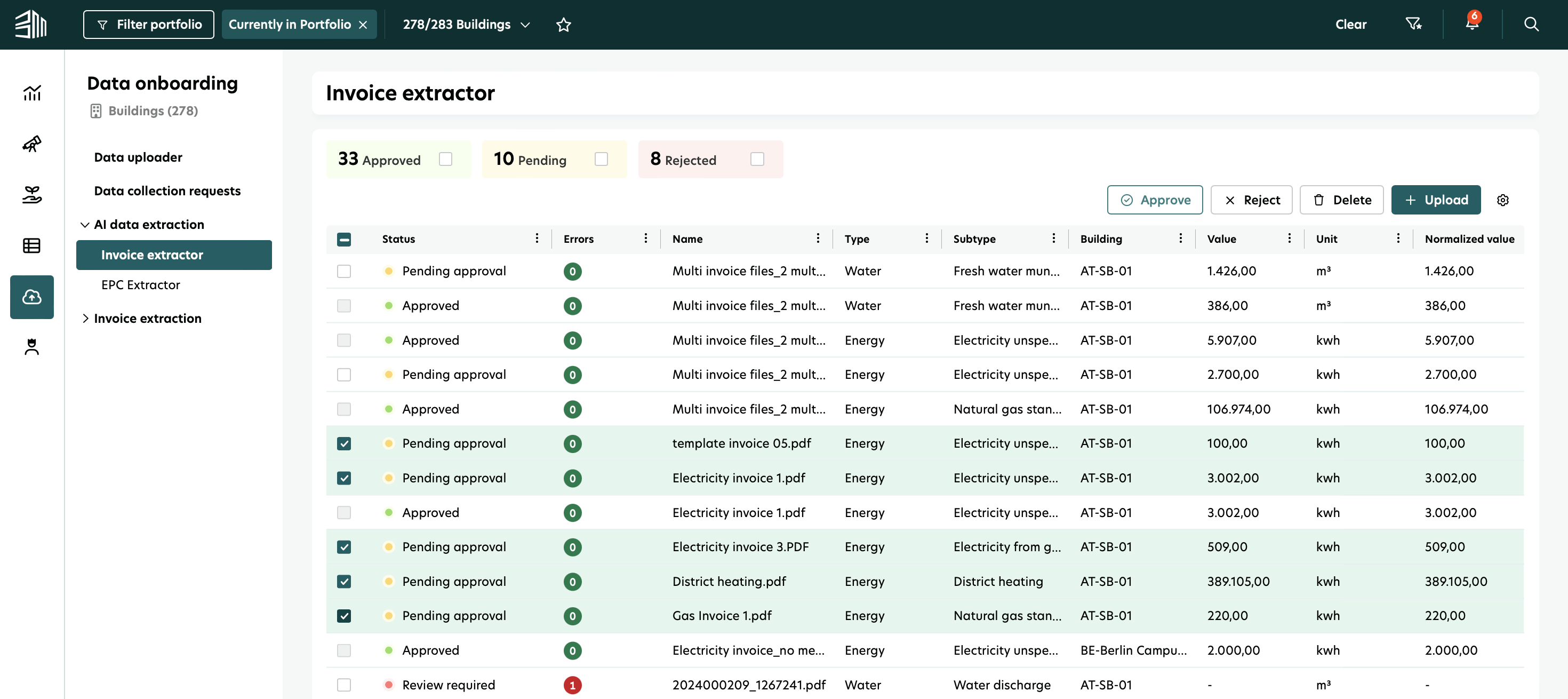
You’ll see all invoices in one list. The status shows if any action is needed from you.
For each invoice, you can view the extracted data along with basic details like the file name and related asset.
Filters
You can filter the list in several ways:
Portfolio or Building filters: Show invoices for specific buildings or parts of your portfolio.
Smart filters: Filter invoices by status:
Pending: Uploaded but not yet approved or rejected. Some may need manual adjustments.
Approved: Uploaded and approved.
Rejected: Uploaded and rejected.
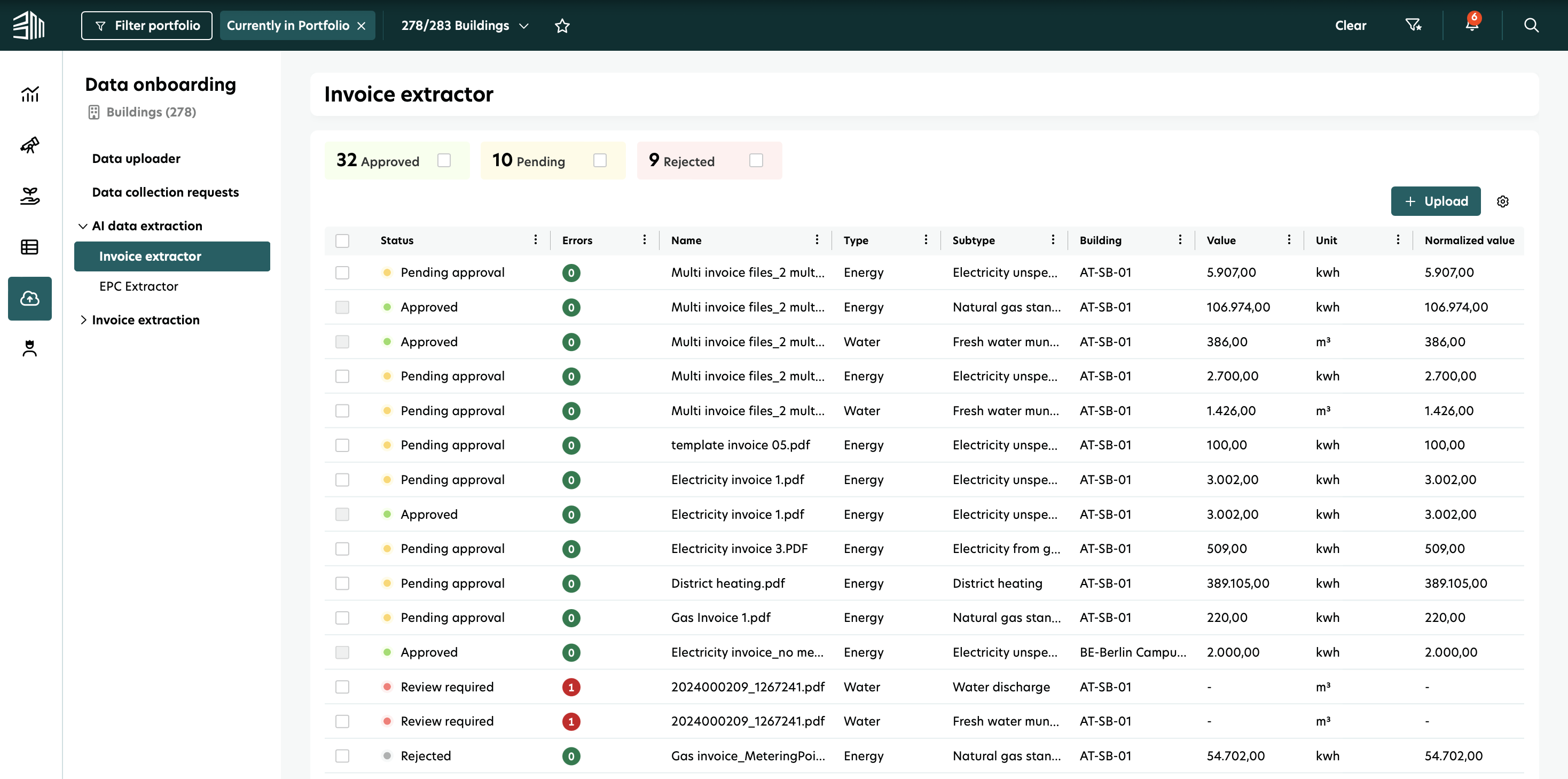
The Invoice extractor can be used in two ways by uploading a single invoice or by uploading multiple invoices.
Upload new invoice(s)
This feature lets you upload one or more invoices and automatically extract data from them.
To upload invoices:
1. Click the Data Onboarding icon in the left menu.
2. Select AI Data Extraction.
3. Click the Upload button above the list.
4. Select a building (optional) OR select a building and a rental unit.
5. Choose one or several files to upload.
If a file is too large (over 25 MB) or has too many pages (over 200), you’ll see an error message and can remove that file.
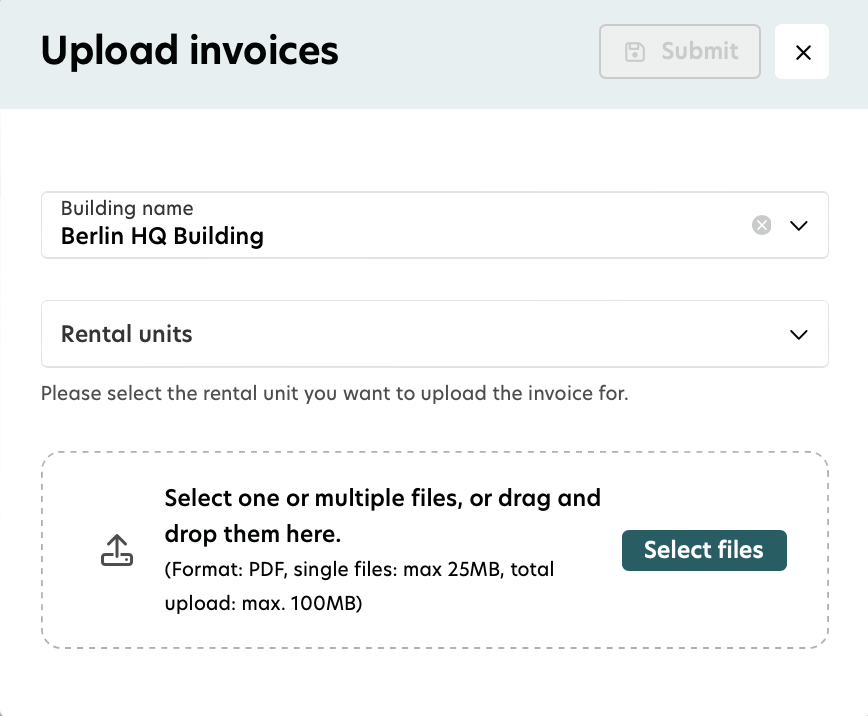
What happens after upload?
1. After a few seconds, a notification appears, and the new invoice shows at the top of the list.
The status will display Processing, and columns will be empty while data is being extracted.
If you upload multiple files, each invoice will appear in its own row.
2. Once processing is complete:
Pending approval: All required data was extracted successfully.
Review required: Some data couldn’t be extracted; the number of errors is shown.
Review required: If the file isn’t recognized as an invoice.
3. After the upload, the tool attempts to automatically map the invoice to an existing meter - either of the building or rental unit it was uploaded for.
Edit invoice data
Use this feature to update the details of an invoice.
1. Hover over the invoice row you want to edit.
2. Click the Edit icon.
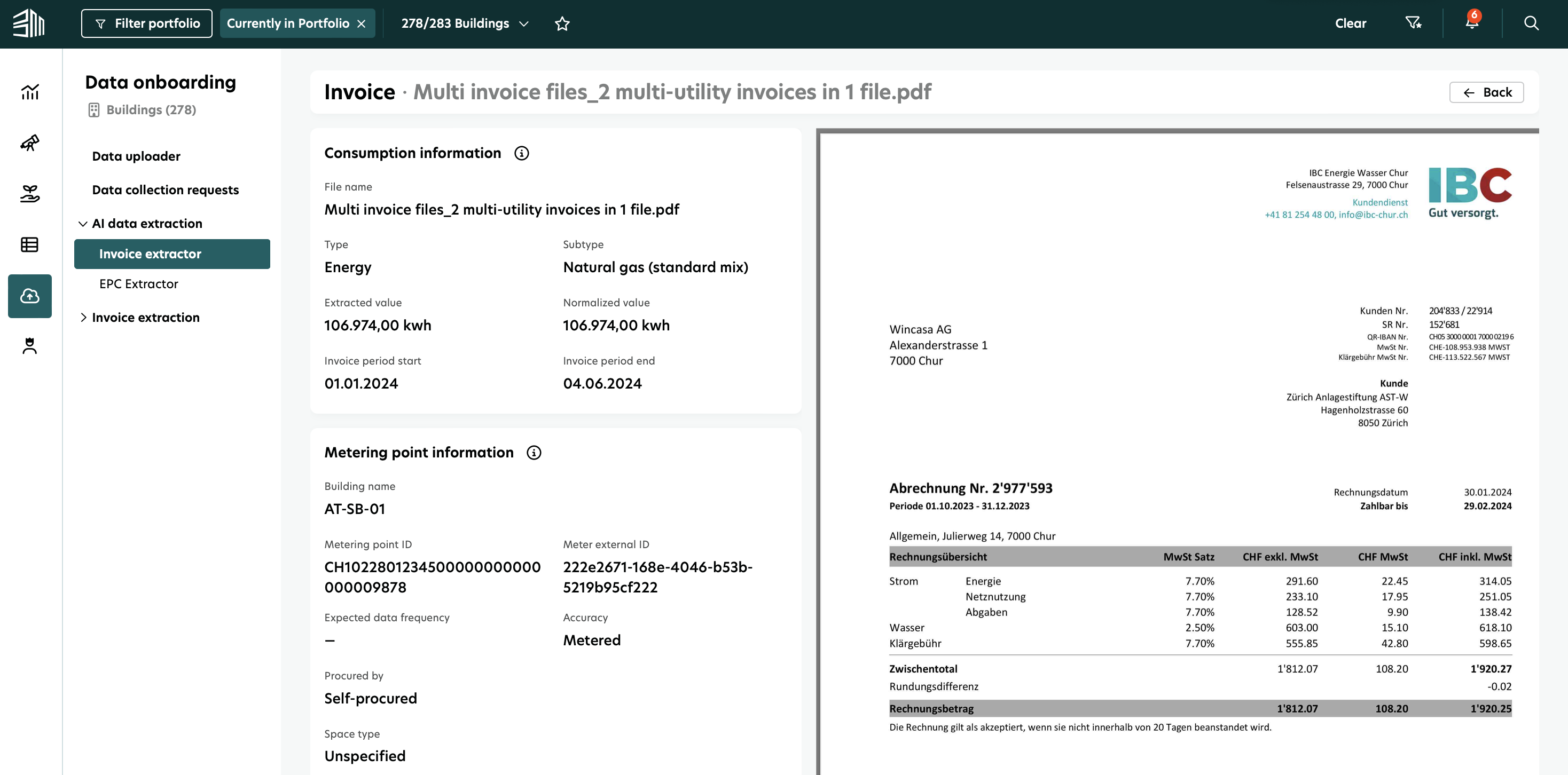
3. The Edit form will open.
You can edit: Type, Subtype, Unit, Value, Invoice period (Start and End), Procured by, Accuracy
You cannot edit: Normalized value, Normalized unit, File
4. After editing, choose one of these options:
Save: Save your changes.
Save and Reject: Save your changes and reject the invoice.
Save and Approve: Save your changes and approve the invoice.
5. After you select an action:
A success or error message will appear.
The updated invoice details will show in the list.
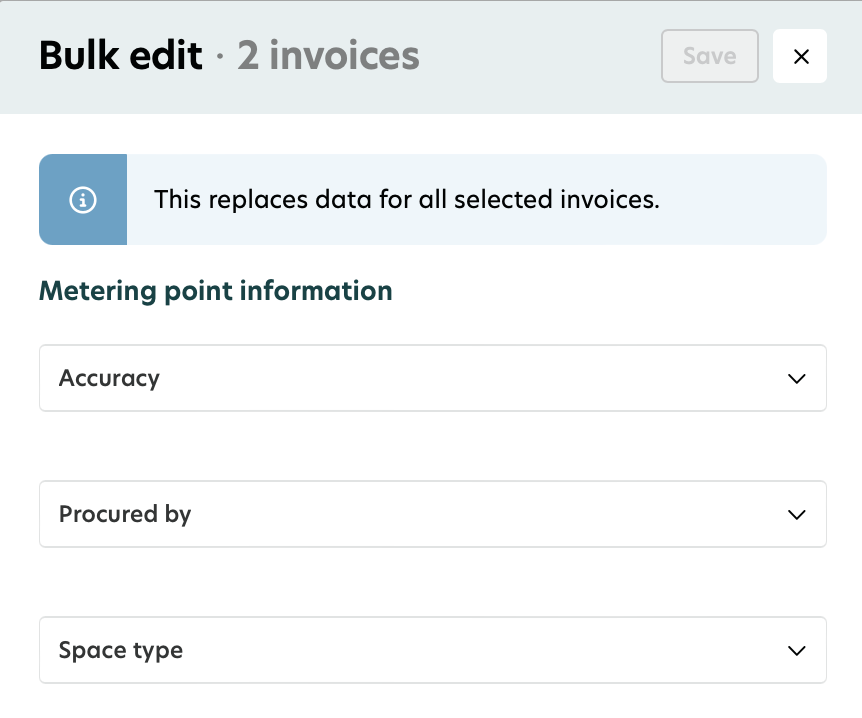
For three specific fields, you can also edit multiple invoices at the same time:
Select the invoices to be edited.
Click the edit icon above the list.
The Bulk edit form will open. You can edit the following fields: Accuracy, Procured by, Space type.
After saving, the changes will be applied to all selected invoices.
Highlight extracted data in PDF
Use this feature to edit extracted data directly in the document viewer and quickly find where each value was extracted.
1. Open the Edit form for an invoice - all fields with data extracted by AI are highlighted with a special color (until manually edited).
2. Enable the "Highlight extracted data" toggle above the document viewer - all extracted data will be highlighted in the PDF.
3. Click the Highlight button next to a specific field - the document viewer will navigate to the page where that value was extracted.
If you edit and save an extracted value, the data shown in the document may no longer match the saved value.
Reject invoices
Use this feature to reject invoices when the data is incorrect or cannot be used for reports.
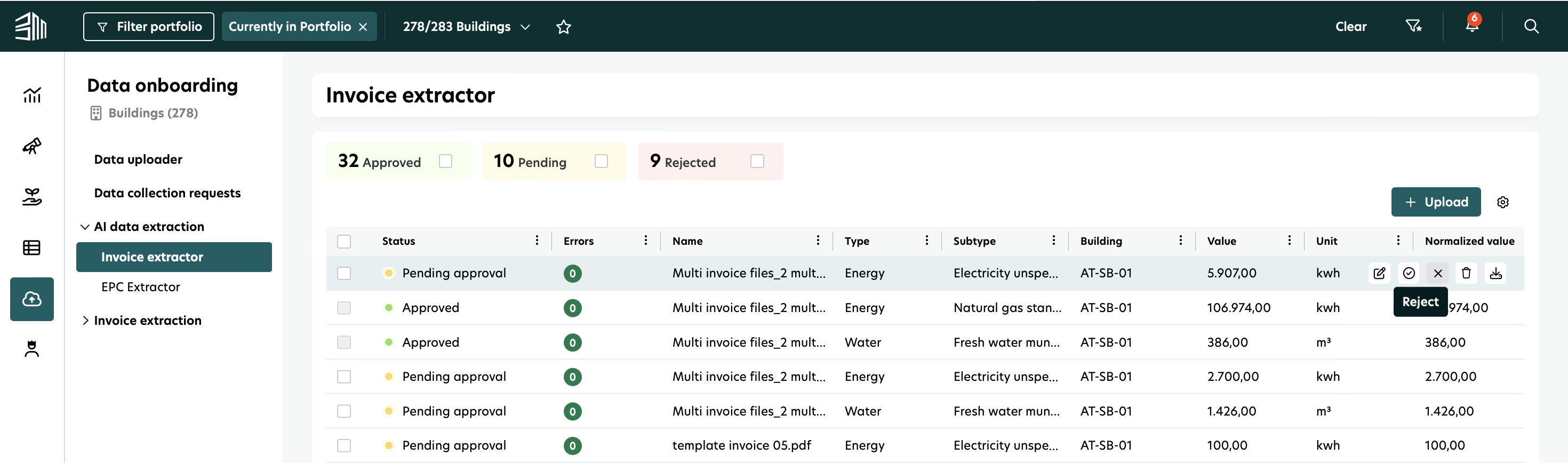
1. Select the invoice(s) you want to reject:
For a single invoice, hover over the row and click the Reject icon.
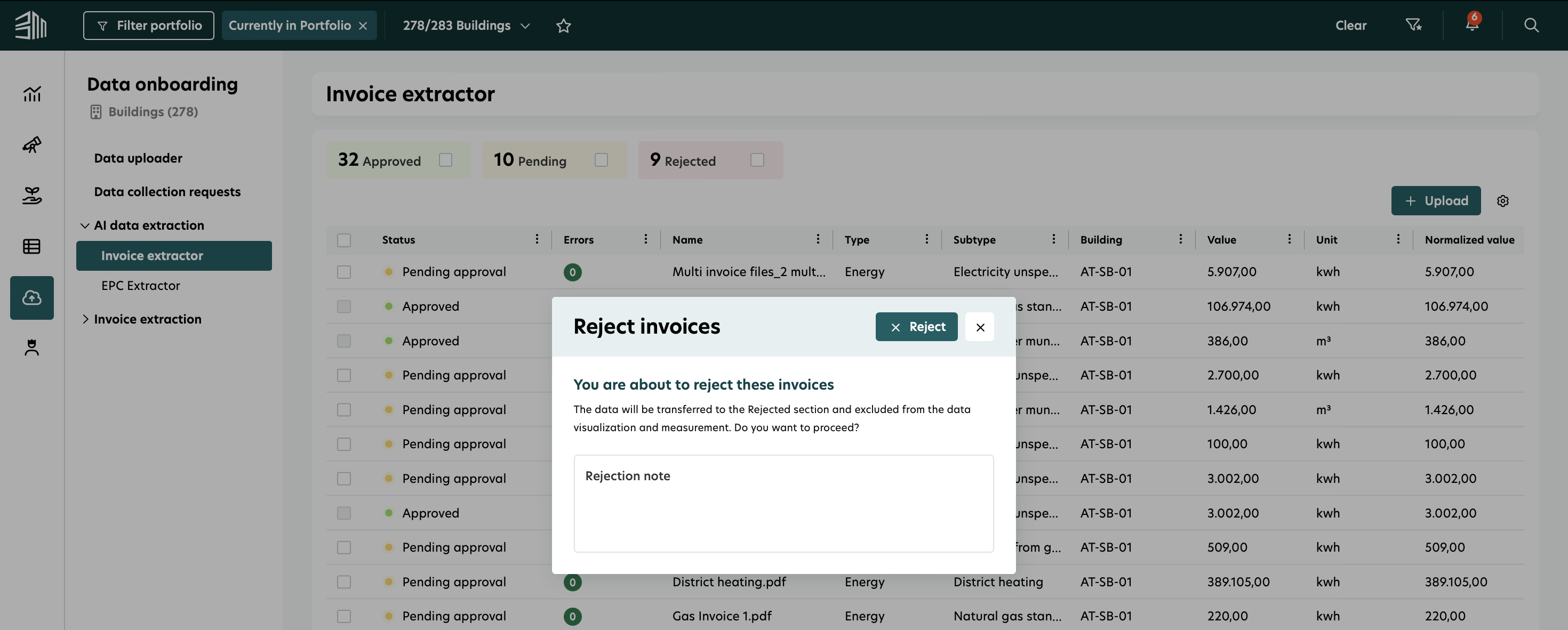
For multiple invoices, select all invoices you want to reject and click the Reject button above the list.
2. (Optional) Add a rejection note.
For multiple invoices, the note will apply to all selected invoices.
3. Confirm the rejection.
4. A success message will appear.
Result of the rejection
Rejected invoices will show the status “Rejected.”
You can still view the details of a rejected invoice by clicking on its row.
You can restore a rejected invoice.
Any pending invoice can be rejected, except those with status Processing.
Restore invoices
Use this feature to bring back rejected invoices so their data can be considered again for reports.
1. Select the invoice(s) you want to restore:
For a single invoice, hover over the row and click the Restore icon.
For multiple invoices, select all invoices you want to restore and click the Restore button above the list.
2. Confirm the restoration.
3. A success message will appear.
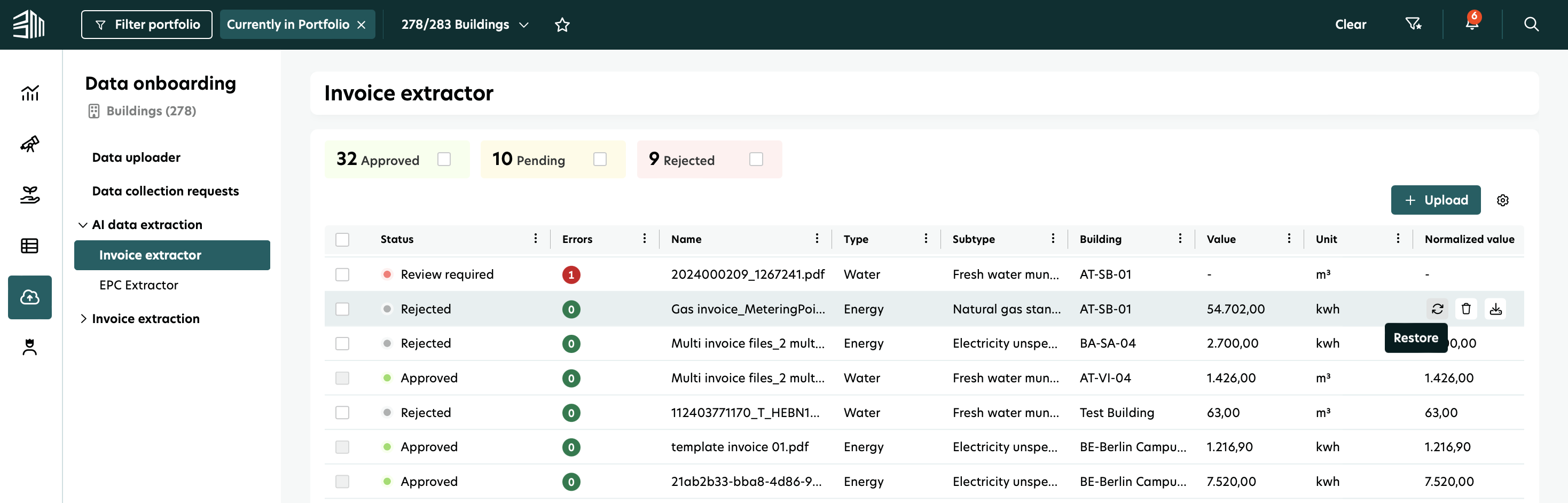
Result of restoring
The restored invoice(s) will return to Pending invoices with the status they had before rejection.
Restored invoices can be reviewed again and approved if complete.
Any rejected invoice can be restored.
Approve invoices
Use this feature to approve invoices and validate the consumption data so it can be used for reports.
1. Select the invoice(s) you want to approve:
For a single invoice, hover over the row and click the Approve icon.
For multiple invoices, select all invoices you want to approve and click the Approve button above the list.
2. Confirm the approval.
3. A success message will appear.
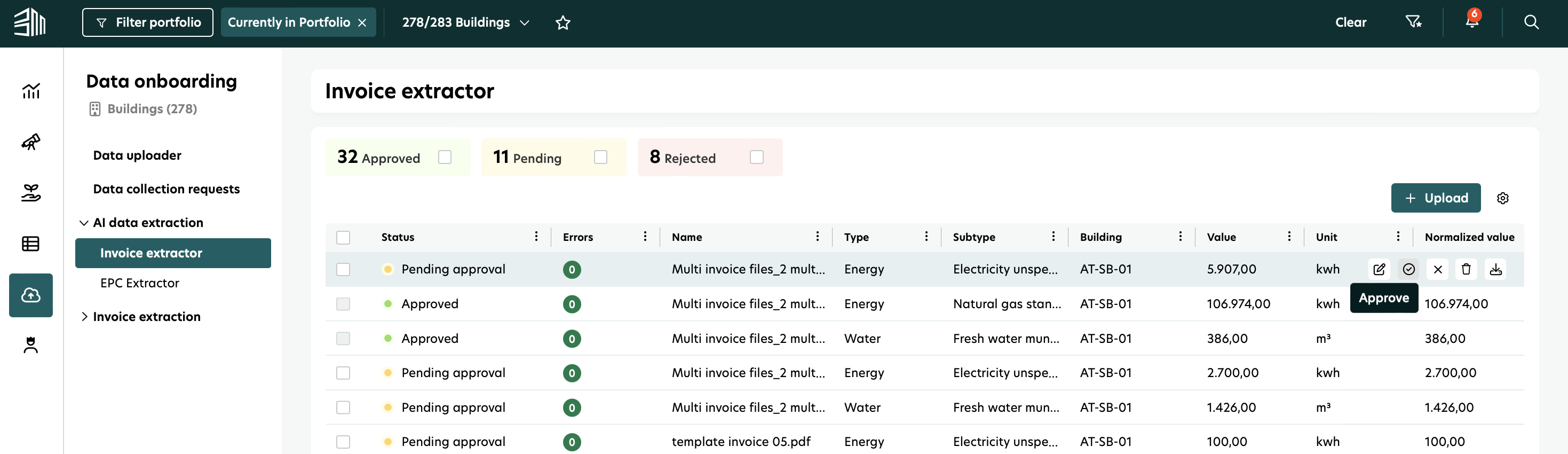
Result of the approval
Approved invoices will have the status “Approved.”
The consumption data from the invoice is now available in Data Management > Resource Data and used for reports.
Incomplete or invalid invoices cannot be approved because some data is missing. Complete the missing data first, then approve the invoice.
Duplicate invoices
When approving an invoice, the system checks for the building if there is already an operational measurement for this utility and this time period.
If one exists, the approval fails and the invoice gets the status “Duplicate.”
You can reject or delete it, or edit the data and try approving again.
Bulk actions
This feature lets you delete, approve, reject, or restore multiple invoices in a single action.
Bulk deletion 1. Select all invoices to be deleted 2. Click on the Delete button above the list. 3. Confirm the deletion. Result: the invoices are deleted and not visible anymore. Note: Any pending invoices can be deleted, except Processing ones. | Bulk approve 1. Select all invoices to be approved 2. Click on the Approve button above the list. 3. Confirm the approval. Result: the invoices now have the status ‘Approved’. Note: Only “Pending approval” invoices can be approve. Processing, “Review required” and “Duplicate” invoices cannot be approved. | Bulk reject 1. Select all invoices to be rejected 2. Click on the Reject button at the top right corner. 4. Confirm the rejection. Result: the invoices now have the status ‘Rejected’. Note: Any pending invoice can be rejected, except Processing ones. |
Multi utilities invoices
This feature ensures that invoices containing data for more than one utility type are processed just like any other invoice.
1. Upload the invoice as you would do with any other invoice.
2. Once the invoice is processed, separate rows will be displayed for each utility type included in the invoice.
Most information across these rows will be identical.
However, the consumption data (value and unit), as well as the utility type and sub-type, will differ for each row.
Example:
If users upload an invoice that includes data for Electricity and Gas, the system will display two rows in the Pending Invoices list: One row for Electricity and one row for Gas.
This ensures each utility type is tracked and managed separately for clarity and accuracy.
Multi invoices file
The multi invoices file feature allows users to upload a single file that contains multiple invoices. The system automatically extracts each invoice and utility type, creating separate records for processing.
Upload the file using the standard invoice upload process.
After the processing, a row for each invoice and each utility type from the invoices is displayed.
Metering point extraction and mapping to meters
During data extraction, the metering point ID and/or meter ID can be retrieved from the invoice and matched to an existing meter in the BuildingMinds system. If no match is found, a new meter is created so that all invoices and related consumption data are linked to meters.
Metering point ID definition
A metering point ID is a unique identifier used in utility systems to specify the exact location or point within a grid where energy or resource consumption is measured. It is essential for accurate billing, supplier switching, and data management.
The metering point ID is not the same as the meter ID. Both may appear in invoices.
Extraction use cases
1. Building provided before invoice upload
a. Metering point ID and/or meter ID extracted and matched to an existing meter
Result: No action needed.
The edit form will display:
Extracted metering point ID and/or meter ID
Mapped meter
Expected data frequency of the meter
b. Metering point ID and/or meter ID extracted but no match found
Optional action needed:
Open the edit form and provide a meter ID in Metering point information
Manually enter:
Meter external ID
Expected frequency
Upon approval, a new meter will be created for the building using the provided data
c. Metering point ID not extracted
Optional action needed:
Open the edit form and provide:
Metering point ID and meter ID
Meter
Option 1: Select a meter from the dropdown list (all existing meters for the selected building and utility type)
Option 2: Switch to Manual and enter:
Meter external ID
Expected frequency
Upon approval, a new meter will be created for the building using the provided data
2. Building not provided before invoice upload
The same scenarios as above apply, with an additional step:
If no building is linked via the metering point ID/meter ID, the user must also provide the building in the edit form before approval.
Critical points
After extracting the metering point ID, the system checks for existing meters with that ID. If found, the invoice is automatically linked to the meter and its associated building.
An invoice must always be linked to a building before approval.
Video tutorial - Invoice extractor
Here is a video tutorial to walk you through the process of how to use Invoice extractor.