
Task Management
Task Management helps you create and assign simple internal tasks directly from the platform. It’s not meant to replace full task management tools, but to help you get your job done faster by requesting missing information, asking for changes, or requesting a review. You can create tasks from the pages under Data Management section, either in general or for a specific entity.
Once a task is assigned, the person you assign it to will receive both, an in‑app notification, and an email.
Each notification includes quick actions, so they can easily open the relevant page and complete the task. This keeps important requests, such as missing documents, incomplete building details, or review requests, from being overlooked, while staying simple and closely connected to your everyday work.
Permissions
Here’s how access to tasks works:
Create, edit, or delete tasks: You need the Task Management permission with Add access or higher.
Receive and complete tasks: Available to all users.
Task assignment: You can only assign tasks to internal platform users. External users are not included.
Create a Task
You can create two types of requests:
Request to add
Request to edit
Each option is available from a different place in the table.
1. Request to add
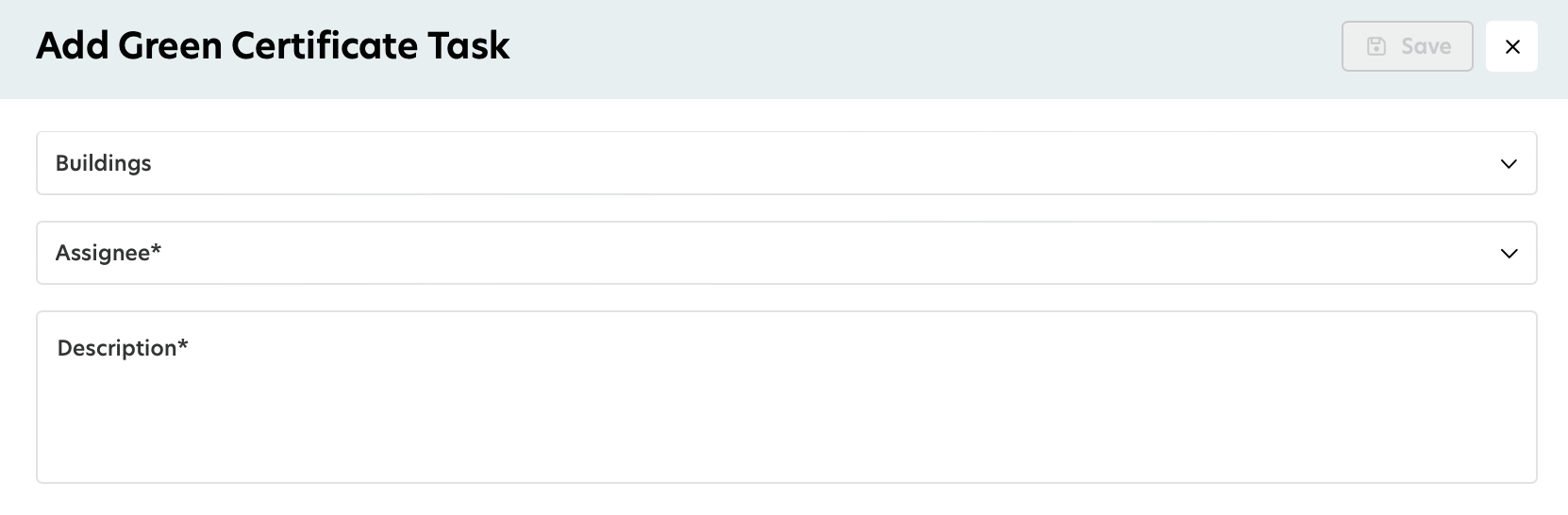
You can create a Request to add by clicking the Add button above the table.

When you select Request to add, a new window opens, and you fill in the required information:
Related buildings: Link the request to one or more buildings it applies to.
Assignee: Select the person who should handle the request from the list of platform users.
Description: Clearly explain what needs to be added.
2. Request to edit
To create a Request to edit, simply hover over a row in the table.
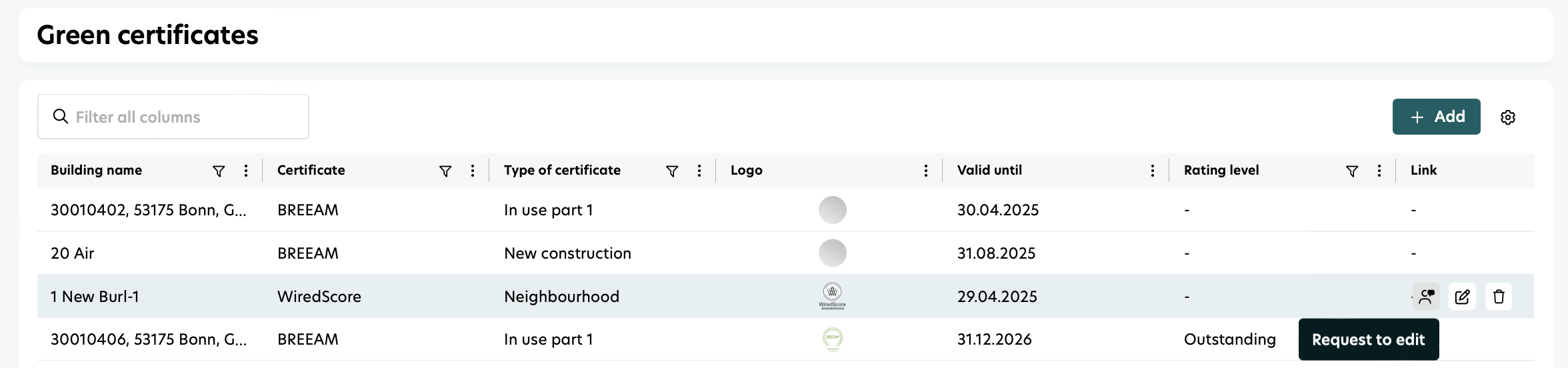
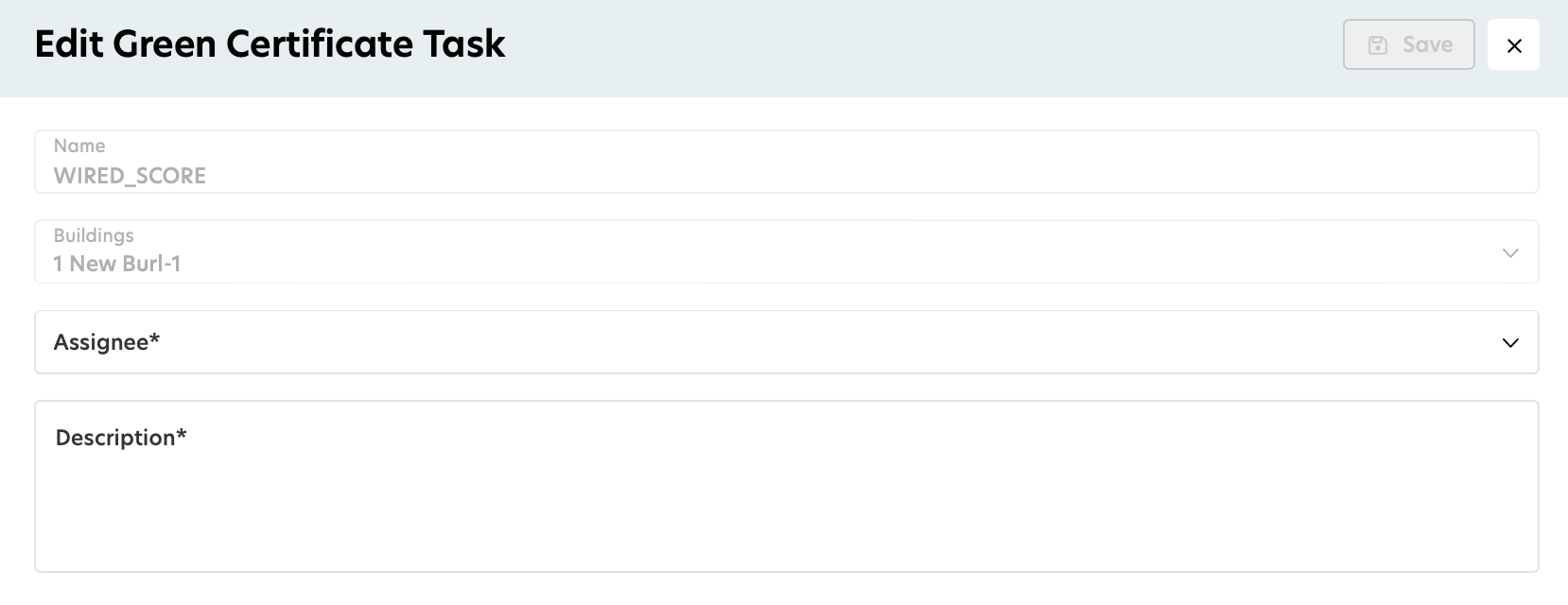
Click Request to edit white action box, and a form opens with some information already filled in, as it relates to the selected row and cannot be changed.
You only need to:
select an assignee
add a description explaining what should be changed
Notifications and Task Delivery
Once you create a task, it is automatically sent to the assignee as:
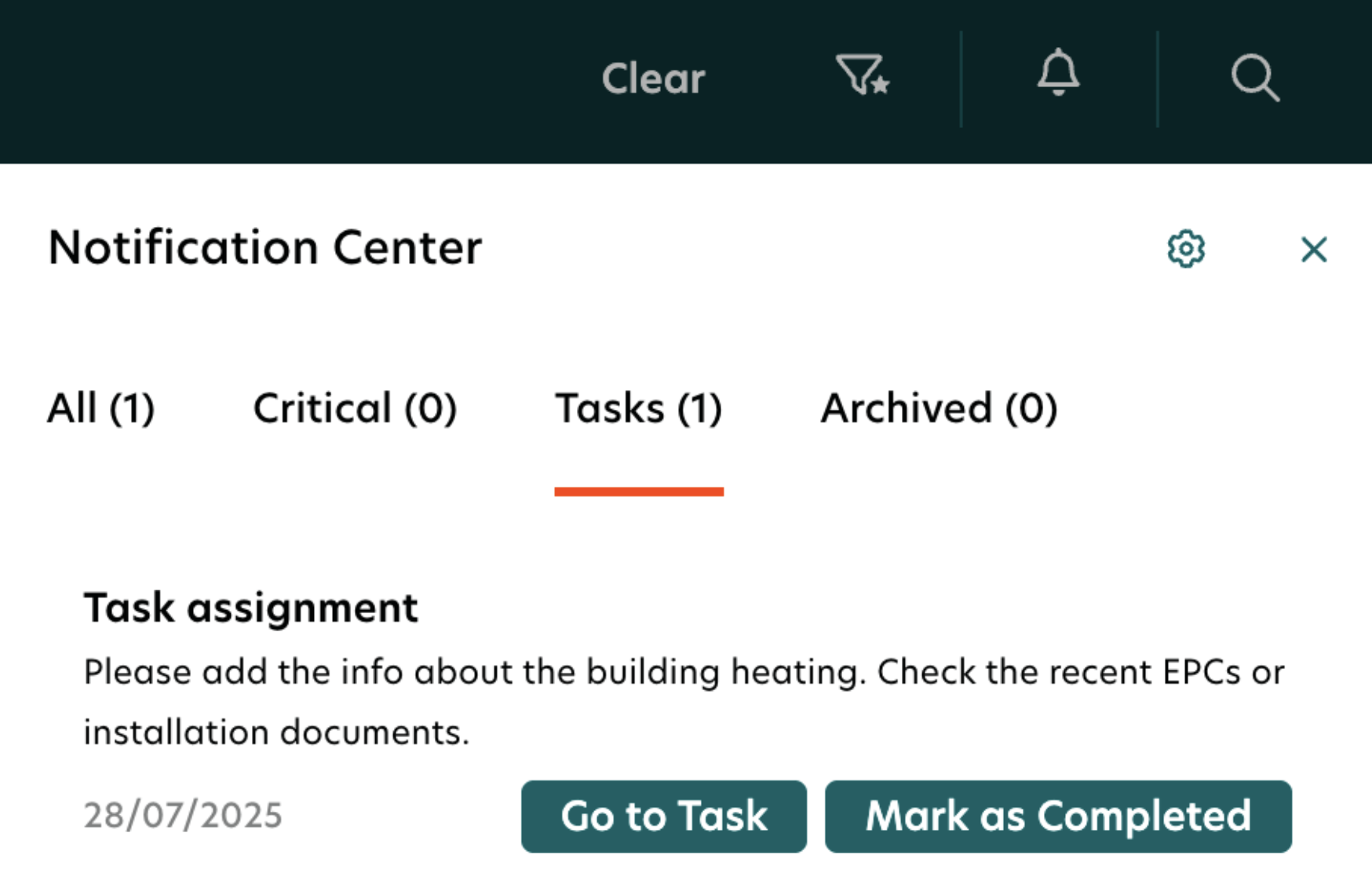
an in‑app notification in the Notification Center
an email notification
Task notifications have their own distinct type, making them easy to spot and filter.
Complete a Task
As the assignee, you can:
navigate to the originating page
mark the task as Completed
You can view all tasks assigned to you in the Notification Center.
Tasks follow a simple flow and can only move from Open to Complete.
Common Use Cases
Task Management is ideal for everyday requests, such as:
Missing entity: "This building isn’t in the system. Please add it."
Incomplete data: "This building is missing heating information. Please add the details."
Review requests: "I’ve uploaded this invoice. Please review and approve it."
What’s Not Included
Task Management is intentionally lightweight. The following are out of scope:
Tasks for external users
Advanced task features like deadlines, priorities, dashboards, or complex workflows
Integrations with external tools such as Slack or Jira