Dataset Downloader
The Dataset Downloader gives you a single place to access and download a wide range of data from across the platform, without having to jump between multiple dashboards. It also provides helpful business details about each dataset and its columns, making it easier for you to explore and understand your data.
Access Dataset Downloader
1. Click on Data insights.
2. Select Dataset Downloader under Data export.
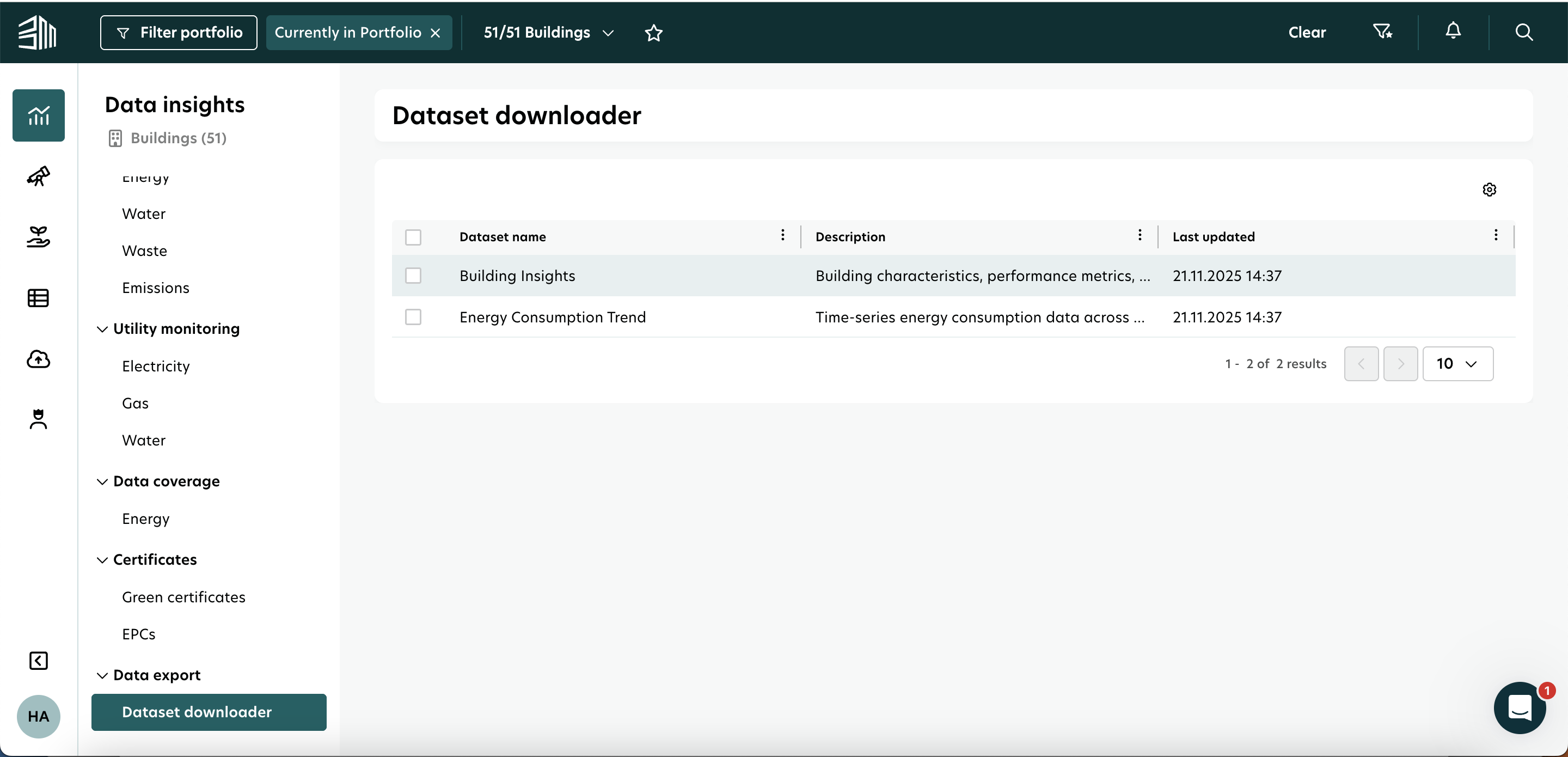
Here, you can see all available datasets in one place. Each dataset includes a short description and the date it was last updated.
Download dataset(s)
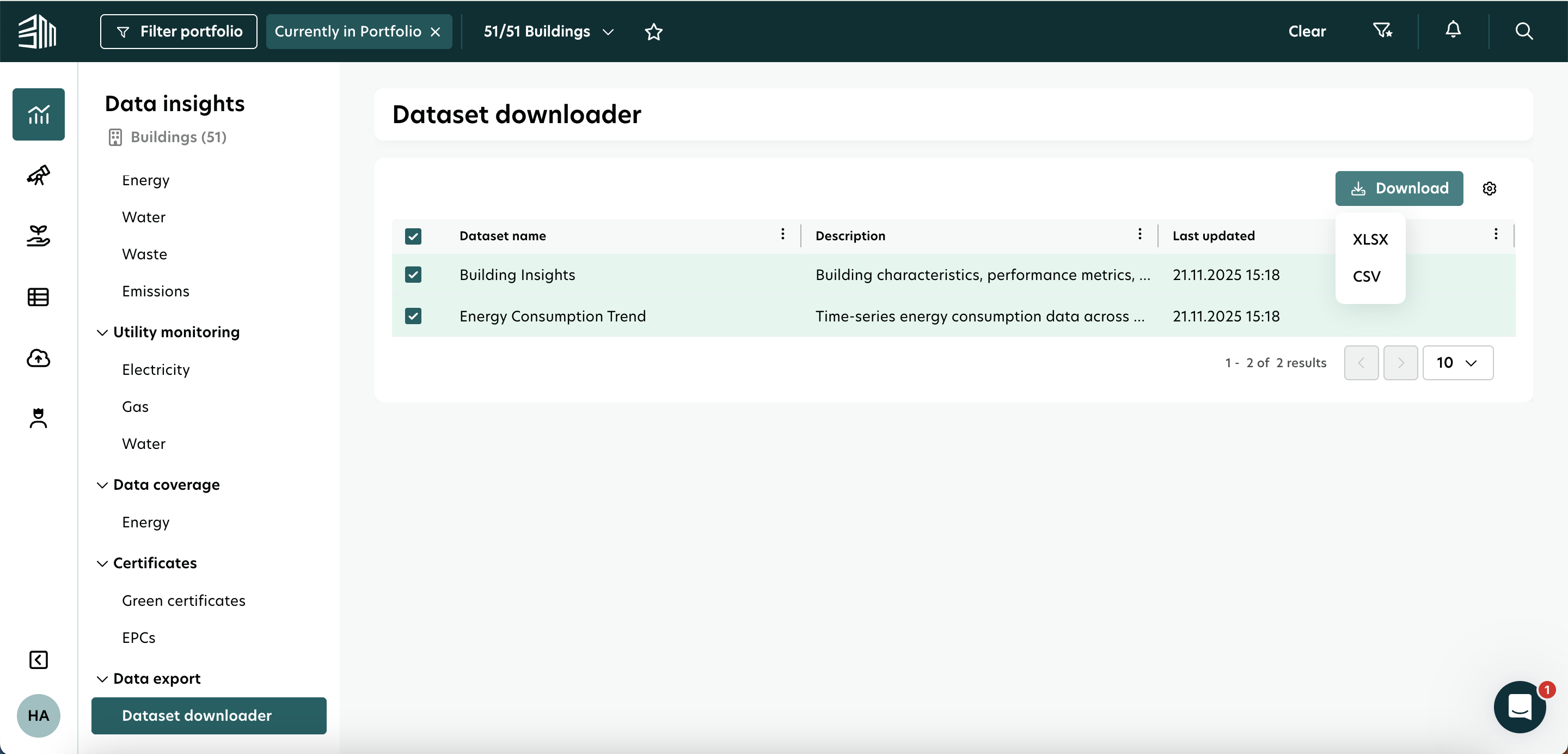
You can select one or multiple datasets at the same time. Once you’ve made your selection, a Download button will appear in the top-right corner. Click the button to choose your preferred file format - CSV or XLSX - and download your data instantly.
View dataset details
Click on any dataset row to open the Dataset Details page. Here, you can explore two key sections: Dataset Columns and Dataset Explanation.
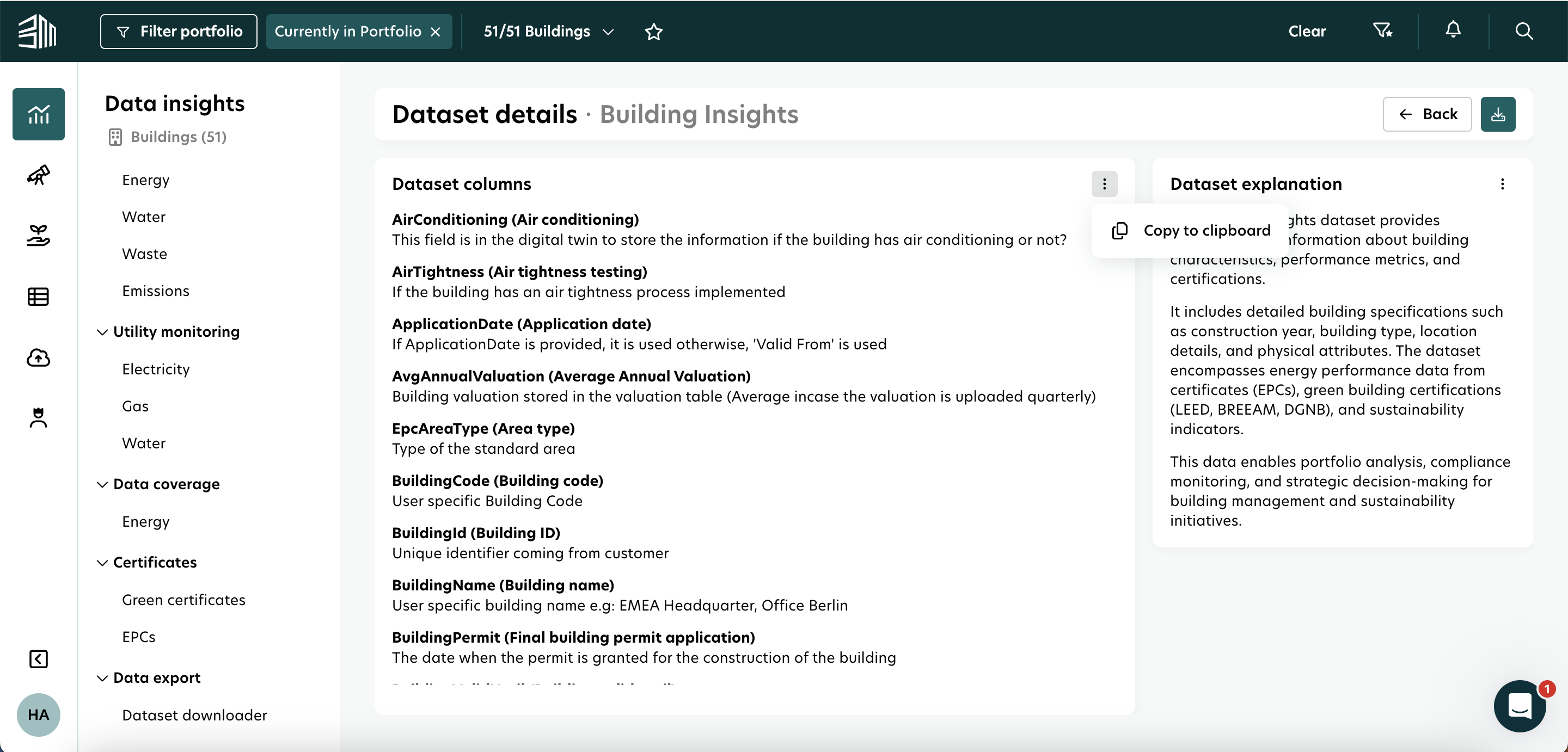
If needed, you can use the three-dot icon to copy either the explanation or the columns text to your clipboard.
Dataset Columns
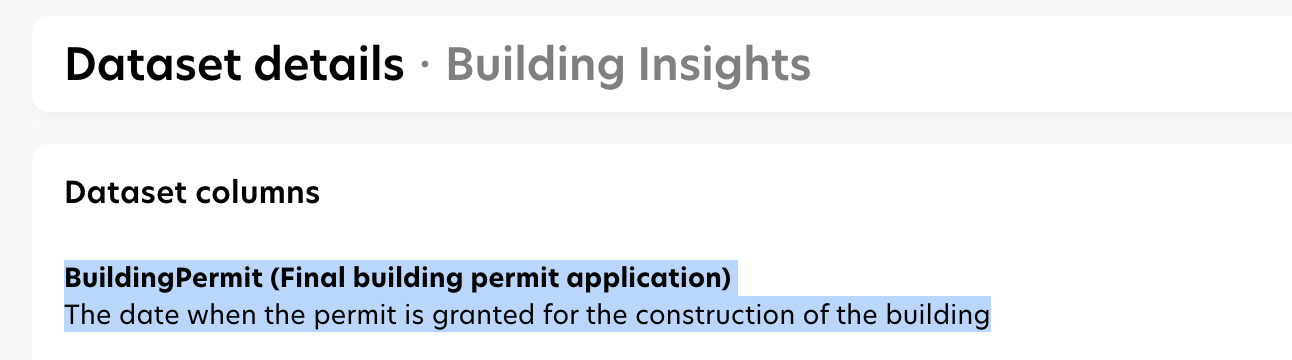
In the Dataset Columns widget, you can find explanations for what each column in a dataset represents. The naming convention follows this structure:
BuildingPermit: This is the column name shown in the downloaded file. It’s kept short and written in camel case without spaces, as recommended for data analysis purposes.
Final building permit application: This is the full, business-friendly name used within the BuildingMinds platform.
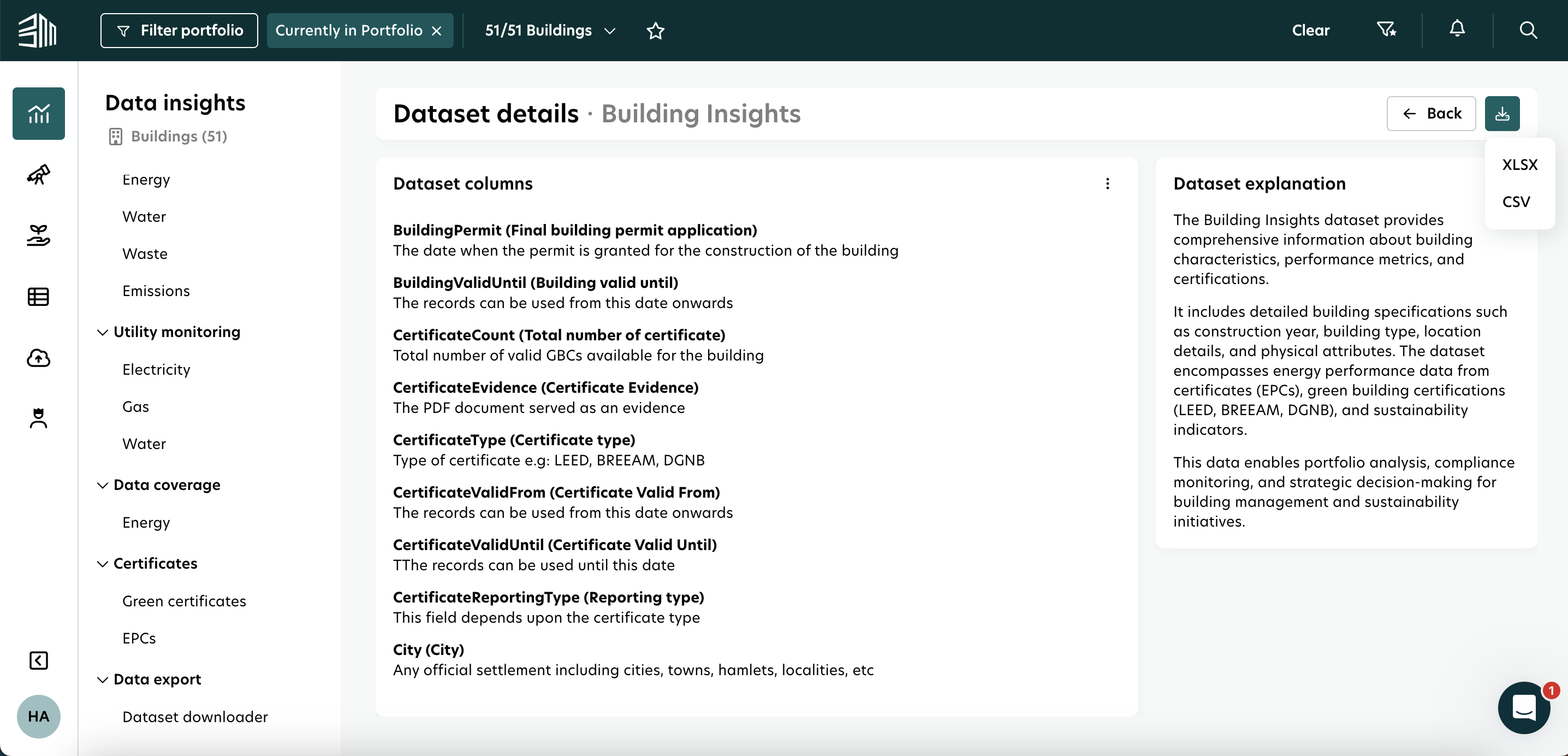
If you have the Dataset Details page open, you can download that dataset in CSV or XLSX format. Simply click the Download button in the top-right corner.