
ESG Benchmarks
The ESG Benchmarks feature helps you manage the energy performance benchmarks used for EU Taxonomy assessments. These benchmarks define the required levels of Primary Energy Demand (PED) and Final Energy Demand (FED), which are key indicators for evaluating whether a building aligns with climate change mitigation criteria. The benchmark values you set here are automatically connected to the Significant Contribution - Mitigation form, where they are referenced during the EU Taxonomy evaluation. This ensures that your assessments always use consistent and up‑to‑date data across the platform.
Access ESG Benchmarks
To open the ESG Benchmarks page:
Go to Data Management in the left-hand menu.
Select ESG Benchmarks under ESG.
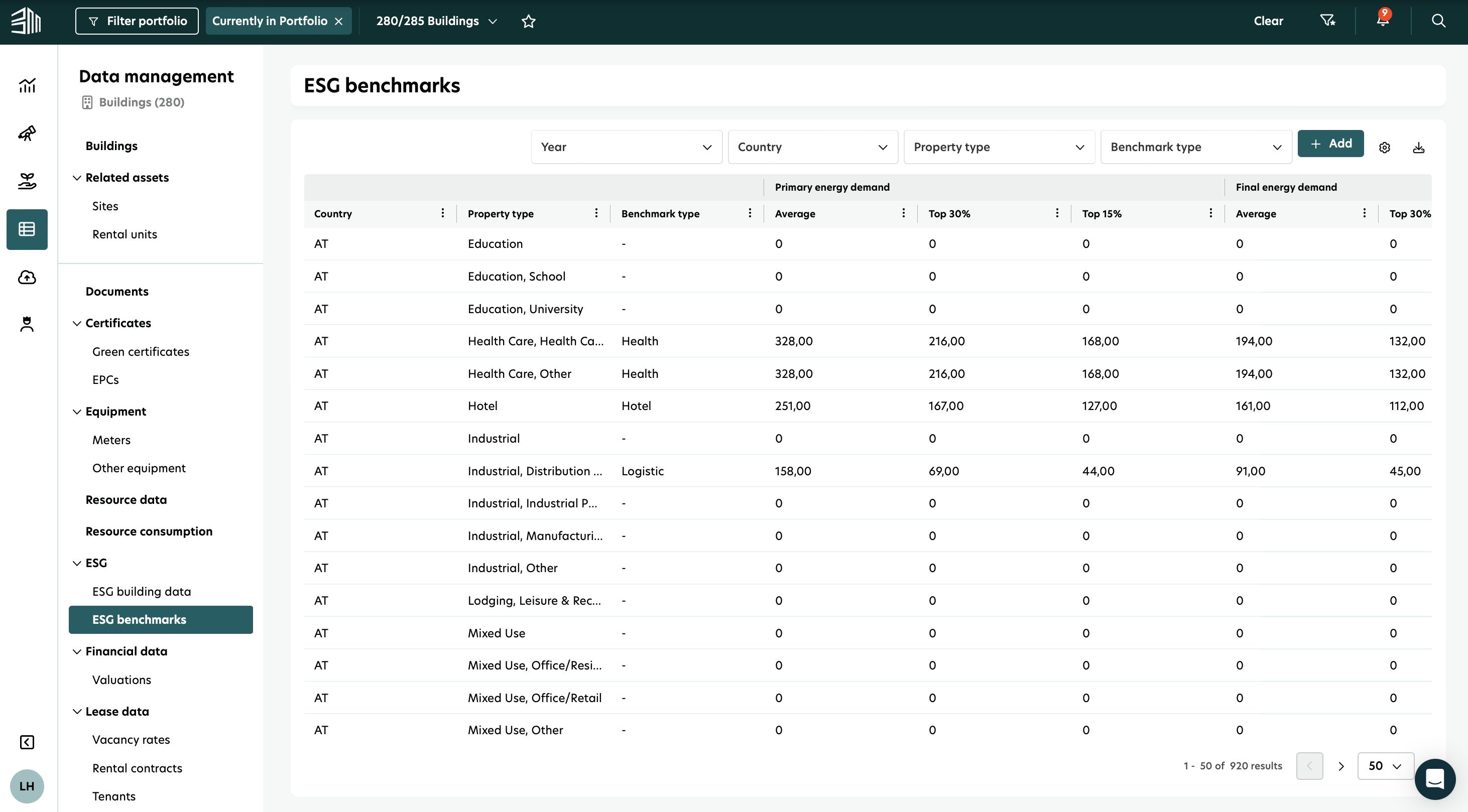
You’ll see a table showing all existing benchmarks for your portfolio, including details such as:
Country
Property type
Benchmark type
PED and FED values
This gives you a clear overview of all configured benchmarks in one place.
Filters
You can refine the list of ESG benchmarks using the filters located at the top of the page. These help you quickly narrow down the benchmarks you want to review or update.

Filter | Description |
|---|---|
Year | Shows only benchmarks that apply to the selected year. |
Country | Filters benchmarks by a specific country. |
Property Type | Filters by detailed property types (e.g., Office, Office high‑rise, Office low‑rise, Hotel, Health Care). |
Benchmark Type | Filters by broader benchmark categories, such as Office, Health, Hotel, or Logistic. |
Managing Benchmarks
1. Add a Benchmark
To create a new benchmark:
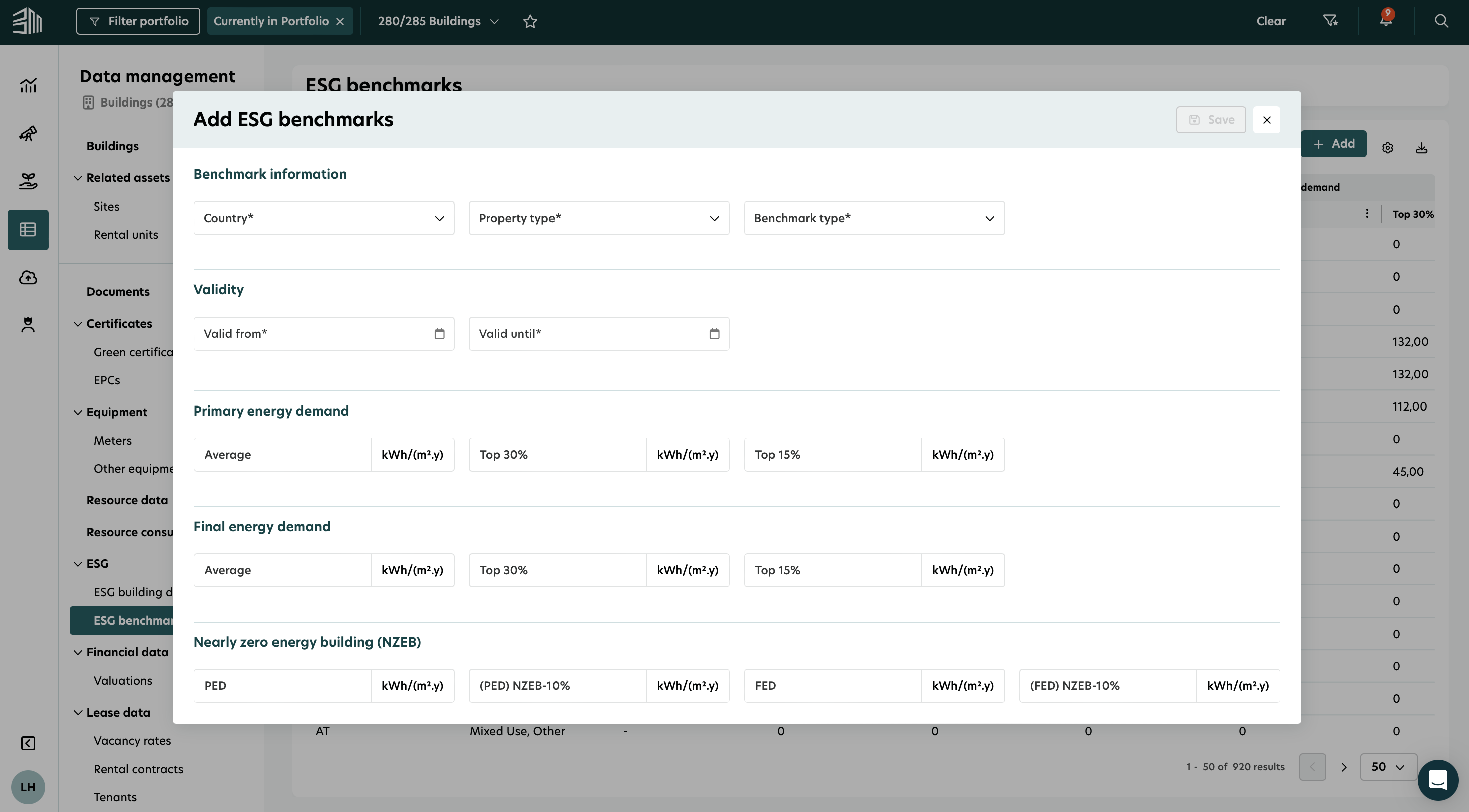
Click the + Add button in the top‑right corner of the ESG Benchmarks page.
An overlay will open with the Add ESG Benchmarks form.
Fill in the required information.
Click Save to create the benchmark.
Fields marked with an asterisk (*) are mandatory.
2. View Benchmarks
All benchmarks are listed in the ESG Benchmarks table.
If you’re working with a larger dataset, you can adjust the number of results shown per page (5, 10, 20, 50, or 100). To quickly find the benchmark you need, simply use the filters at the top of the page.
3. Edit Benchmarks
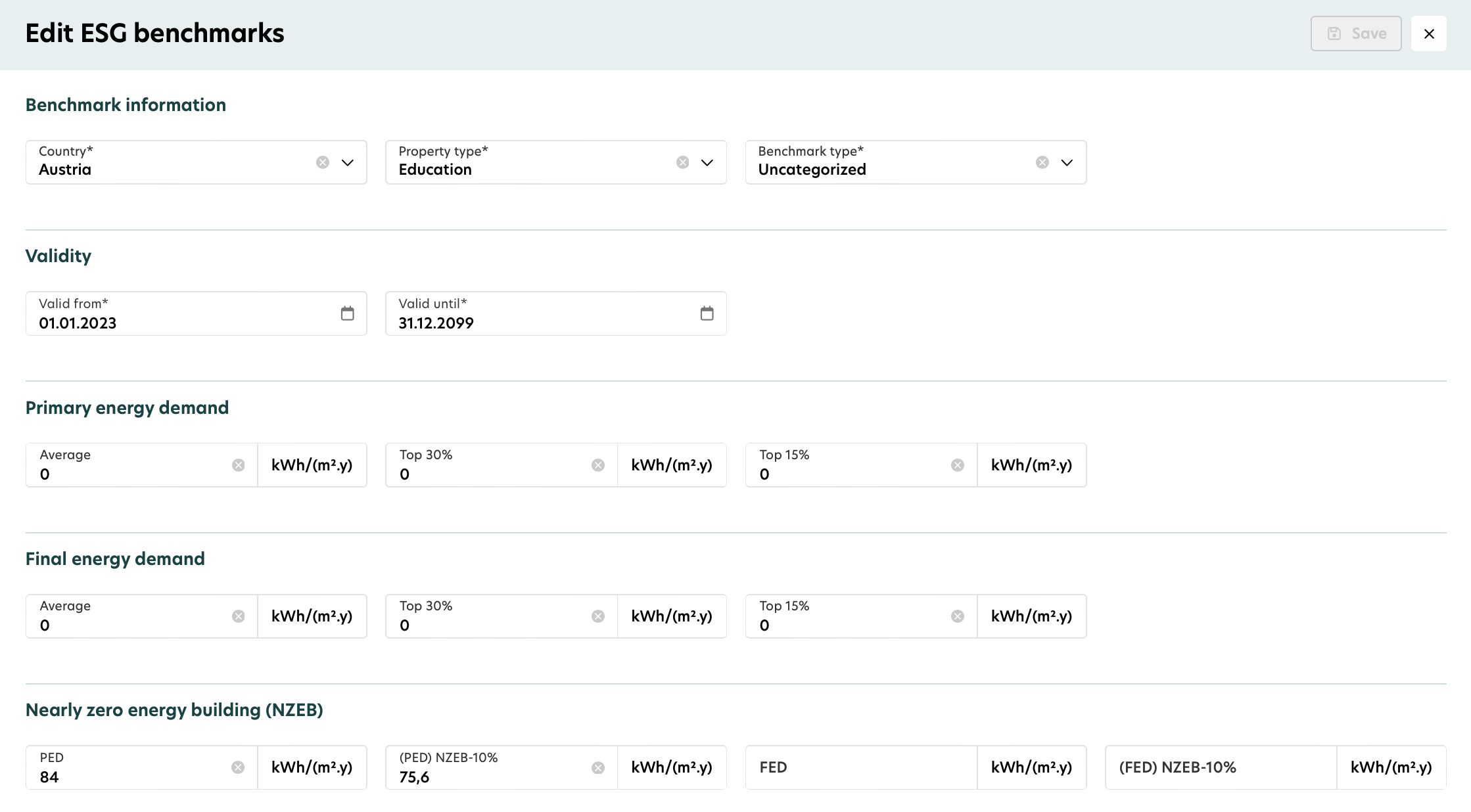
To update an existing benchmark, you can edit it directly from the table.
Hover over the row you want to update.
A pencil icon will appear on the right side.
Click the pencil icon to open the overlay form with all fields pre‑filled.
Make your changes.
Click Save to update the benchmark.
4. Delete Benchmarks
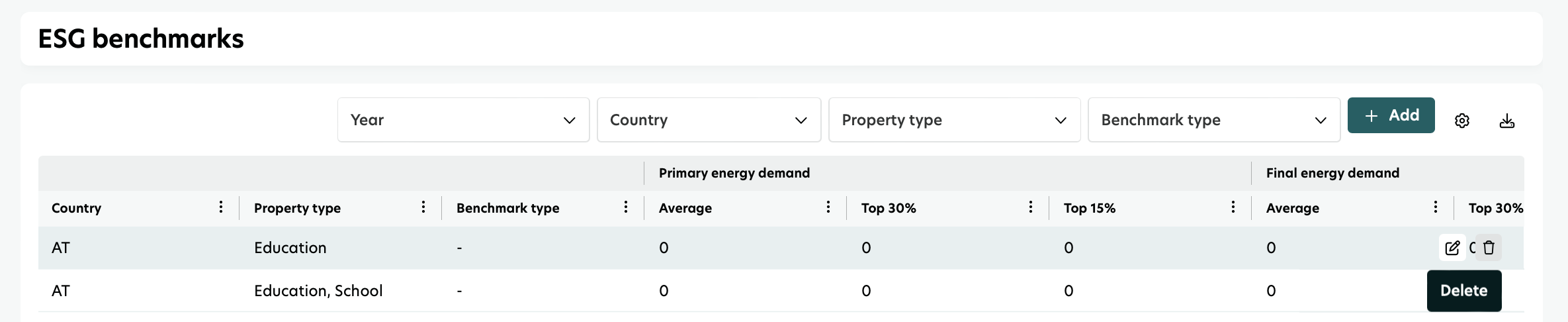
If a benchmark is no longer needed, you can delete it directly from the table.
To remove an entry:
Hover over the row you want to delete.
A small white box with a delete icon will appear on the right side.
Click the delete icon and confirm the action to remove the benchmark from the list.
Connection to EU Taxonomy
The ESG Benchmarks you define here are directly connected to the Significant Contribution - Mitigation form, which is used during the EU Taxonomy assessment process. During the evaluation, the benchmark thresholds - Average, Top 30%, Top 15%, and NZEB - are used to determine whether a building meets the required energy performance criteria for climate change mitigation alignment. This ensures that your EU Taxonomy assessments always rely on accurate, consistent, and centrally maintained benchmark values.

Download data: You can export the ESG Benchmarks table to a CSV or Excel file by clicking the download icon located above the table and selecting your preferred format.