
Data collection requests
Data collection requests allow users to gather important building-related data from external stakeholders who do not have direct access to the BuildingMinds platform. This feature streamlines the process of requesting and collecting data, ensuring compliance, efficiency, and completeness.
The Data collection requests tool simplifies the process of gathering essential building data from external stakeholders while ensuring security, compliance, and efficiency. By using a link-based submission system, organizations can streamline their data collection workflows without compromising platform security.
Why use Data collection requests?
Building managers and portfolio managers often need to collect consumption data, invoices, metering point consents, or ESG-related information. However, much of this data is held by external parties such as tenants, facility managers, and property managers who do not have platform access. The Data collection tool provides a seamless, shareable link-based system to enable data collection without requiring external users to log in.
Key features
1. Role-based data access
Data requesters (internal users) can create and manage data collection requests.
Data providers (external users) receive a shareable link to upload the requested data.
No direct access to the BuildingMinds platform is required for data providers.
2. Different types of data collection requests
Metering point consent collection: Portfolio managers request consent for metering points before tenants upload invoices.
Invoice data collection: External stakeholders provide utility invoices for different resources (electricity, water, gas, etc.).
GRESB data collection: Data collection for ESG reporting, including efficiency measures and other sustainability-related data.
3. Secure and efficient data submission
Shareable links allow external users to submit data via a simple upload form.
External users can only see the list of open requests but cannot access other platform data.
Uploaded documents are stored securely and linked to the correct building or metering point.
Multi-language support for external uploads (Danish, Czech, Polish).
Access Requests
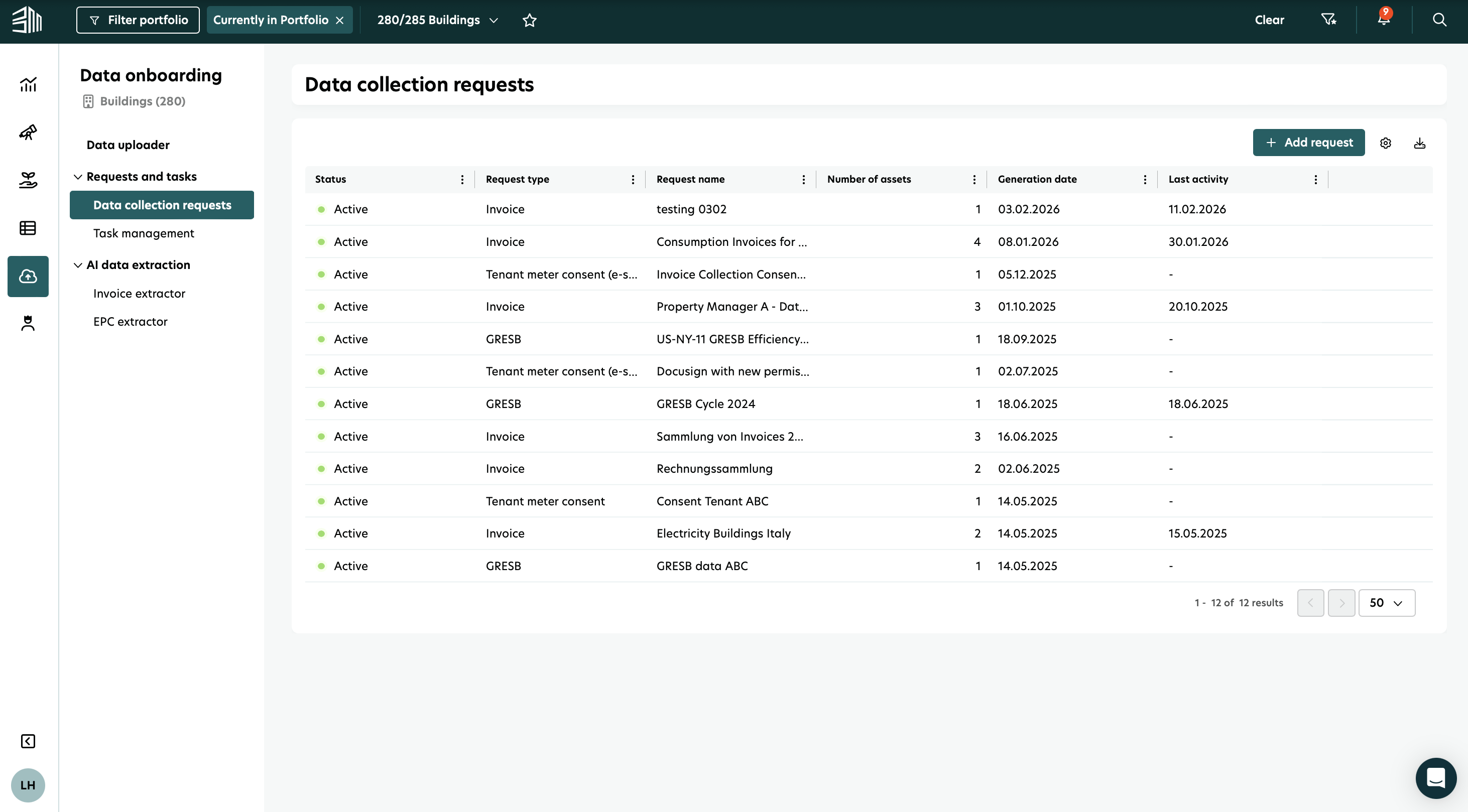
Select the Data onboarding icon from the left menu.
Select Data collection requests under Requests and tasks.
Create a data collection request
Select the Data onboarding icon from the left menu.
Navigate to Requests and tasks > Data collection requests in the left menu.
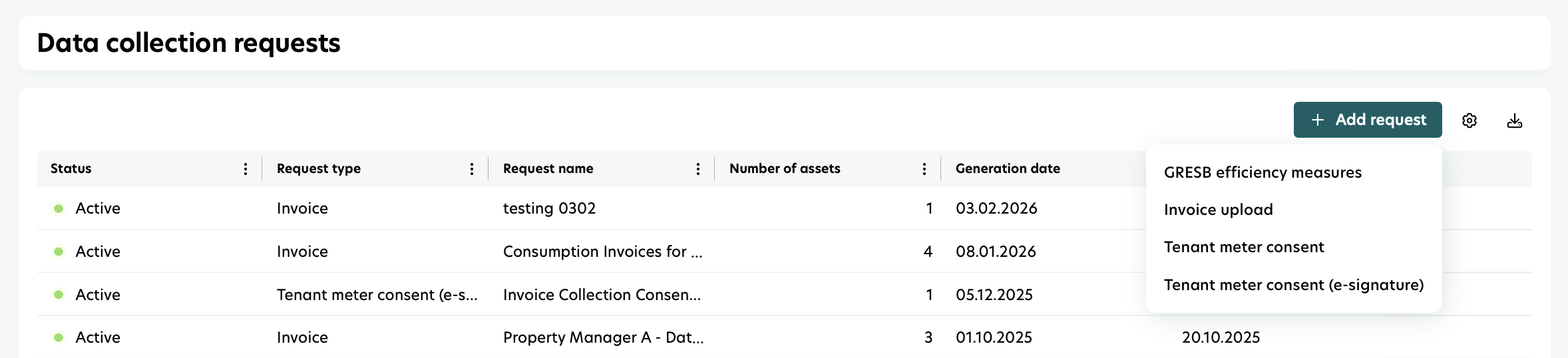
Click on Add request.
Select the type of request (e.g. GRESB efficiency measures, Invoice upload).
Set the Request type (e.g. building).
Enter a Request name.
Select one or more buildings/assets to include in the request.
Click on Create request.
Share the request link
Once created, the new request appears in the Data collection requests list. You can copy its shareable link by hovering over the row and clicking the copy icon, or using the Copy to clipboard tooltip.
The link remains valid for 90 days from creation.

Uploading an invoice via the shared link
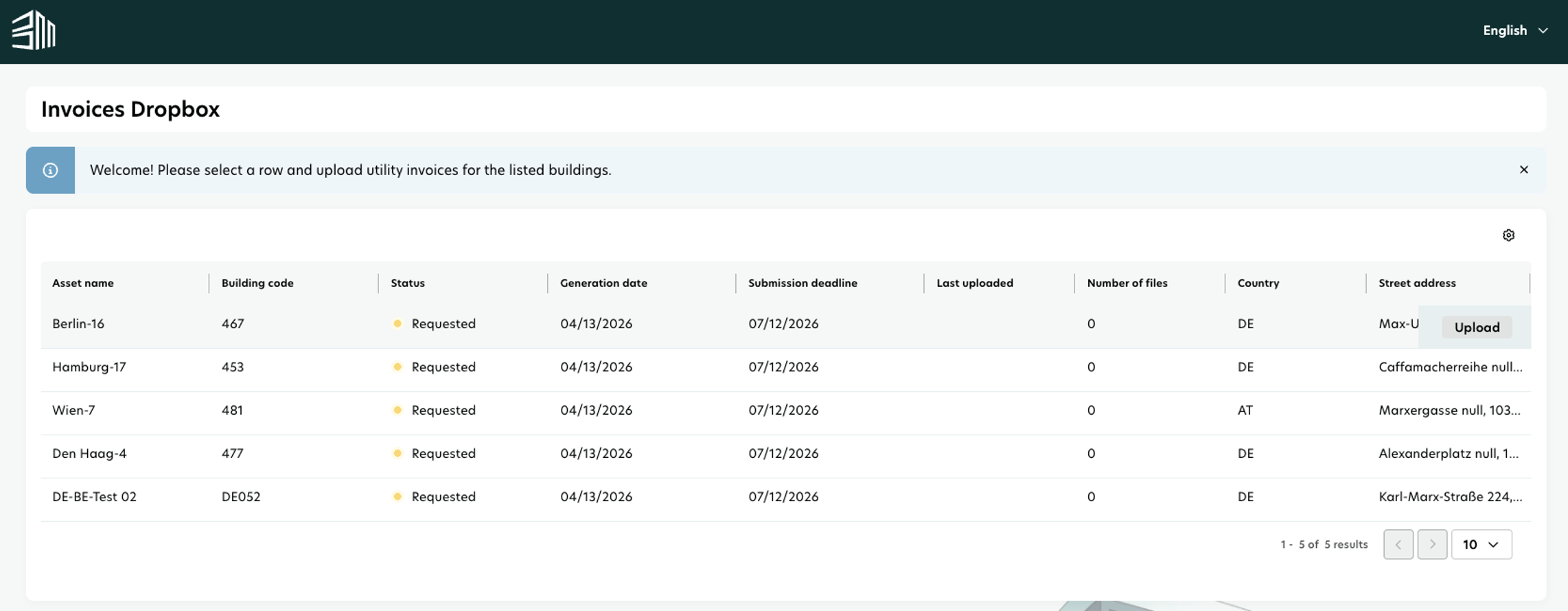
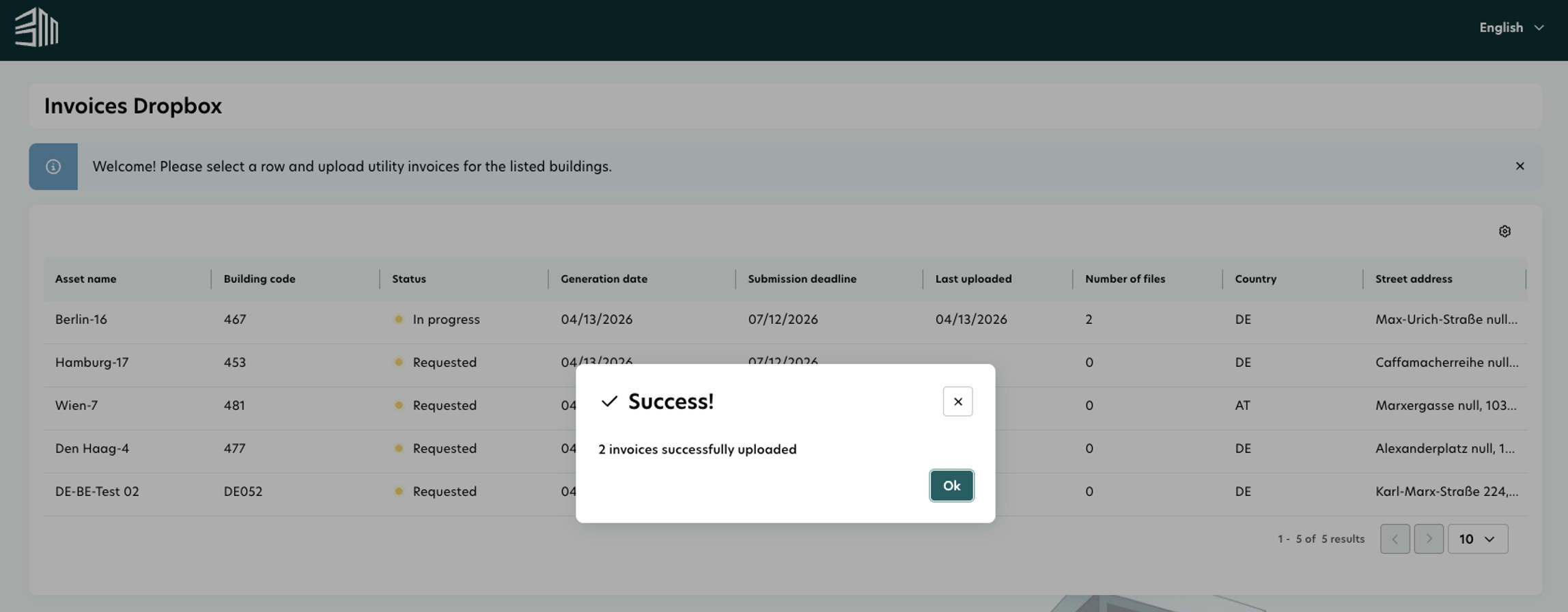
When a contributor receives the shared link, they land on the Invoices Dropbox page, which lists all buildings included in the request along with their status, submission deadline, and number of files uploaded.
To upload an invoice:
Click on a building row — an Upload button appears.
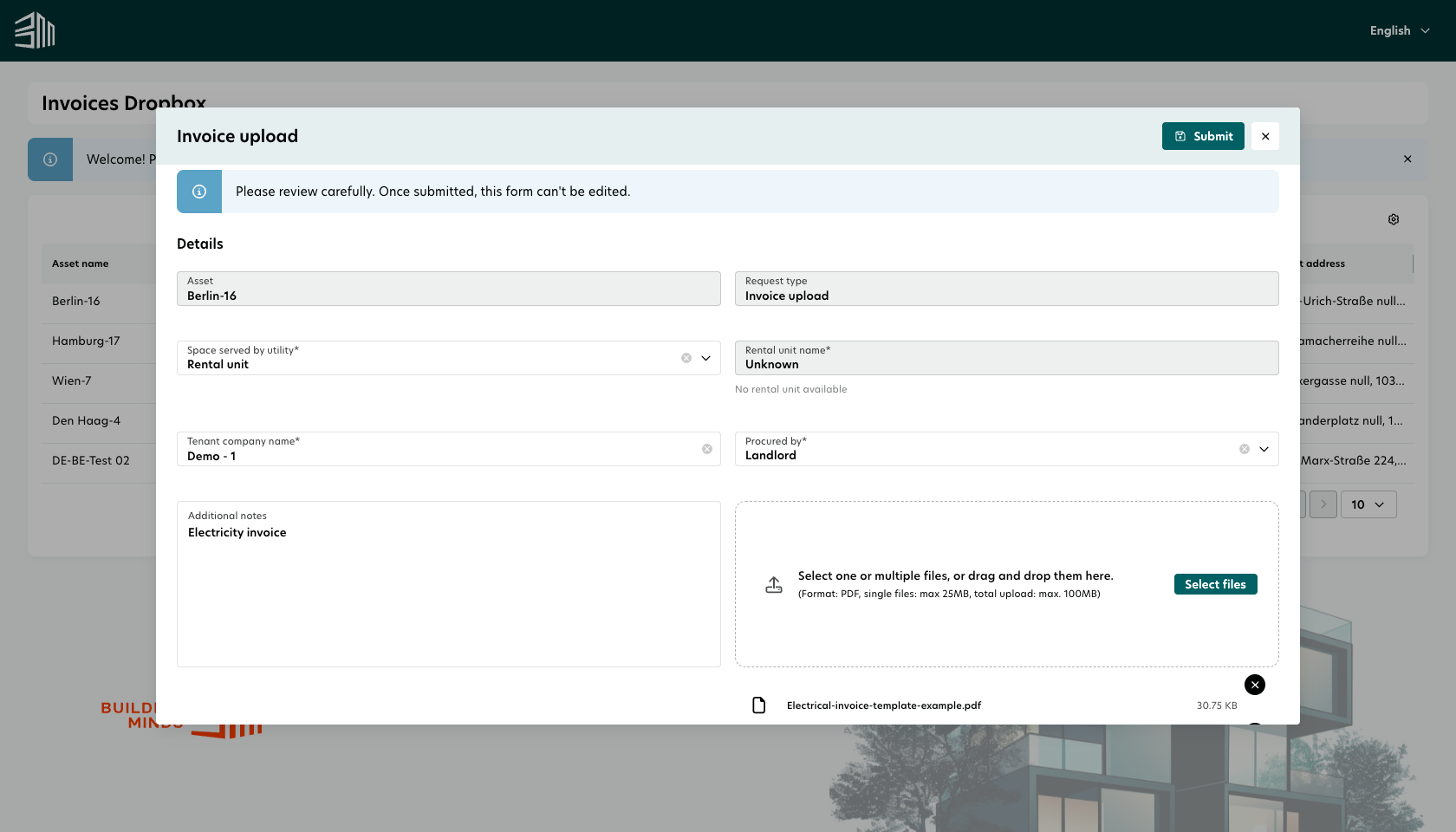
Click Upload to open the invoice upload form.
Fill in the required fields:
Space served by utility — select whether the invoice applies to a rental unit, common spaces, or the whole building.
Rental unit name — if Rental unit is selected, choose the unit from the dropdown, or select Unknown if the unit is not yet known.
Tenant company name — enter the name of the tenant company.
Procured by — select who procured the utility (e.g. Landlord).
Additional notes (optional) — add any context or explanation for the invoice.
Upload one or more PDF files (max 25 MB per file, 100 MB total).
Review all fields carefully and click Submit. Once submitted, the form cannot be edited.
Contributors can submit multiple uploads for the same building by repeating the process for each invoice or batch.
Managing uploaded data
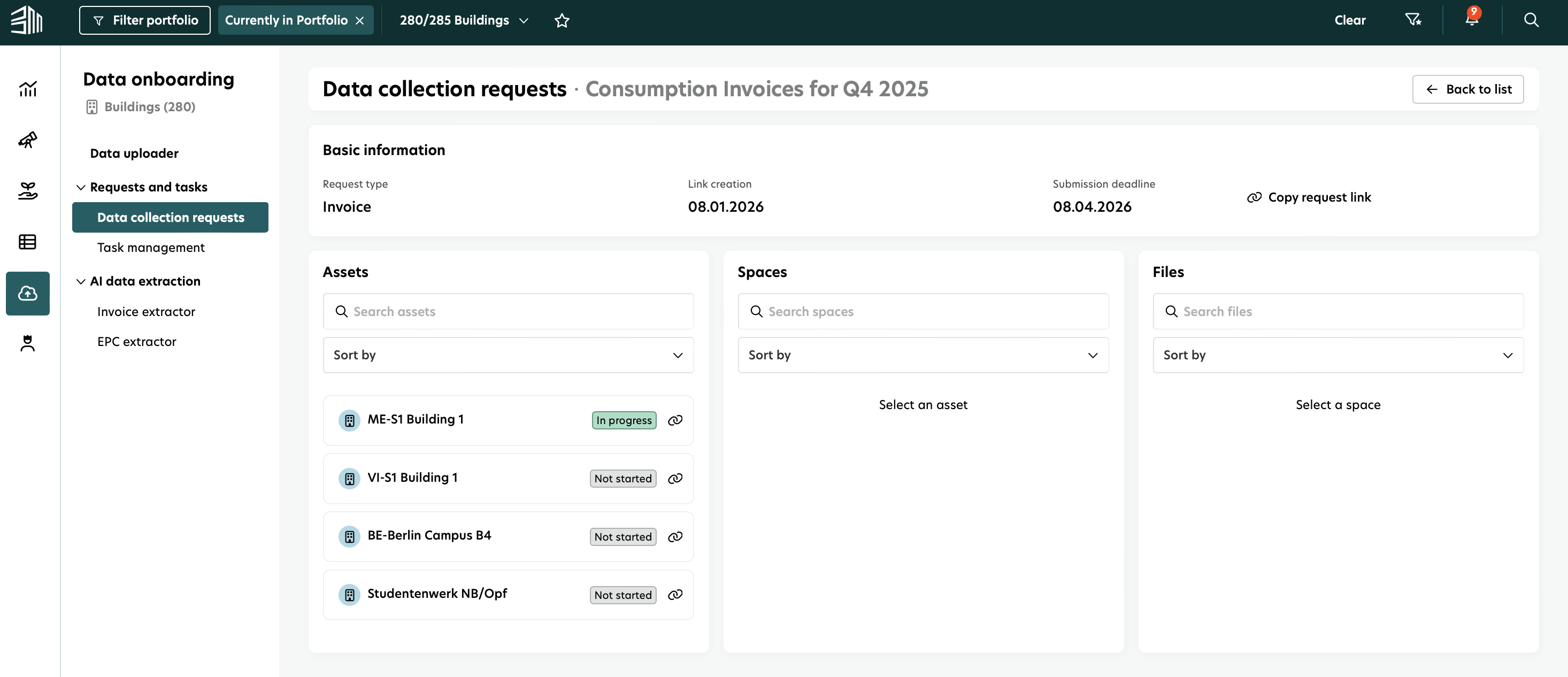
Requesters can view submission details by clicking on a request name to open the detail page. The page is split into three columns:
Assets (all buildings and their submission status)
Spaces (spaces for which invoices were submitted, grouped by space type and upload date)
Files (uploaded invoice files for the selected space)
Click the Info icon next to a file to see an Info panel, including the tenant company name and any notes added by the contributor.
To open an invoice directly in the Invoice Extractor for review and approval, click the arrow icon next to the file name.
If erroneous files are uploaded, data requesters can delete and request a re-upload.
For invoices, uploaded files are automatically forwarded to the Invoice Extractor.
GRESB data submissions require approval before they are finalized.
Security and risk mitigation
Time-limited shareable links: Prevent unauthorized uploads.
Microsoft Web Application Firewall (WAF): Protects against malicious activities.
Max file upload limits: Ensure efficient processing.
Monitoring and outlier analysis: Detects anomalies and prevents data overload.